





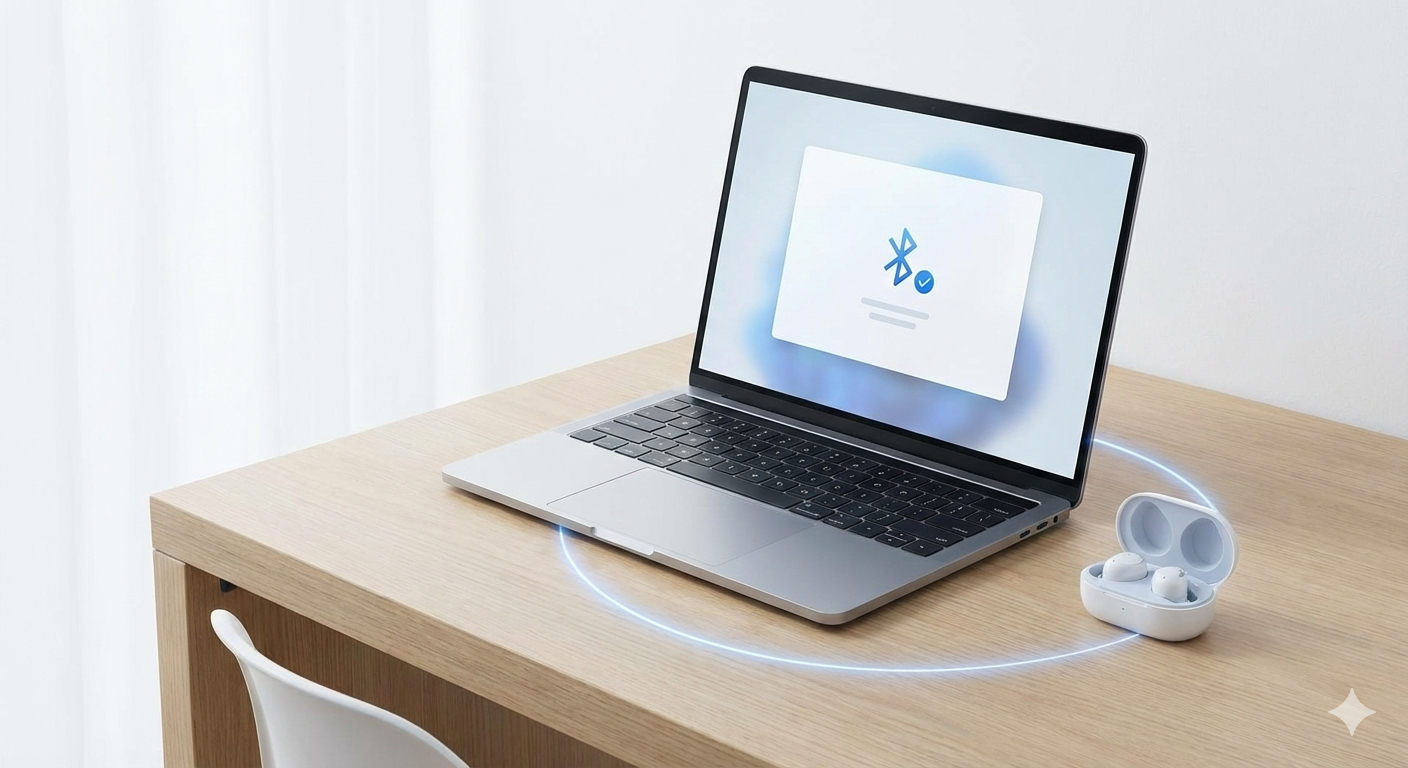
Bluetooth technology is supposed to make life easier by eliminating wires. But when the Bluetooth toggle disappears or your headphones refuse to connect, it becomes a major headache. In 95% of cases, the culprit is the Bluetooth driver.
This guide will walk you through everything from manual troubleshooting to full automation to get your wireless devices back in sync.
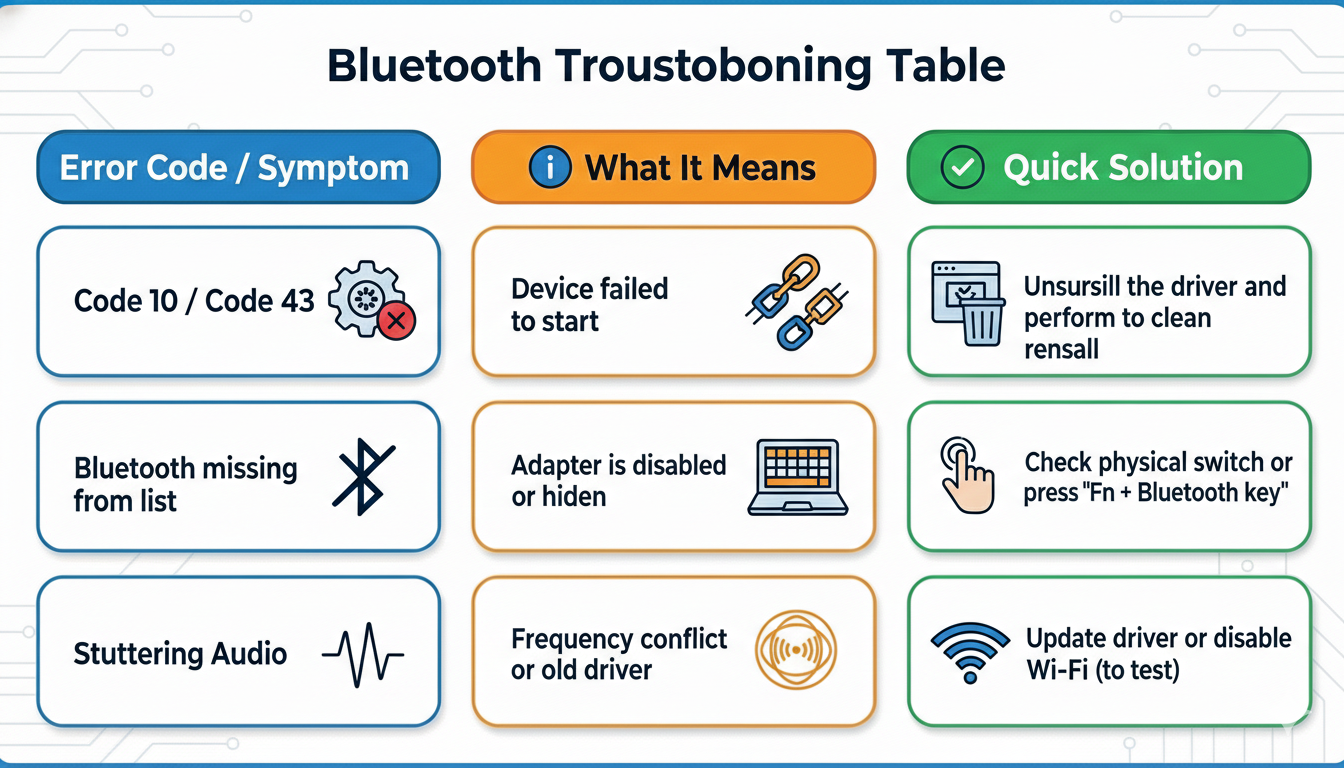
Common Symptoms of Bluetooth Driver Issues
- The Bluetooth icon is missing from the system tray (near the clock).
- No "On/Off" switch appears in Windows Settings.
- Device Manager Error: A yellow exclamation mark next to the Bluetooth adapter.
- Devices are paired but won't connect.
Method 1: Manual Troubleshooting (DIY Fixes)
Before downloading any files, try these proven steps to see if the issue is just a configuration error.
Step 1: Check the Bluetooth Support Service
- Sometimes the driver is fine, but the system service that runs it has stopped.
- Press Win + R, type services.msc, and hit Enter.
- Locate Bluetooth Support Service in the list.
- Right-click it and select Restart.
- Double-click it and ensure the "Startup type" is set to Automatic.
Step 2: Use Device Manager
- Right-click the Start button and select Device Manager.
- Expand the Bluetooth section.
- Right-click your adapter (e.g., Intel Wireless Bluetooth or Generic Bluetooth Radio).
- Try these actions in order:
- Update driver (select "Search automatically").
- Roll back driver (if the problem started after a recent update).
- Uninstall device and restart your PC (Windows will attempt to reinstall the driver upon reboot).
Step 3: Power Management Settings (Crucial for Laptops)
- Windows often turns off Bluetooth to save battery, but sometimes the driver fails to "wake up."
- In Device Manager, right-click your Bluetooth adapter and select Properties.
- Go to the Power Management tab.
- Uncheck "Allow the computer to turn off this device to save power."
Method 2: Automatic Fix with Outbyte Driver Updater
Manually finding the right Bluetooth driver can be a "star-level" difficulty task. You need to know not just your laptop model, but the specific manufacturer of the chip (Intel, Realtek, Qualcomm, or Broadcom). Installing the wrong version can lead to the dreaded Blue Screen of Death (BSOD).
Outbyte Driver Updater takes all that risk off your shoulders.
Why Use Outbyte for Bluetooth Issues?
- Instant Diagnosis: The software scans your system to find the exact hardware ID of your Bluetooth module.
- Access to Rare Drivers: Outbyte’s database contains official drivers that are often difficult to find on manufacturer websites, especially for older hardware.
- Unified Updates: Bluetooth often shares a chip with Wi-Fi. Outbyte updates both drivers simultaneously to ensure they work in harmony.
- Safety & Backups: If you don't like the new driver, you can revert to the previous version in one click using the built-in backup feature.
How to do it?
Simply run a scan, select "Bluetooth" from the list of found updates, and click "Update." You won't need to hunt for INF files or restart your computer a dozen times.