






How it works*
Keeping your drivers up to date is essential for a stable and fast computer. Outdated drivers can cause system crashes, audio glitches, or slow internet speeds. Outbyte Driver Updater is a streamlined tool that automates the tedious process of finding and installing the correct software for your hardware.
Follow this step-by-step guide to get your system running at its best.
Step 1: Download and Installation
Getting started is quick and easy:
- Download: Click the Download button.
- Locate the File: Look at the top-right of your browser’s download bar.
- Launch: Click on the outbyte-driver-updater file to start the installer.
- Confirm: Click 'Yes' on the Windows system dialog window to authorize the installation.
Step 2: Automatic System Scan
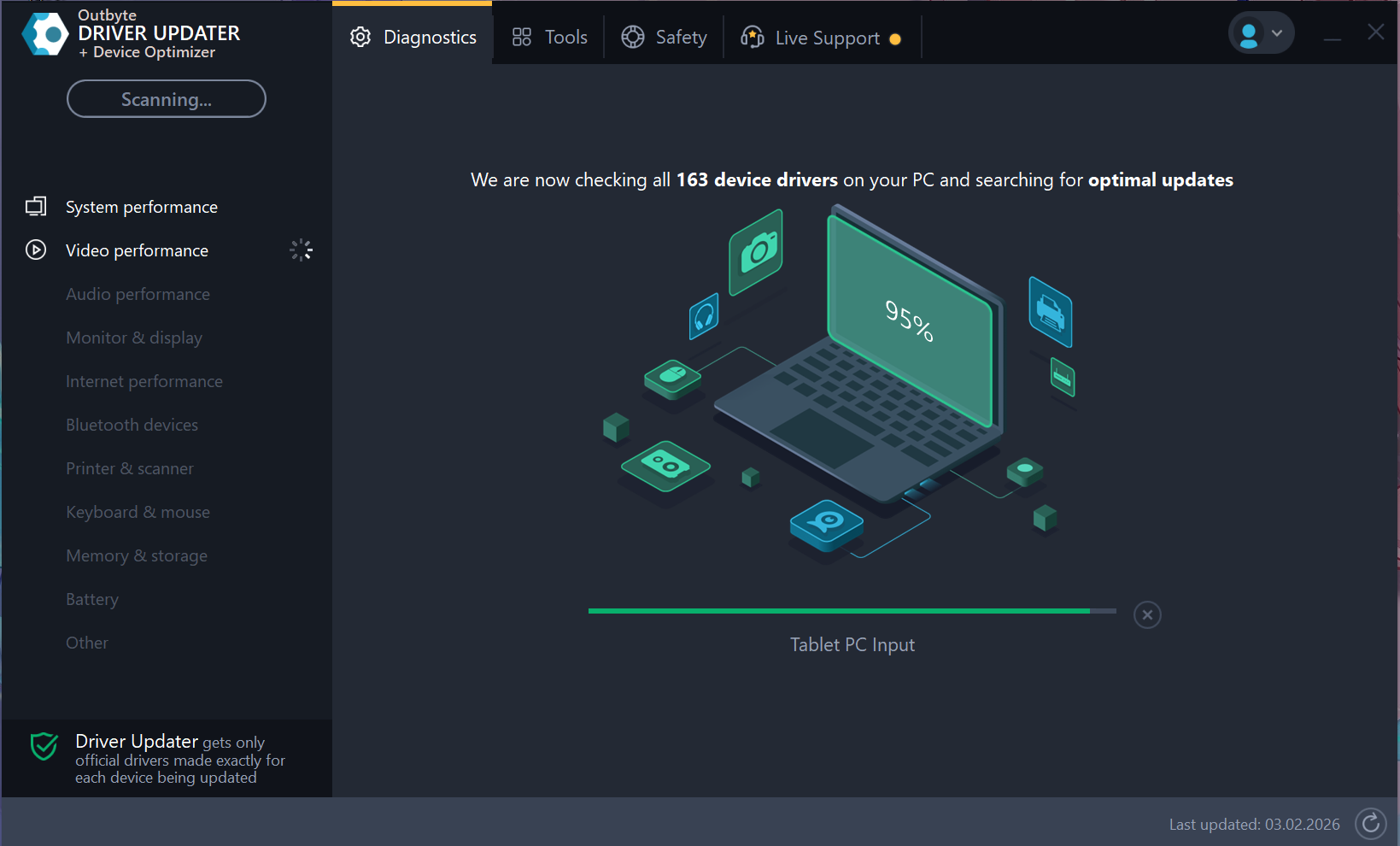
Once launched, the program immediately gets to work.
- The software will start a comprehensive automatic scan of your hardware.
- As seen in the diagnostics window, it checks over 160+ device drivers (including video, audio, and internet components) to find the most optimal updates for your specific PC build.
Step 3: Review the Results
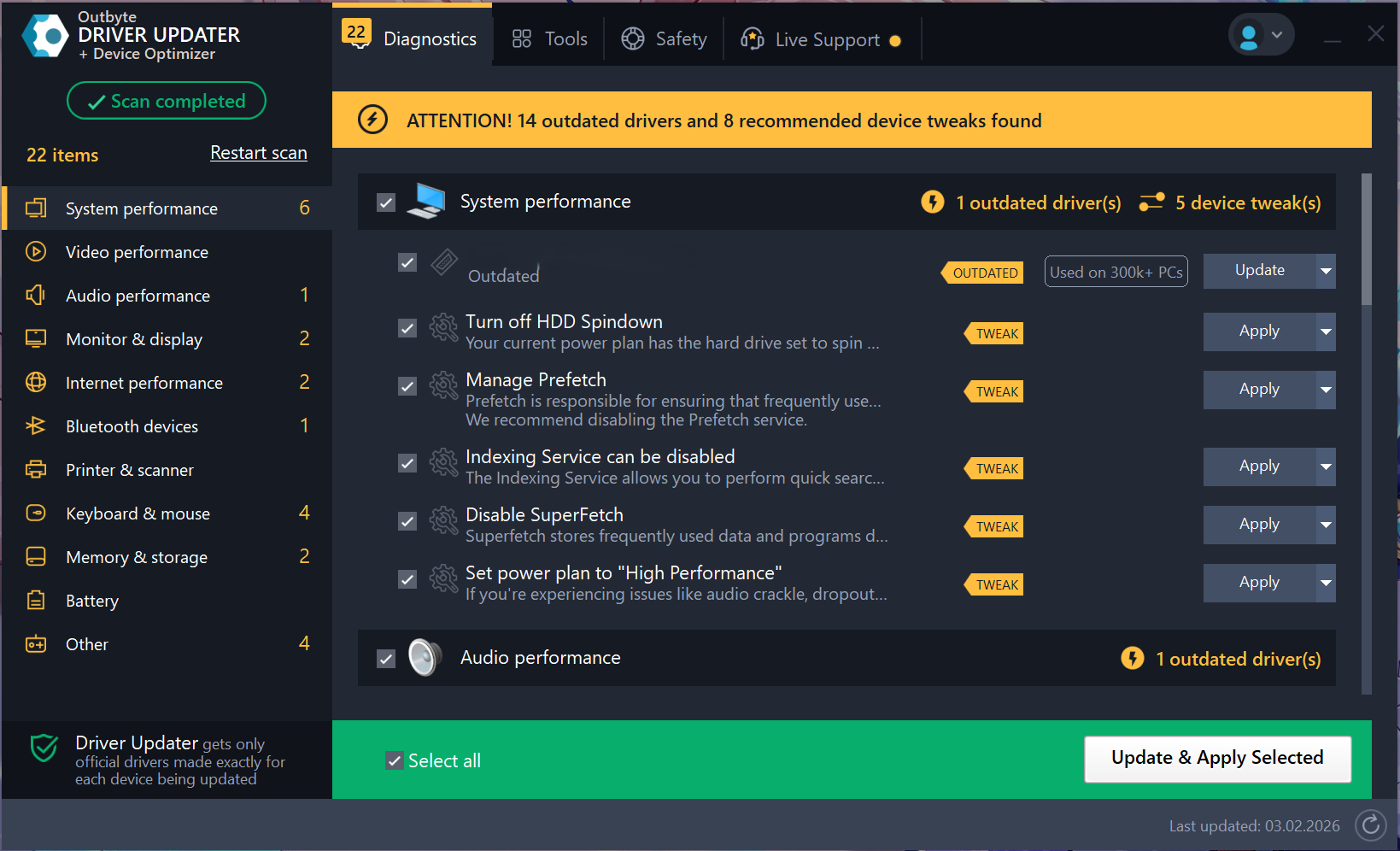
After the scan is finished, Outbyte provides a detailed report of your PC's health:
- It identifies all missing or outdated drivers.
- It also points out "Device Tweaks" specific system settings that can be adjusted to improve performance.
- You can see exactly how outdated a driver is (e.g., "Outdated by 5 years") to help you prioritize.
Step 4: Select and Update
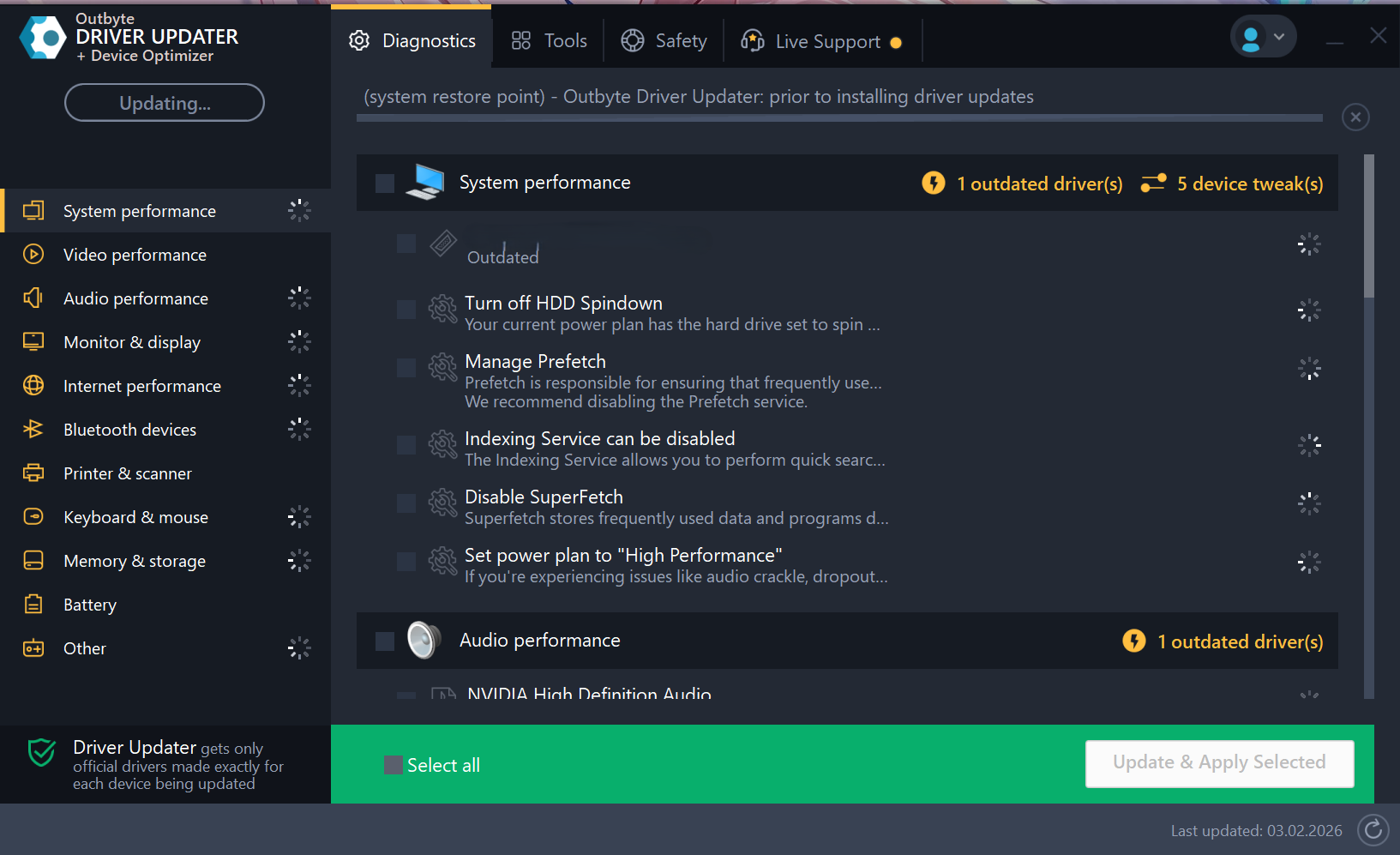
You have full control over what gets installed:
- Update Everything: To save time, ensure "Select all" is checked at the bottom.
- Manual Selection: If you only want to update specific items, check the boxes next to the individual drivers (like "Audio performance" or "Keyboard & mouse").
- Click the green Update & Apply Selected button to proceed.
Step 5: Confirm the Repair
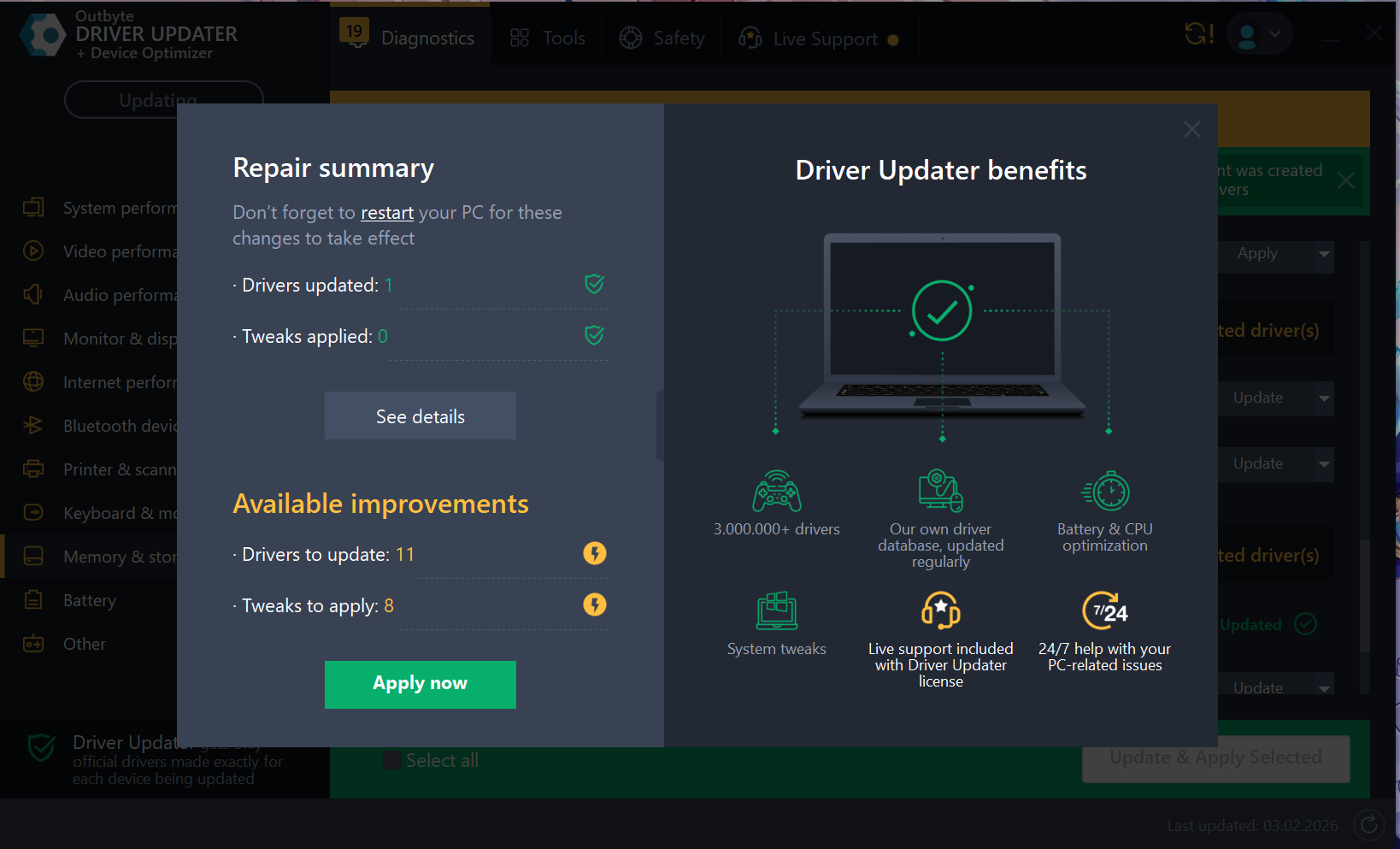
A "Repair summary" window will appear, showing you exactly what is about to happen:
- It lists the number of drivers to be updated and tweaks to be applied.
- Click the Apply now button to start the process.
Step 6: Installation and Completion
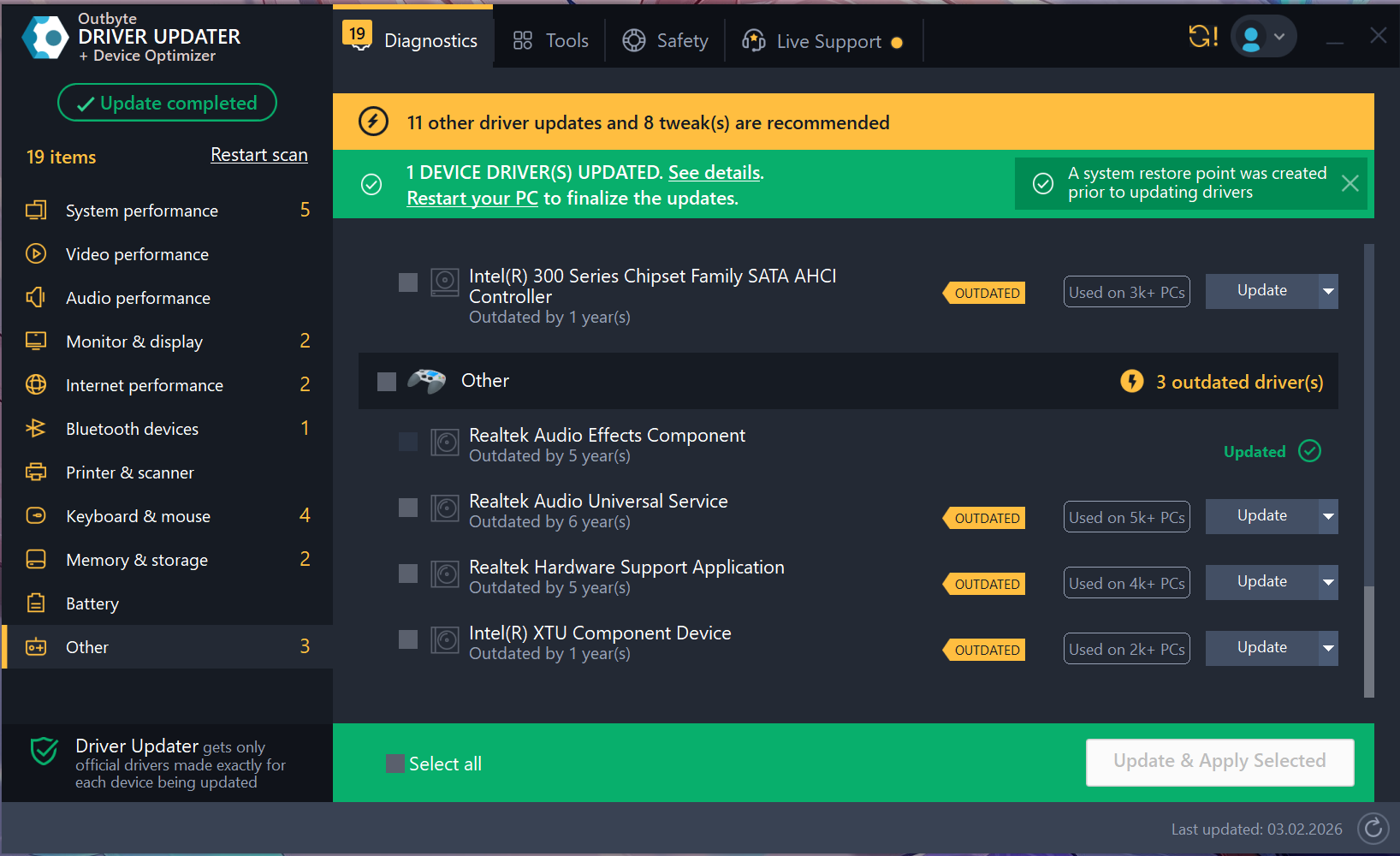
The program will now begin downloading and installing the official drivers.
- Safety First: The software automatically creates a System Restore Point before making changes, so you can always revert back if needed.
- Wait for Finish: The process may take a few minutes. Once done, the sidebar will show "Update completed."
- Restart: It is highly recommended to restart your PC after the updates are finished to ensure all changes take effect properly.
Conclusion: Why Use Outbyte Driver Updater?
Maintaining a PC doesn't have to be complicated. With Outbyte Driver Updater, you don't need any specialized technical knowledge. The process is fully automated, ensuring you get the official drivers made specifically for your hardware.
Beyond just drivers, Outbyte includes numerous Features & Benefits designed to optimize your PC’s speed and battery life. By using this tool, you ensure your computer stays clean, fast, and fully optimized for your daily tasks.
*Note: This manual is for the full version of the software. With the free version, you can perform a complete scan and identify all outdated drivers, but the automatic "Update & Apply" features require a license.
