






If you’ve encountered a situation where Canon IJ Scan Utility throws an error, won’t open, or gets stuck on the "Scanner is warming up" message, you are not alone. These issues are common, but they can be incredibly frustrating when you need to digitize documents quickly. In 90% of cases, the problem lies in the software, network settings, or outdated drivers.
This guide provides a comprehensive breakdown of how to fix these errors - ranging from manual troubleshooting to a fast, automated solution using Outbyte Driver Updater.
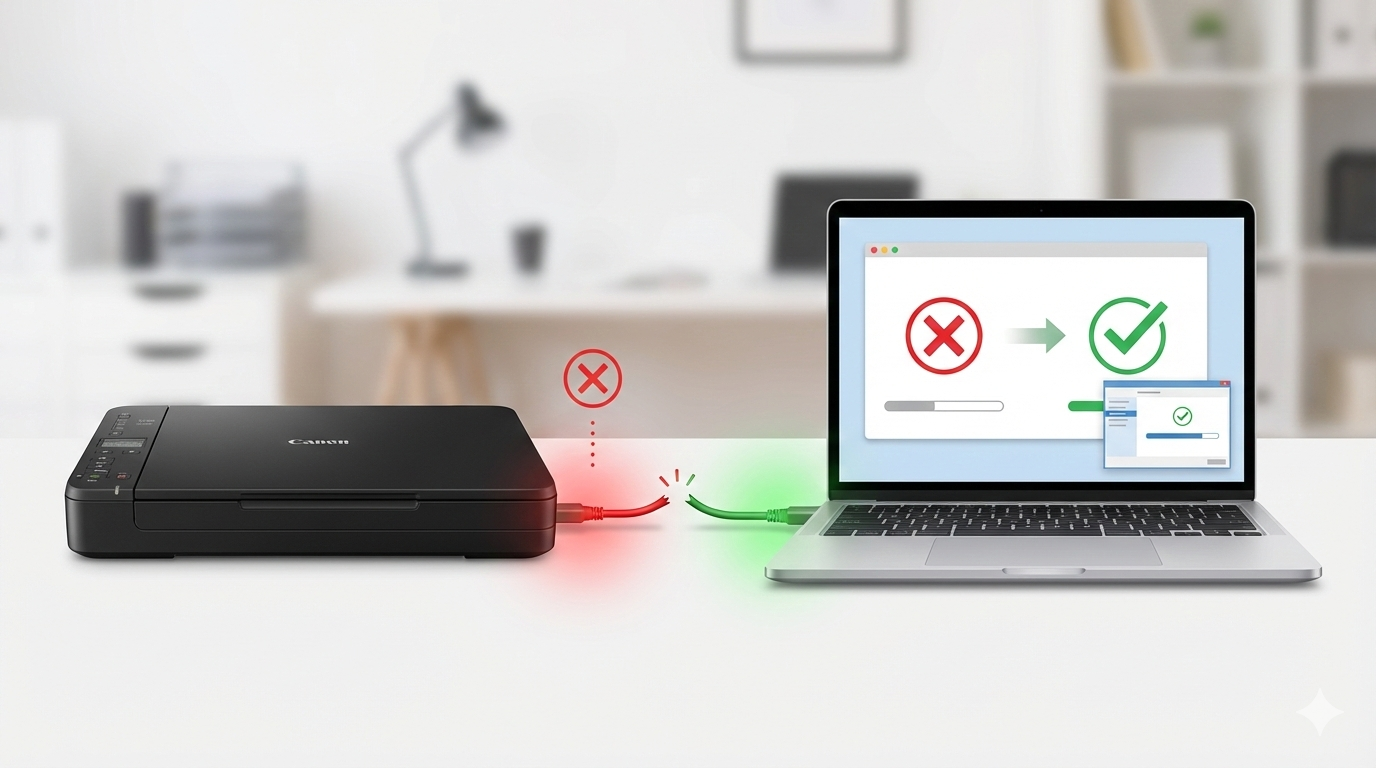
Common Reasons for Canon IJ Scan Utility Errors
Before diving into the fixes, it helps to understand why the utility might be failing:
- Connection Issues: A loose USB cable or an unstable Wi-Fi connection.
- Driver Conflicts: After a Windows update, old drivers may no longer communicate correctly with the OS.
- Firewall Blocking: Security software may mistakenly flag the scanner’s signal as a threat.
- WIA Service Failure: The "Windows Image Acquisition" service, responsible for scanning, might have stopped running.
Method 1: Manual Troubleshooting (Step-by-Step)
If you prefer to fix the issue yourself, follow these steps in order.
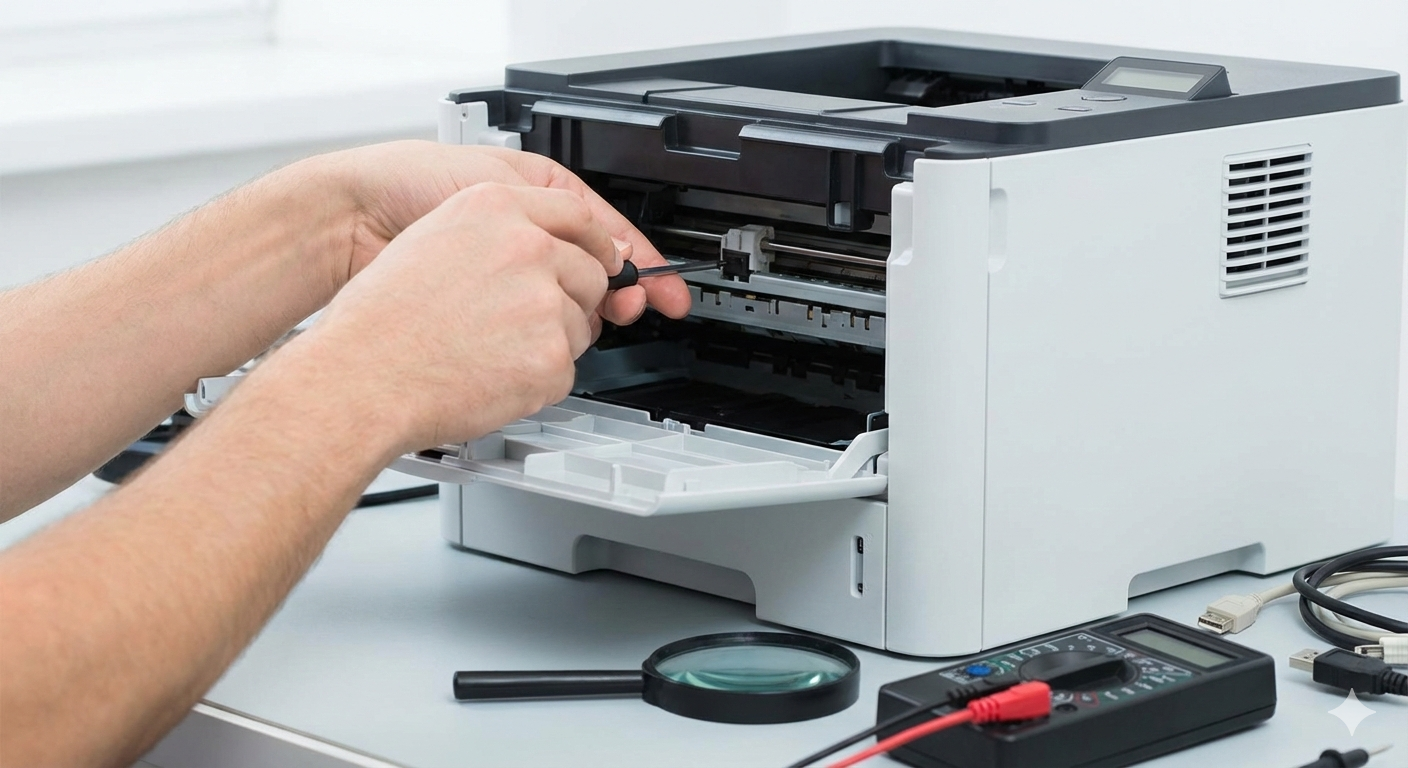
Step 1: Basic Hardware Check
Sometimes the simplest solution is the most effective:
- Turn off the printer/scanner, wait 30 seconds, and turn it back on.
- Reconnect the USB cable to a different port (directly into the motherboard, not a USB hub).
- If using Wi-Fi, ensure both the PC and the scanner are on the same network.
Step 2: Check the WIA Service
The WIA (Windows Image Acquisition) service is critical for the IJ Scan Utility to function.
- Press Win + R, type services.msc, and hit Enter.
- Find Windows Image Acquisition (WIA) in the list.
- Right-click it and select Restart.
- Double-click it and ensure the "Startup type" is set to Automatic.
Step 3: Configure Windows Firewall
Your firewall might be blocking the communication between the utility and the scanner.
- Go to Control Panel > Windows Defender Firewall.
- Click Allow an app or feature through Windows Defender Firewall.
- Find Canon IJ Scan Utility in the list and ensure both "Private" and "Public" boxes are checked.
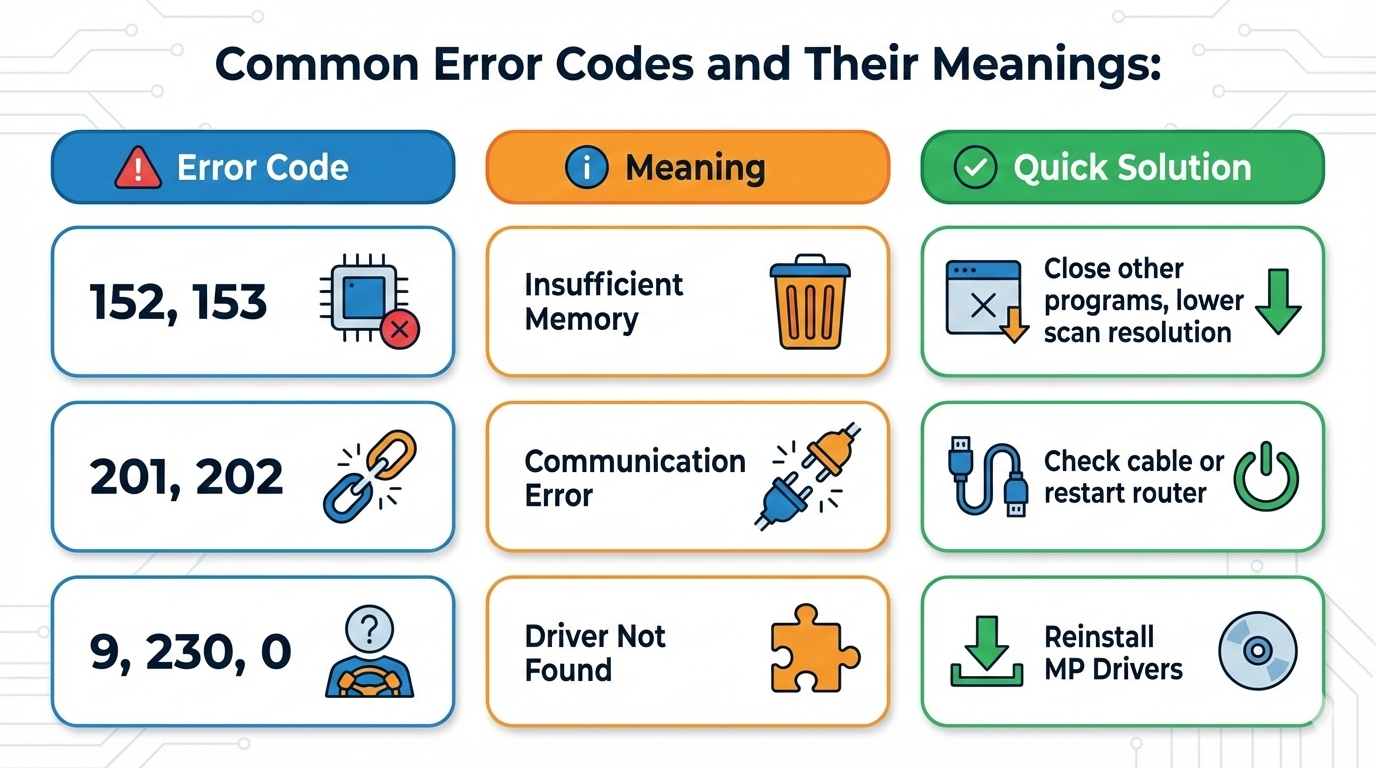
Method 2: Automatic Fix with Outbyte Driver Updater
If manual troubleshooting seems too complex or if you want to avoid the headache of searching for the right drivers on the official website, there is a much simpler way.
Outbyte Driver Updater is designed to resolve hardware-related issues automatically by ensuring your system has the correct, most recent drivers.
How it solves the problem:
- Deep Scan: The program analyzes your entire system to identify not only outdated Canon drivers but also corrupted system components that might be interfering with the IJ Scan Utility.
- Safe Installation: Outbyte sources only official, certified driver versions that are compatible with your specific version of Windows (10, 11, etc.).
- Optimization: Beyond just updating drivers, the tool can help optimize system settings to improve data transfer speeds between your PC and scanner.
Why choose the automated route?
- Saves Time: You don’t need to know your exact model number or OS version.
- Eliminates Risk: Prevents the accidental installation of the wrong or "broken" driver.
- Backup Feature: Outbyte creates a restore point before updates, so you can always revert back if needed.