





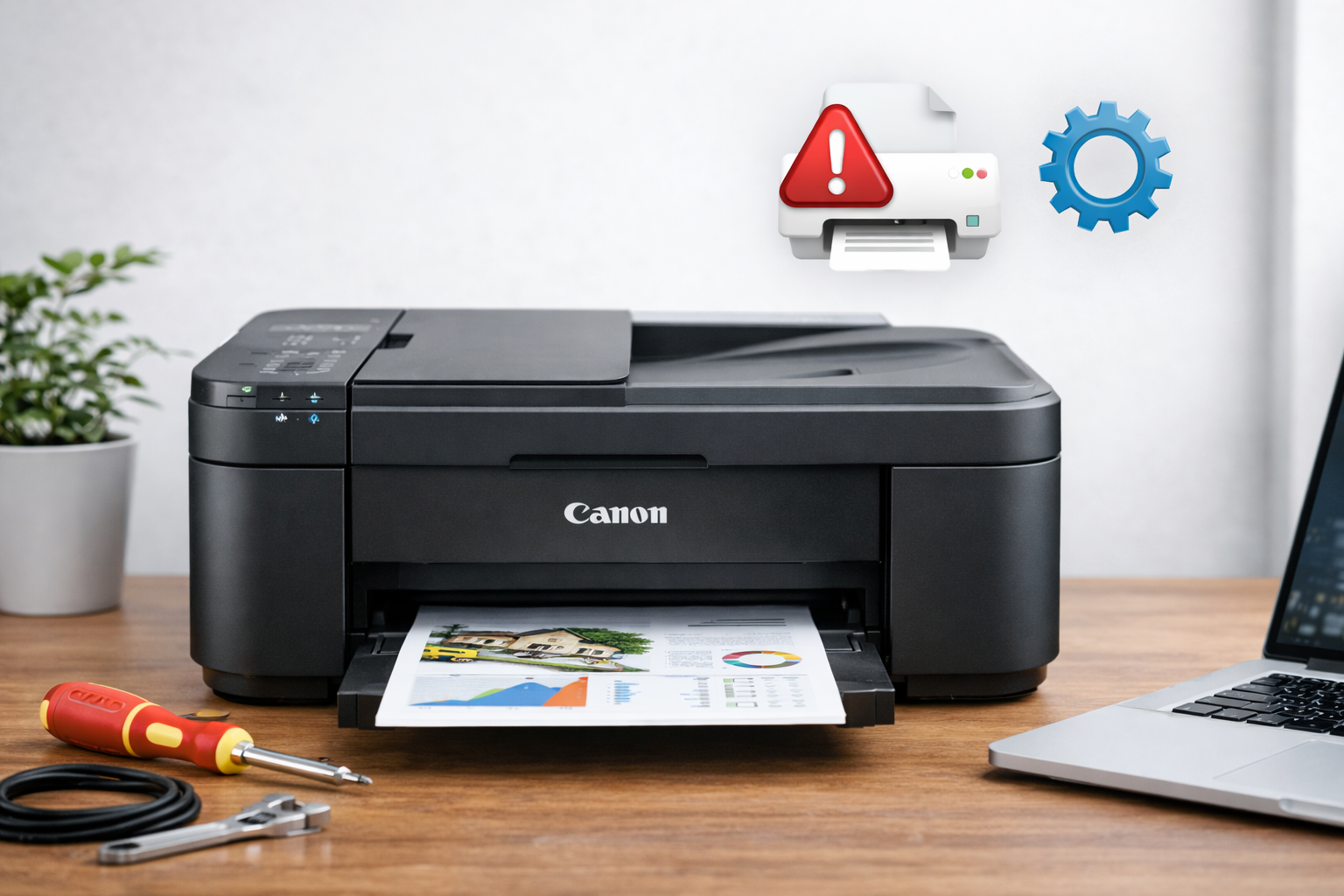
Canon printers—from high-end PIXMA home models to heavy-duty i-SENSYS office units—are benchmarks for print quality. However, even the most expensive model becomes a useless piece of furniture if the Canon printer driver is not working correctly. Connection errors, the dreaded "Printer Offline" status, or an endless print queue are all symptoms of a software glitch.
In this guide, we’ll show you how to get your Canon back in action manually and how to forget about driver hunting forever using automation.
Method 1: Manual Installation and Configuration
This path is best for those who don't mind spending a bit of time diving into their device's technical specifications.
Finding the Driver on the Official Site
- Go to the Canon Support section on their official website https://global.canon/en/support/
- Enter your exact model name (e.g., PIXMA G3411 or LBP6030).
- Crucial: Ensure the selected Windows version (10, 11) and architecture (32/64-bit) match your system exactly.
- Download the "Full Driver & Software Package"—it usually includes the necessary scanner utilities and Wi-Fi setup tools.
Fixing the "Printer Offline" Error
Often, the driver is installed, but the printer refuses to print.
- Press Win + R, type control printers, and hit Enter.
- Right-click your Canon printer and ensure "Use Printer Offline" is unchecked.
- In the same menu, go to "Printer Properties" -> "Ports." Make sure the correct port is selected (USB for cables or a WSD/IP port for Wi-Fi models).
Restarting the Print Spooler
If your printer is "stuck," restarting the system process can clear the logjam:
- Press Win + R, type services.msc, and press Enter.
- Find the Print Spooler service.
- Right-click it and select Restart.
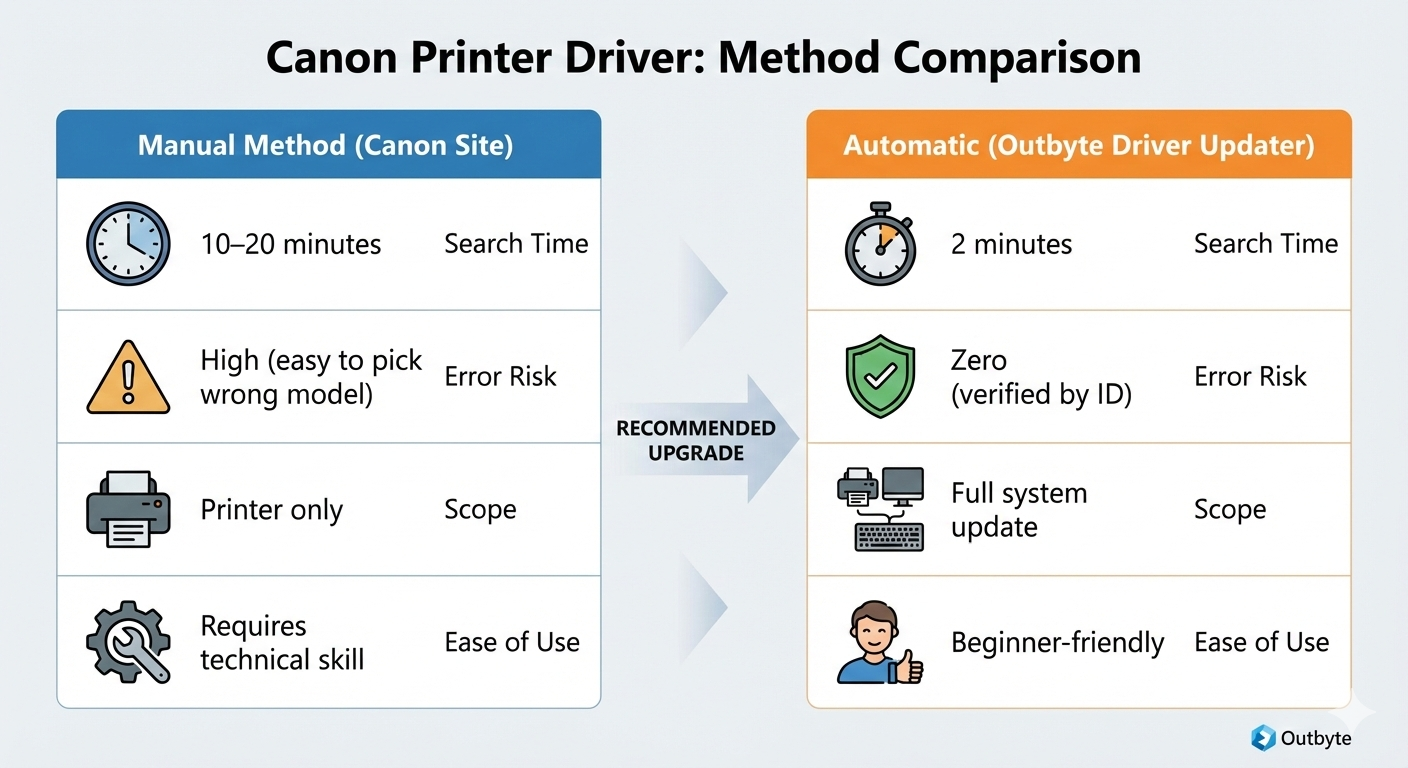
Method 2: Automatic Solution with Outbyte Driver Updater
Let’s be honest: manual searching for Canon drivers is often a lottery. Canon has hundreds of similar-sounding models, and installing a driver for a "nearly identical" model can lead to system errors or poor color reproduction.
Outbyte Driver Updater acts as your personal system administrator, handling the technical heavy lifting for you.
Why it’s better for Canon owners:
- Hardware ID Identification: The program reads your device's unique hardware ID, eliminating the risk of installing a "close but wrong" driver.
- Scanner Component Updates: For Canon MFPs (Multi-Function Printers), it's vital to update both print and scan drivers (TWAIN/WIA). Outbyte updates both simultaneously.
- Fixing USB Conflicts: Printers often go unseen due to outdated USB controller drivers. Outbyte updates those as well, ensuring a stable connection.
- Safety & Backups: Every update is verified, and a system restore point is created before installation.
How to revive your Canon printer in 3 steps:
- Launch Outbyte Driver Updater and click "Scan."
- Locate your Canon printer in the list (or the "Unknown Device" if the driver is missing entirely).
- Click "Update" and restart your PC. Your printer is ready to go!