




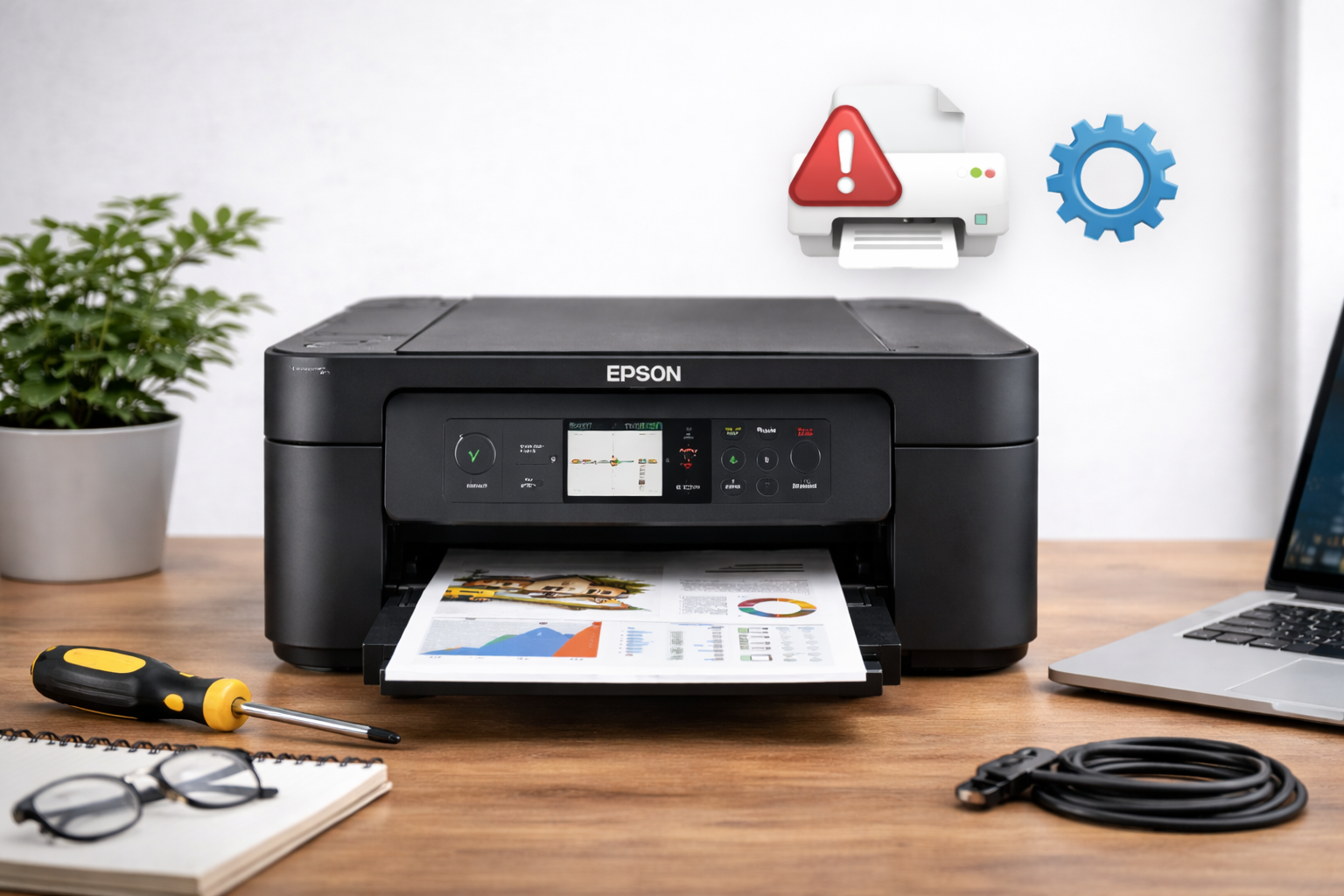
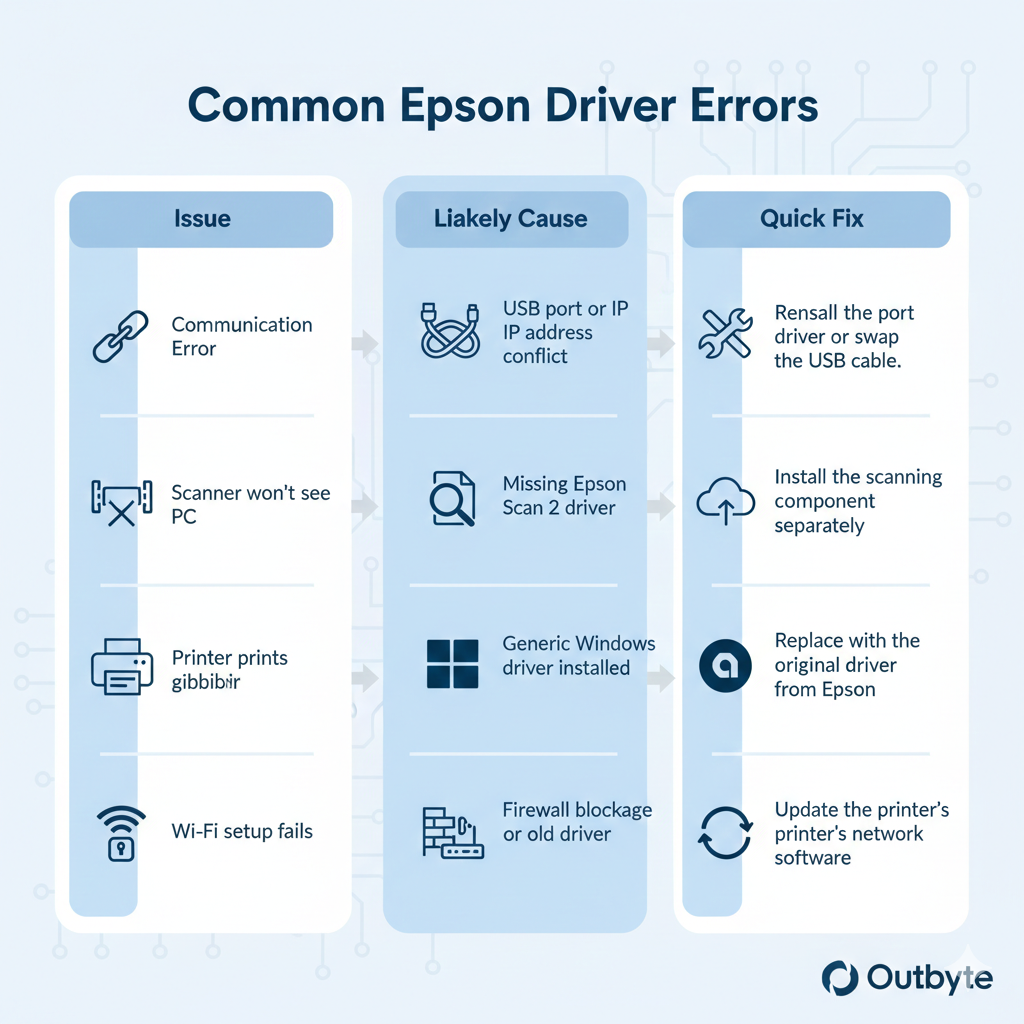
Epson printers and scanners are a recognized standard of quality, from the legendary EcoTank series with its integrated ink tanks to the professional Stylus photo printers. However, even the most advanced hardware becomes useless plastic if the Epson drivers are working incorrectly. Communication errors, "stuck" print jobs, or sudden scanner failure are all signs that your software needs an update.
In this guide, we will break down how to revive your Epson device manually and how to automate the process so your printer is always ready for work.
Method 1: Manual Installation (The DIY Way)
This method requires precision. Using the wrong driver version can lead to the printer outputting blank pages or causing print head positioning errors.
Searching on the Official Portal
- Go to the official Epson Support website https://epson.com/Support/
- Enter the exact name of your model (e.g., Epson L3150 or WorkForce WF-2830).
- Crucial: Ensure the site has correctly identified your operating system. If you are on Windows 11 but the site suggests a driver for Windows 7, select your version manually.
- It is recommended to download the "Drivers and Utilities Combo Package". It installs everything at once: the print driver, the scanner driver (Epson Scan 2), and utilities for ink level monitoring.
Solving the "Printer Offline" Issue
If the driver is installed but the device status remains "Offline":
- Go to Control Panel -> Devices and Printers.
- Right-click your Epson printer and select "See what's printing".
- In the window that opens, go to the "Printer" menu and uncheck "Use Printer Offline".
Restarting the Print Spooler
If the printer ignores commands:
- Press Win + R, type services.msc, and hit Enter.
- Find the Print Spooler service.
- Right-click it and select "Restart".
Method 2: Automatic Fix with Outbyte Driver Updater (Recommended)
Let’s be honest: navigating manufacturer websites can feel like a chore. You need to know the device revision, your OS version, and avoid getting confused by dozens of similar-looking files. If you don't want to spend time on "technical archaeology," it's better to use a proven solution.
Outbyte Driver Updater is a tool that automates the maintenance of your system and peripherals.
Why it is effective for Epson hardware:
- Bit-Perfect Precision: The program matches your device's Hardware ID with its database, ensuring you get the driver for your specific model, not just a "similar" one.
- All-in-One Update: Outbyte updates the print driver, the scanner driver, and even your motherboard's USB controllers, which are often the hidden cause of communication drops.
- Safety & Backups: A restore point is created before every installation. If a new driver doesn't suit you, you can revert to the previous state with one click.
- Time Saving: Instead of a 15-minute search on a website, it takes 2 minutes for an automatic scan of your entire system.
How to update Epson drivers in 3 steps:
- Launch Outbyte Driver Updater and run a system diagnosis.
- Find your Epson devices in the list (they may be marked as "Outdated" or "Missing").
- Click the Update button and restart your PC to apply the settings.