

The Epson L3250 is the "workhorse" of the EcoTank series. It’s economical, fast, and supports wireless printing. However, all that brilliance turns into an expensive paperweight if your Windows OS can’t "communicate" with the device.
In 90% of cases, the problem lies in an incorrectly installed or outdated driver. In this guide, we’ll break down how to revive your Epson L3250 manually and how to ensure your printer never "acts up" again.
Method 1: Manual Installation (The Traditional Way)
This method requires patience and attention to detail. You need to download the specific package that matches your system version.
Step 1: Find the Official Software
- Go to the official Epson Support website https://epson.com/Support/
- Type L3250 into the search bar.
- Crucial: Ensure the site has correctly detected your OS version (e.g., Windows 11 64-bit). If not, select it manually.
- It is highly recommended to download the "Drivers and Utilities Combo Package Installer." This includes the print driver, scanner driver, and the Wi-Fi setup utility.
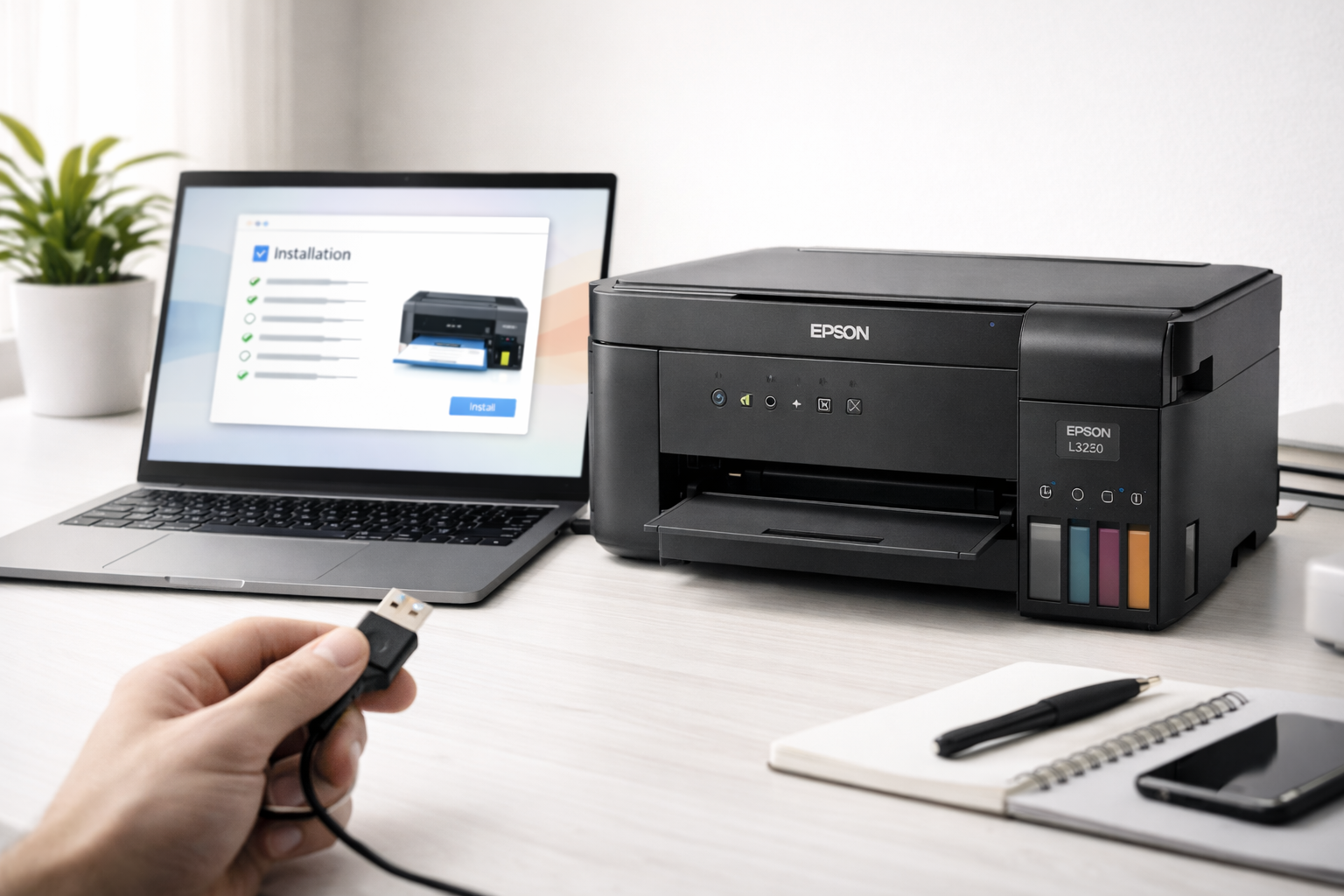
Step 2: The Installation Process
- Run the downloaded .exe file.
- When prompted to choose a connection type, select USB (even if you plan to use Wi-Fi later—this is much more reliable for the initial setup).
- Follow the on-screen instructions, finish the installation, and print a test page.
Method 2: Fixing Common Errors
If the driver seems to be installed but the printer is "sleeping" or showing a "Printing Error":
Issue: Printer not found via Wi-Fi
- Solution: Ensure both your computer and printer are on the same 2.4 GHz network (most printers do not support 5 GHz).
- Restart the Print Spooler: Press Win + R, type services.msc, find Print Spooler, right-click it, and select Restart.
Issue: Scanner not working (Epson Scan 2)
- Solution: Sometimes the print driver installs correctly while the scanner driver fails. Check Device Manager under "Imaging devices." If there is a yellow exclamation mark, you need to reinstall the scanner component specifically.
Method 3: Automatic Solution with Outbyte Driver Updater
Let’s be honest: hunting for Epson drivers manually can be a headache. The website can be slow, and the installer might hang halfway through. If you don't want to spend your evening "tinkering," it’s better to let automation handle it.
Outbyte Driver Updater is a tool that takes care of the technical heavy lifting for you.
Why it’s more effective:
- Perfect Match: The program scans your Epson L3250's Hardware ID and finds the latest driver version specifically for your Windows build.
- All-in-One Update: Outbyte updates the printer driver, the scanner driver, and even fixes USB port errors that might be causing connection drops.
- Safety First: A restore point is created before every update. If anything goes wrong, you can revert to the previous state with one click.
- Time-Saving: Instead of 20 minutes of searching, you get a 2-minute automatic scan.
How to fix your Epson L3250 in 3 steps:
- Launch Outbyte Driver Updater.
- Wait for the scan to complete (it will identify all outdated drivers in your system).
- Click the Update button next to the Epson devices.