




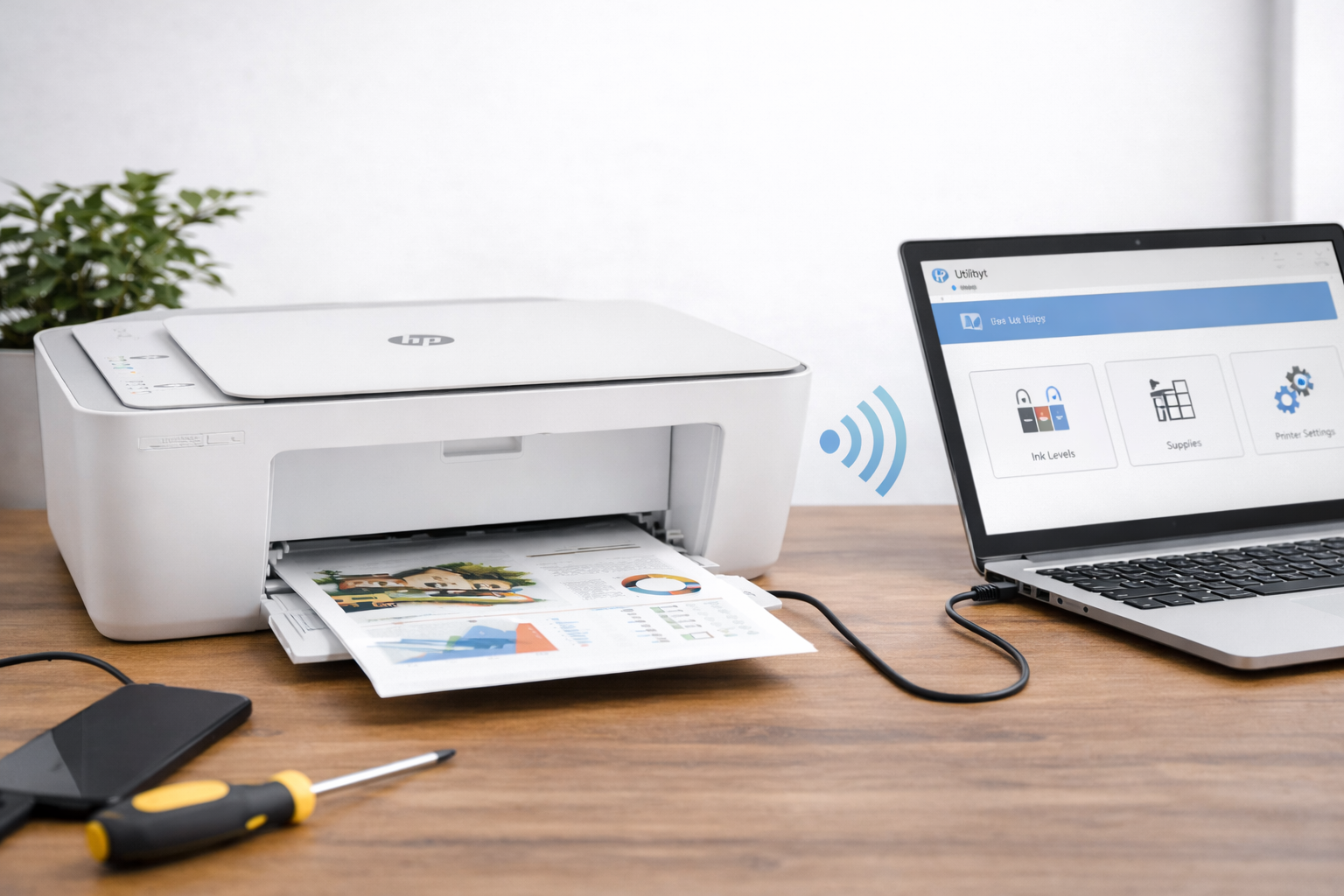
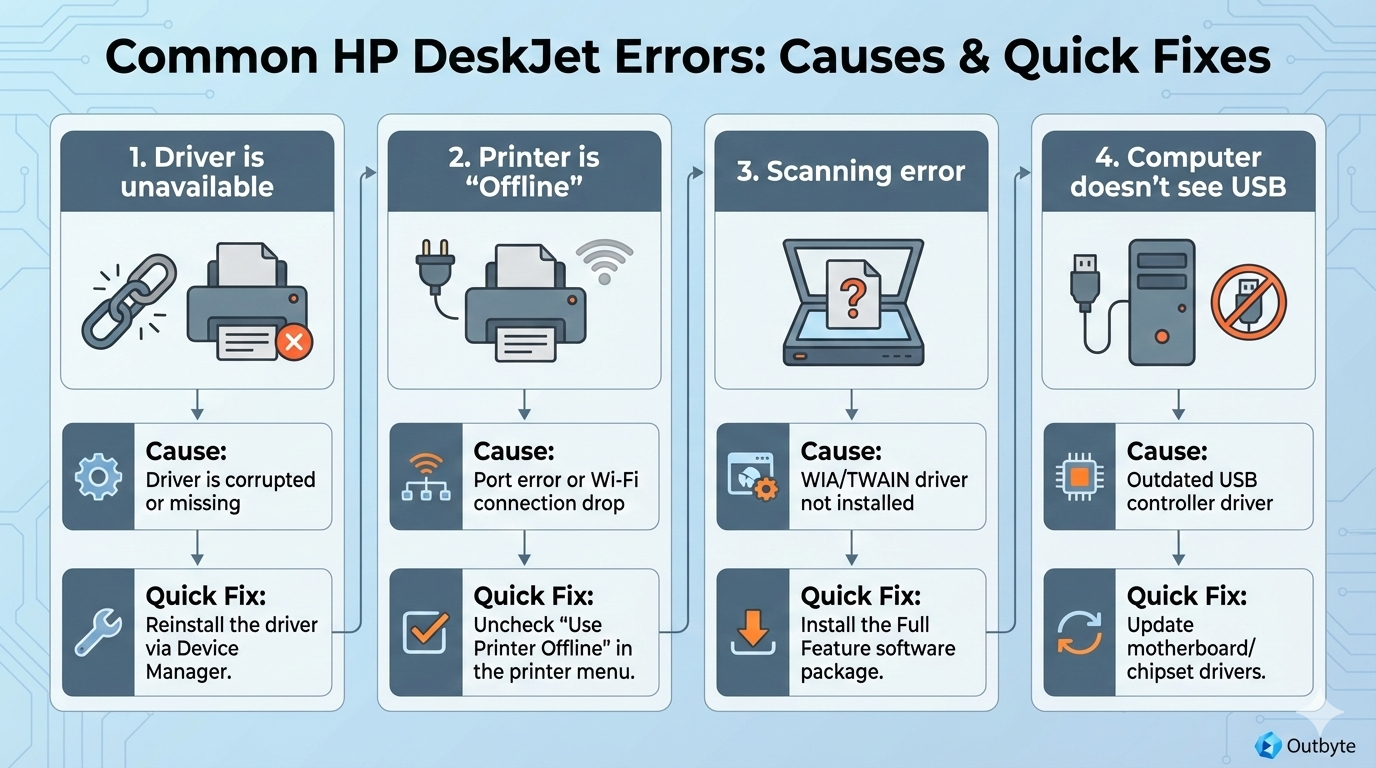
The HP DeskJet series is a classic for home and small offices. They are compact, reliable, and affordable. However, even the most faithful DeskJet can start acting up if a software problem arises. If your printer has stopped printing, your computer doesn’t see it, or you’re getting a "Driver is unavailable" error, you’ve come to the right place. In this guide, we will break down how to restore your HP DeskJet printer drivers manually and how to get rid of such headaches forever through automation.
Method 1: Manual Fix (For Those Who Like Control)
If you prefer to configure everything yourself, follow this algorithm.
Download from the Official HP Website
- Go to the HP Support page (Printers section). https://support.hp.com/
- Enter your model (e.g., HP DeskJet 2700 or Plus 4100).
- A Crucial Nuance: HP often suggests installing the HP Smart app. While useful, if you want a "clean" driver without extra fluff, look for the "Basic Driver" or "Full Feature Software and Driver" in the download list.
- Download and run the .exe file, following the installer's instructions.
Using the Device Manager
- Sometimes Windows can find the driver in its own archives:
- Right-click the "Start" button and select Device Manager.
- Find the "Print queues" or "Printers" section.
- Right-click your HP DeskJet and select "Update driver".
- Choose "Search automatically for drivers."
Resetting the Print System (The "Deep Clean")
- If the print queue is clogged and won't clear:
- Press Win + R, type services.msc, and hit Enter.
- Find the Print Spooler service.
- Right-click it and select Stop.
- Navigate to the folder C:\Windows\System32\spool\PRINTERS and delete all contents.
- Go back to "Services" and click Start.
Method 2: Automatic Solution with Outbyte Driver Updater
Let's be honest: modern HP printers often force cloud registration, ink subscriptions, and heavy software installations on you. If you just need the printer to print and the scanner to scan, manual searching turns into tedious bureaucracy.
Outbyte Driver Updater is a tool that takes over all the technical routine.
Why is it more convenient than manual searching?
- Precision Matching: The program scans your device's Hardware ID. You won’t install a driver for a "similar" model that might cause a Blue Screen of Death (BSOD).
- Peripheral-Wide Updates: Outbyte sees not just the printer, but also USB ports, Wi-Fi modules, and the chipset. Often, HP DeskJet issues are hidden in poor port communication rather than the printer itself.
- Safe Installation: A backup is created before every update. If a new driver behaves strangely, you can return to a working state in a couple of clicks.
- System Cleanliness: The program finds exactly what you need—the drivers—saving you from installing gigabytes of unnecessary bloatware from the manufacturer.
How to fix your HP DeskJet driver in 3 steps:
- Launch Outbyte Driver Updater and wait for the scan to finish.
- Locate your HP printer in the list (or the "Unknown Device").
- Click Update and restart your PC.