

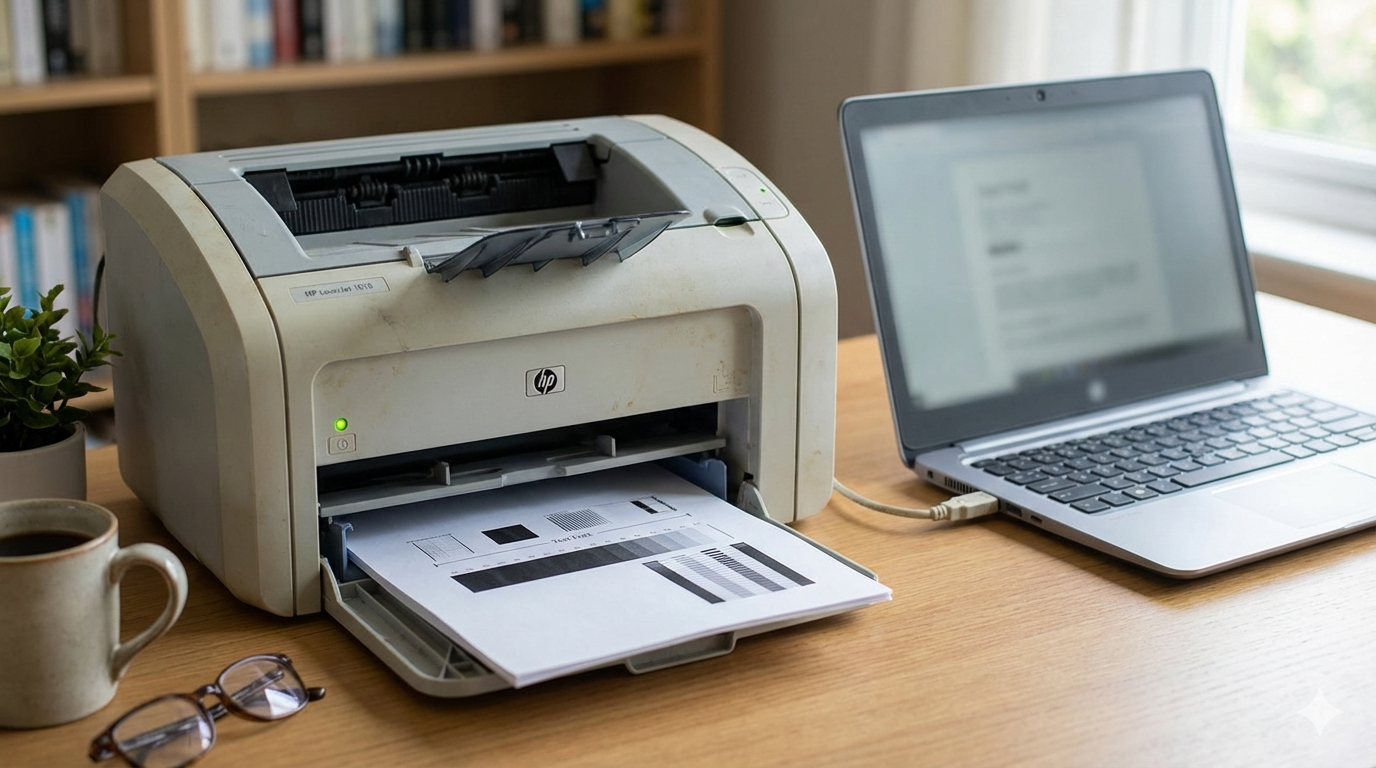
The HP LaserJet 1018 is a legendary "workhorse" that simply refuses to quit. However, because it is a host-based printer, it relies entirely on your computer's resources to process print jobs. This is why setting it up on modern systems like Windows 10 or Windows 11 often feels like a technical quest.
In this guide, we will break down how to install the correct drivers manually and what to do if your system refuses to recognize the device.
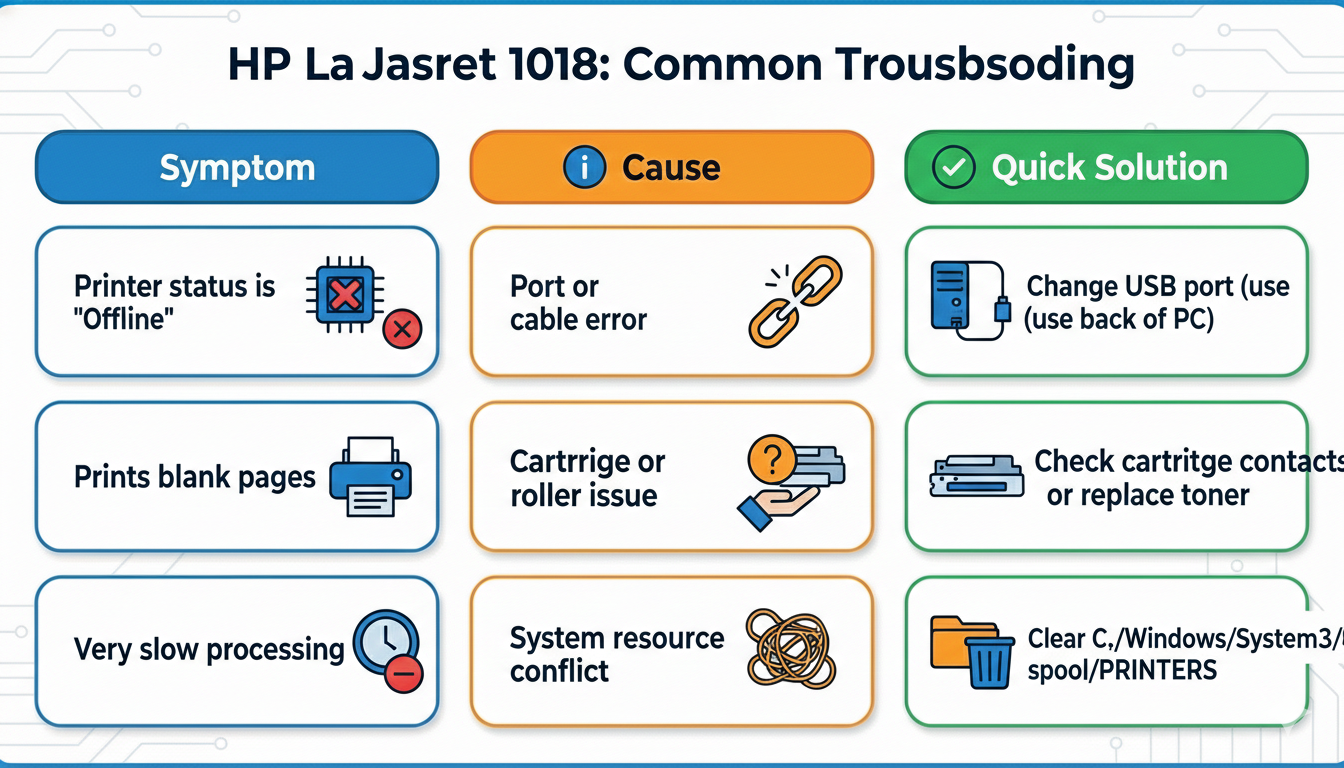
Why Do HP LaserJet 1018 Issues Occur?
The most common problems in 2026 stem from the lack of "native" support for older hardware in modern Windows versions:
- "Unspecified" Status: Windows sees a device but doesn’t realize it’s a printer.
- "Unsupported Personality: PCL" Error: This happens if you try to use a Universal Print Driver, which the 1018 does not support.
- Port Conflicts: The printer is plugged into a USB 3.0 port but was designed for the older USB 2.0 standard.
Method 1: Manual Installation (The "Have Disk" Way)
Since the standard HP installer often hangs at 99% on newer systems, using the "Device Manager" method is much more reliable.
Step 1: Prepare the Drivers
- Go to the official HP Support website https://support.hp.com/
- Download the Basic Driver for Windows 7 or 10 (these are compatible with Windows 11).
- Crucial: Do not just run the .exe file. Right-click it and use an archiver (like 7-Zip or WinRAR) to extract the contents into a folder.
Step 2: Forced Installation via "Add Printer"
- Open Control Panel > Devices and Printers.
- Click Add a printer, then select "The printer that I want isn't listed."
- Choose "Add a local printer or network printer with manual settings."
- For the port, select USB001 (Virtual printer port for USB).
- Click "Have Disk..." and browse to the folder where you extracted the driver. Select the .inf file (usually hplj1020.inf).
Step 3: Clear the Print Spooler
- If the printer is installed but won't print:
- Press Win + R, type services.msc, and hit Enter.
- Find Print Spooler.
- Right-click it and select Restart.
Method 2: Automatic Fix with Outbyte Driver Updater
Manual installation for the HP 1018 is a bit of a gamble. You have to guess the right architecture (x64 or x86) and correctly identify the right .inf file. If you’d rather not spend your evening digging through system folders, Outbyte Driver Updater is the perfect tool for the job.
Why Outbyte is the Best Choice for HP 1018 Owners:
- Accurate Identification: The software identifies the 1018 even if Windows has labeled it as an "Unknown Device."
- Sourcing Host-Based Drivers: Outbyte finds the specific host-based drivers that allow your PC’s CPU to communicate correctly with the printer.
- Safety First: You receive drivers from verified sources, eliminating the risk of downloading malware disguised as old software.
- USB Port Optimization: The utility checks for driver conflicts in your USB controllers, which are often the hidden cause of printer "communication errors."
Advantages over manual setup:
- No need to manually extract archives or hunt for .inf files.
- Automatically creates a backup of your current drivers before making changes.
- Fixes the "Print Spooler" service automatically if it's found to be hanging.