




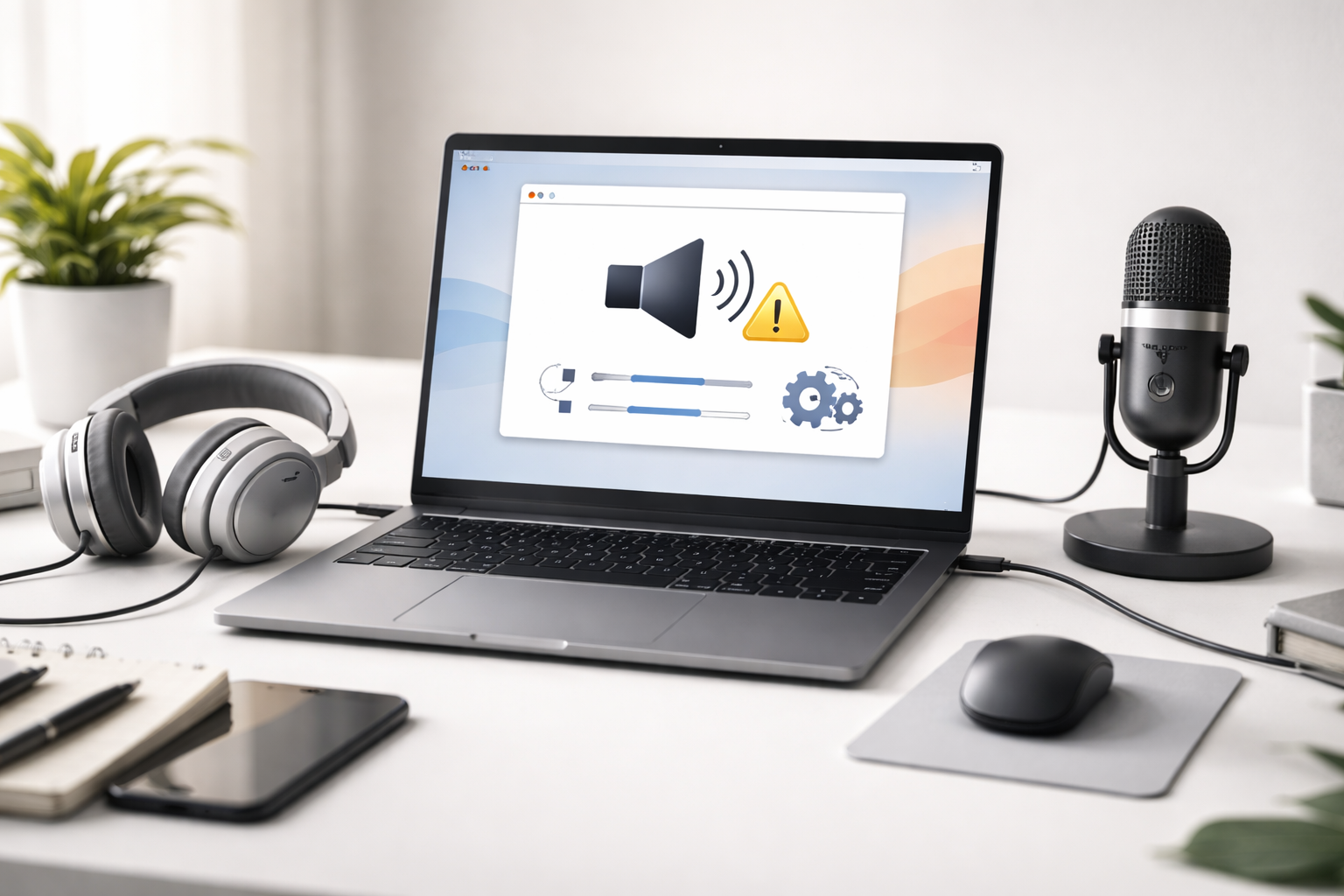
You press play, but all you see is a silent movie? Or maybe your microphone suddenly stopped working right before a Zoom call? In 90% of cases, the culprit is the Realtek High Definition Audio driver. Since Realtek chips are found in almost every motherboard, knowing how to "heal" them is a must-have skill.
In this guide, we will cover everything from simple settings to a deep clean of your audio drivers.
Why Does Realtek Audio Stop Working?
Realtek releases hundreds of codec versions (ALC887, ALC892, ALC1220, etc.). Problems usually arise due to:
- Windows Update Conflicts: The system installs a "universal" driver over a specific one.
- Missing Realtek Audio Console: In newer versions, the driver and the control panel are separated.
- Registry Errors: "Leftover" files from old audio utilities causing conflicts.
Method 1: Manual Fixes (The DIY Way)
Step 1: Check Basic Audio Settings
Before you reinstall everything, check these "invisible" settings:
- Right-click the speaker icon and select Sound settings.
- Make sure the "Choose your output device" field is set to Realtek Audio, not your monitor or a virtual cable.
- Check Privacy settings: Ensure that apps are allowed to access your microphone and sound.
Step 2: Use Device Manager
- Press Win + X and select Device Manager.
- Expand the Sound, video and game controllers section.
- Right-click Realtek High Definition Audio.
- Try "Update driver" -> "Browse my computer" -> "Let me pick from a list." Try selecting the version labeled High Definition Audio Device (the standard Microsoft driver) if the Realtek one keeps failing.
Step 3: Restart Audio Services
- If the sound "hangs," restarting the system process can help:
- Press Win + R, type services.msc, and hit Enter.
- Find Windows Audio.
- Right-click it and select Restart.
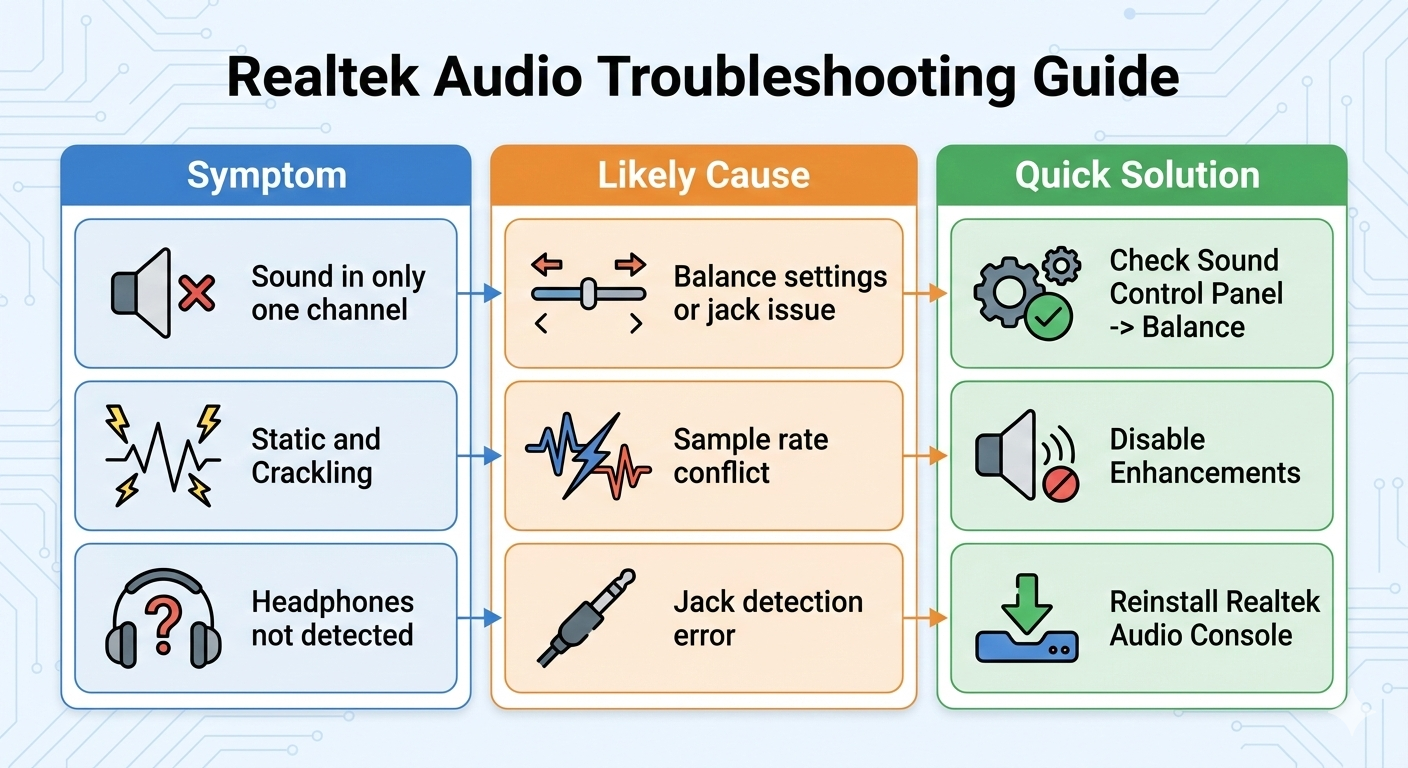
Method 2: Automatic Fix with Outbyte Driver Updater
Realtek has one annoying trait: it is incredibly difficult to find the exact driver version for your specific motherboard on their official website. Downloading at random often leads to "flat" sound or no sound at all.
Outbyte Driver Updater acts as your personal audio engineer, handling the technical heavy lifting for you.
Why Outbyte is Better Than a Manual Search:
- Perfect Hardware ID Match: The program reads your audio chip’s Hardware ID and selects the driver that is 100% compatible with your architecture.
- Whole-Chain Updates: Sound issues are often hidden in the chipset drivers or the High Definition Audio bus. Outbyte updates all related components at once.
- Safe Rollback: If you don’t like how the new version sounds (e.g., lost bass), you can revert to the old driver in one click.
- Restore Sound Effects: The software helps restore equalizers and sound enhancement systems that often "break" after Windows updates.
How it works:
Simply run a scan, find "Sound, video and game controllers" in the list, check Realtek, and click "Update." That’s it. No more guessing which codec you have.