Pålitelig Programvare

Outbyte Driver Updater
- 1.000.000+ drivere
- Nedlastet: 1,143,473 ganger
- Windows 11 / 10 / 8 / 7





 Last Ned
AR9285 Wireless Network Adapter (PCI-Express)
Last Ned
AR9285 Wireless Network Adapter (PCI-Express)
Last Ned
AR9285 Wireless Network Adapter (PCI-Express)

Systemoplysninger
Din PC kører i øjeblikket følgende system:
Driver details
Driver Name:
AR9285 Wireless Network Adapter (PCI-Express)
Provider:
Qualcomm Atheros Communications Inc.
Version:
3.0.0.119
Release Date:
2/28/2012
Architecture:
AMD64
File Size:
731 KB
Driver ID:
pci\\ven_168c&dev_002b&subsys_30a1168c
Supported OS:
Windows 8
WHQL:
Signed
Særtilbud
Last Ned
Alle links er blevet scannet af antivirusprogram.
Manual download (.cab, 731 KB) from Microsoft servers
— install via Device Manager.
Compatible hardware
- AR9285 Wireless Network Adapter (PCI-Express) (Qualcomm Atheros)
Supported Hardware IDs
pci\\ven_168c&dev_002b&subsys_30a1168c
pci\\ven_168c&dev_002b&subsys_30a2168c
pci\\ven_168c&dev_002b&subsys_e023105b
pci\\ven_168c&dev_002b&subsys_e036105b
pci\\ven_168c&dev_002b&subsys_e03e105b
pci\\ven_168c&dev_002b&subsys_662111ad
pci\\ven_168c&dev_002b&subsys_30a117aa
pci\\ven_168c&dev_002b&subsys_31a117aa
pci\\ven_168c&dev_002b&subsys_7167144f
pci\\ven_168c&dev_002b&subsys_e025105b
Show all 48 hardware IDs
pci\\ven_168c&dev_002b&subsys_7187144f
pci\\ven_168c&dev_002b&subsys_4101144d
pci\\ven_168c&dev_002b&subsys_10891a3b
pci\\ven_168c&dev_002b&subsys_11061a3b
pci\\ven_168c&dev_002b&subsys_1a891a3b
pci\\ven_168c&dev_002b&subsys_a5003485
pci\\ven_168c&dev_002b&subsys_a5013485
pci\\ven_168c&dev_002b&subsys_d8111113
pci\\ven_168c&dev_002b&subsys_f6111113
pci\\ven_168c&dev_002b&subsys_a0111113
pci\\ven_168c&dev_002b&subsys_665111ad
pci\\ven_168c&dev_002b&subsys_e014105b
pci\\ven_168c&dev_002b&subsys_7159144f
pci\\ven_168c&dev_002b&subsys_661111ad
pci\\ven_168c&dev_002b&subsys_660111ad
pci\\ven_168c&dev_002b&subsys_7164144f
pci\\ven_168c&dev_002b&subsys_e01a105b
pci\\ven_168c&dev_002b&subsys_43051a32
pci\\ven_168c&dev_002b&subsys_e6111113
pci\\ven_168c&dev_002b&subsys_e8111113
pci\\ven_168c&dev_002b&subsys_7194144f
pci\\ven_168c&dev_002b&subsys_e017105b
pci\\ven_168c&dev_002b&subsys_e037105b
pci\\ven_168c&dev_002b&subsys_30a11895
pci\\ven_168c&dev_002b&subsys_7182144f
pci\\ven_168c&dev_002b&subsys_7183144f
pci\\ven_168c&dev_002b&subsys_a8311113
pci\\ven_168c&dev_002b&subsys_e049105b
pci\\ven_168c&dev_002b&subsys_666111ad
pci\\ven_168c&dev_002b&subsys_153710cf
pci\\ven_168c&dev_002b&subsys_30a1185f
pci\\ven_168c&dev_002b&subsys_03051a32
pci\\ven_168c&dev_002b&subsys_83051a32
pci\\ven_168c&dev_002b&subsys_04001b9a
pci\\ven_168c&dev_002b&subsys_04011b9a
pci\\ven_168c&dev_002b&subsys_04021b9a
pci\\ven_168c&dev_002b&subsys_04101b9a
pci\\ven_168c&dev_002b&subsys_04111b9a
Match against Device Manager → Details → Hardware Ids to confirm this driver fits your device.
Drivere: Grundlaget for Stabil Enhedsydelse
Hvorfor er Drivere Så Vigtige?
Drivere spiller en afgørende rolle for systemets stabilitet. Forældede eller beskadigede drivere kan føre til følgende problemer:
Det anbefales at opdatere drivere hver 3-6 måned. Dette er især vigtigt før installation af et nyt operativsystem, da opdaterede drivere kan være nødvendige for at sikre kompatibilitet.
Sådan Holder du dine Drivere Opdaterede
Automatisk metode til opdatering og download af drivere (Anbefalet):
Hvis du ikke vil lede manuelt efter den rigtige driver, findes der værktøjer, der automatisk registrerer din enhedsmodel og finder en kompatibel driver. Det minimerer fejl og sparer tid.
Særtilbud
Last Ned

Limitations: trial version offers an unlimited number of scans, free driver backup and rollback. Registration for the full version starts from USD 29.95. See more information about Outbyte and uninstall instructions. Please review Outbyte EULA and Privacy Policy
Alle links er blevet scannet af antivirusprogram.
Manuel driverinstallation
Bemærk: Installation af en forkert driver kan forårsage systemproblemer. Hvis du er i tvivl, anbefaler vi den automatiske metode.
Download driveren via Enhedshåndtering. Sådan åbner du Enhedshåndtering:
Sådan installeres drivere ved hjælp af Enhedshåndtering:
How to Update a Driver for Free Using Outbyte Driver Updater
At holde dine enhedsdrivere opdaterede hjælper med at sikre stabil Windows-ydeevne og korrekt hardwarefunktion. Nedenfor er en trinvis vejledning, der forklarer, hvordan du opdaterer en enkelt driver gratis ved hjælp af Outbyte Driver Updater. Denne vejledning beskriver en metode til at opdatere én valgt driver uden at aktivere en licens og uden at angive personlige oplysninger eller betalingsoplysninger.
Kan du opdatere en driver gratis uden registrering?
Ja.
Outbyte Driver Updater giver dig mulighed for at:
- scanne din computer for forældede drivere uden omkostninger;
- se en liste over registrerede drivere;
- opdatere én valgt driver gratis;
- undgå at indtaste e-mailadresse, navn, kreditkortnummer eller andre personlige data.
Den gratis opdateringsproces kræver kun det installerede program og de almindelige scan- og opdateringstrin.
Trin 1: Start programmet og scan din computer
Download og installer Outbyte Driver Updater på din Windows-pc.
Efter start af programmet vil det automatisk begynde at scanne dit system og kontrollere installerede drivere.
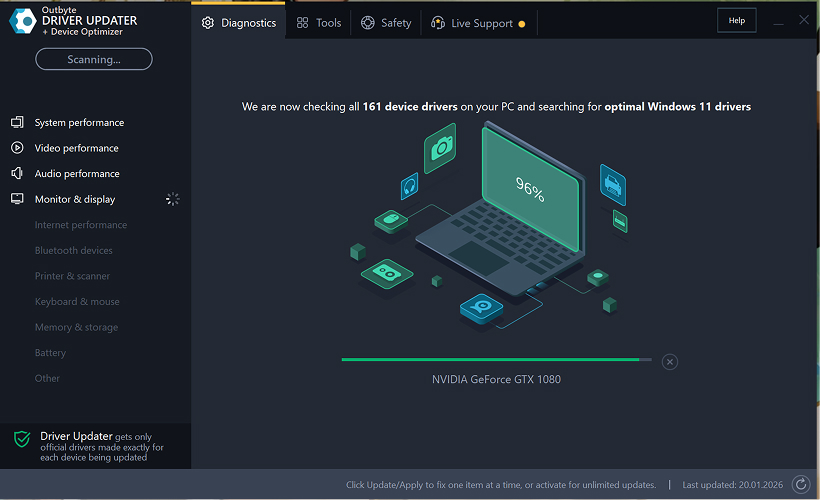
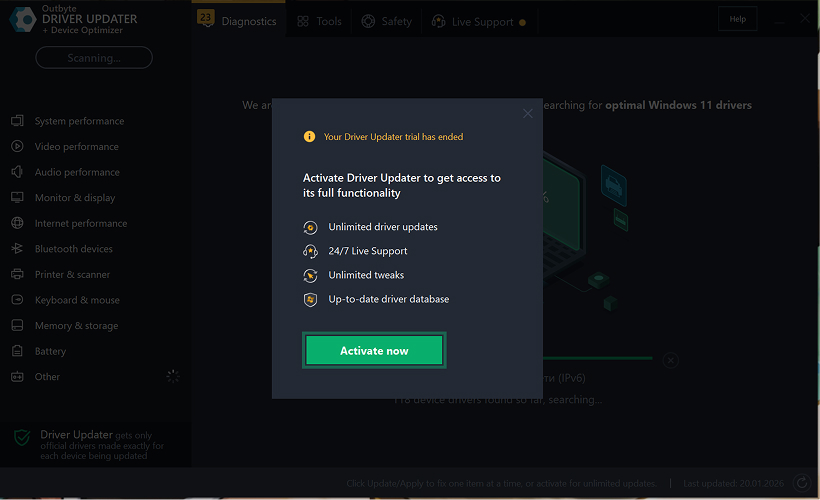
Trin 2: Luk aktiveringsvinduet
Efter scanningen kan et "Aktiver nu"-vindue vises.
For at fortsætte gratis:
- klik på luk (X) knappen i øverste højre hjørne af vinduet.
Der skal ikke indtastes nogen oplysninger
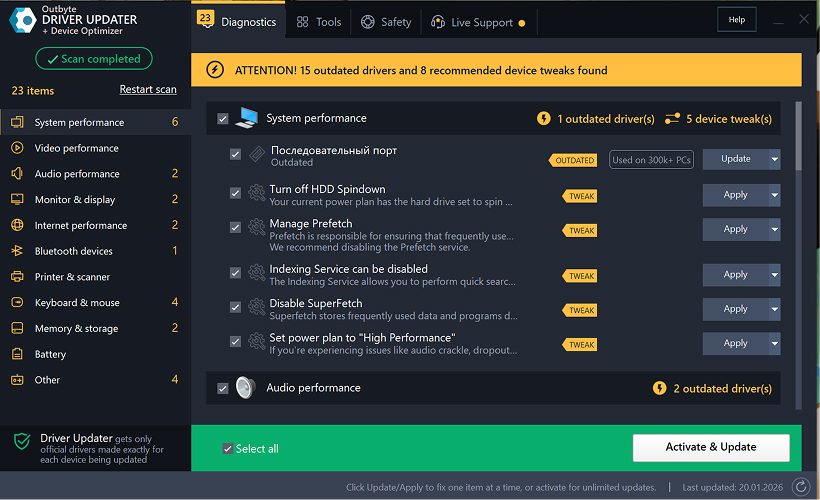
Trin 3: Vælg driverkategori
Vælg fra menuen til venstre den enhedskategori, du vil opdatere, såsom:
- lyddrivere;
- video- og grafikdrivere;
- netværks- og Wi-Fi-drivere;
- Bluetooth-drivere;
- printer- og scannerdrivere.
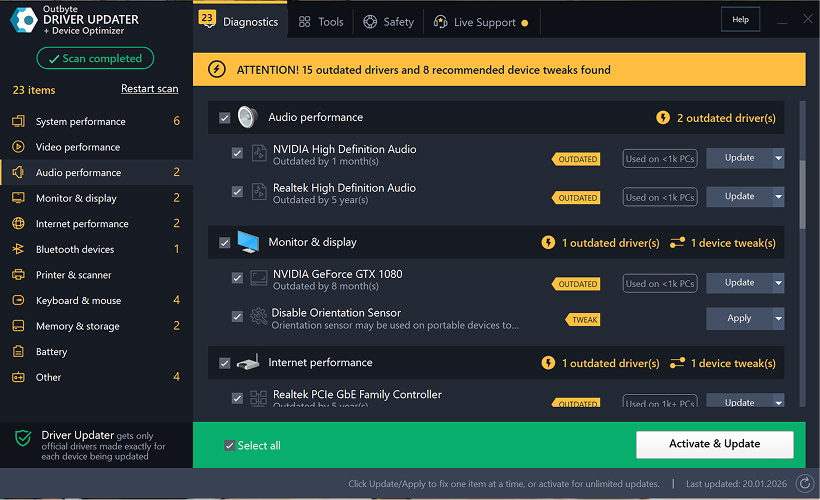
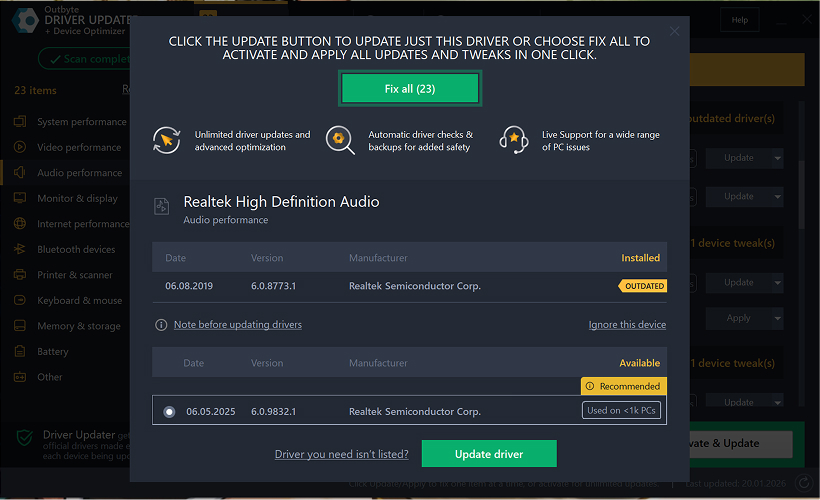
Trin 4: Klik på "Opdater" ved siden af den valgte driver
Find i driverlisten den driver, du vil opdatere, og klik på Opdater-knappen ved siden af den.
Trin 5: Bekræft driveropdateringen
I pop-up-vinduet skal du klikke på Opdater driver.
På dette trin kræves ingen personlige data eller betalingsoplysninger.
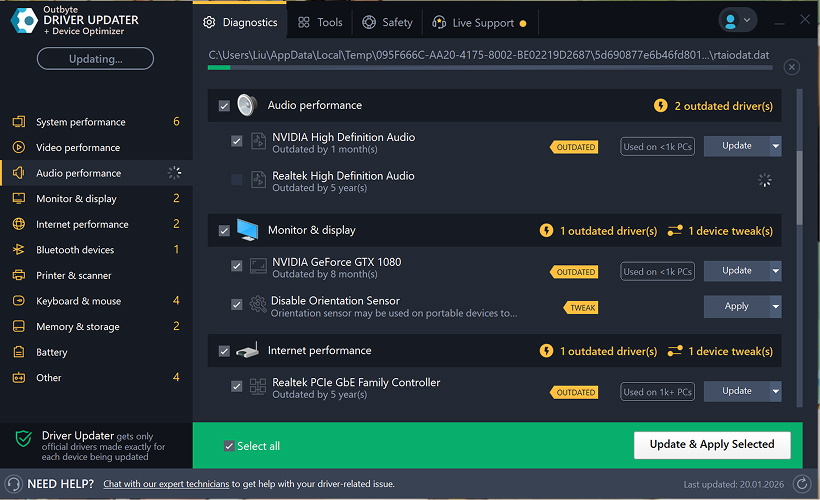
Trin 6: Vent på, at opdateringsprocessen er færdig
Programmet vil begynde at downloade og installere den valgte driver.
Vent venligst, indtil processen er fuldført.
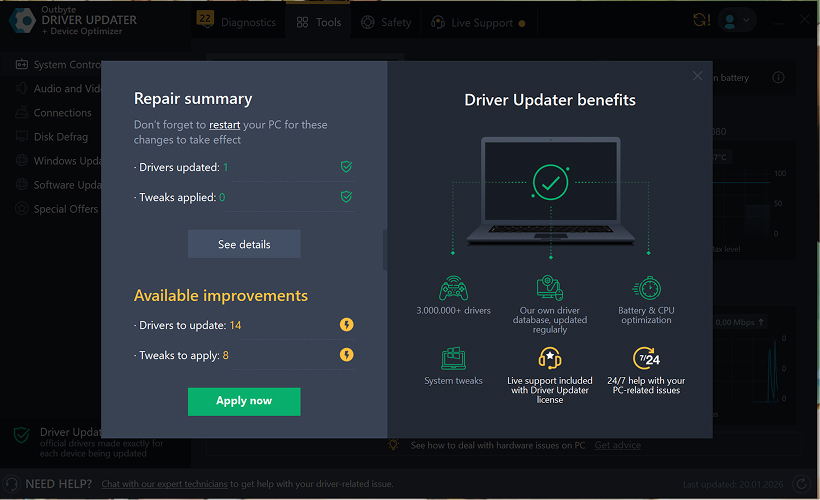
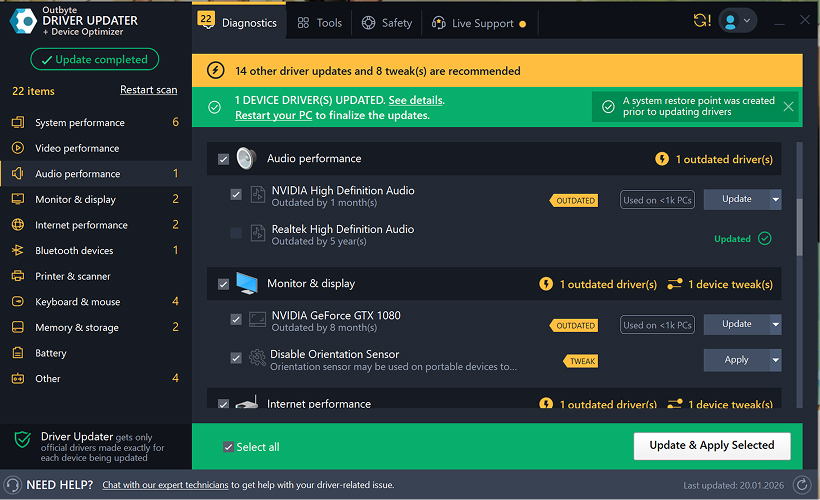
Trin 7: Anvend ændringer og genstart din computer
Når installationen er færdig, skal du klikke på Anvend nu for at anvende ændringerne.
For at sikre, at den opdaterede driver fungerer korrekt, skal du genstarte din computer.
Vigtige bemærkninger
- Gratis opdateringer er tilgængelige én driver ad gangen.
- Der kræves ingen registrering for den gratis opdatering.
- Der anmodes ikke om kreditkort- eller betalingsoplysninger.
- Alle handlinger udføres lokalt i programmet efter scanning af dit system.
- Tilgængeligheden af gratis opdatering kan afhænge af drivertypen og systemkonfigurationen.
Learn to pair your wireless mouse with a different USB receiver in simple steps. Check compatibility (e.g., Logitech Unifying receivers), install required software/drivers, and use pairing modes to sync devices. Troubleshoot connection issues and optimize performance for seamless use.
Simplify your workspace with Logitech Unifying Software, enabling effortless connection of up to six compatible devices through a single receiver. Enjoy quick setup, clutter-free connectivity, and enhanced productivity as your keyboard, mouse, and other peripherals work in perfect harmony.
Learn how to set up your Epson L3250 printer with this step-by-step guide. Unbox, install ink, connect to power, and download drivers via Epson’s website or included CD. Configure Wi-Fi settings for wireless printing and run a test page to ensure proper installation. Simplify your setup process and start printing effortlessly.
Transform your smartphone into an HD webcam with DroidCam. Enjoy wireless connectivity and seamless video streaming for crystal-clear video calls, live streams, or online meetings. Works with PC/Mac.
Learn how to enable Bluetooth on your PC in a few simple steps. Check compatibility, activate Bluetooth via Windows Settings or the system tray, pair your device, and troubleshoot common issues. This guide ensures seamless wireless connections for headphones, speakers, or peripherals.
Learn how to set up your Epson L3250 printer quickly and efficiently. This guide covers unboxing, installing ink cartridges, connecting to power, and configuring Wi-Fi for seamless wireless printing. Follow step-by-step instructions to install drivers, align the printer head, and troubleshoot common issues. Perfect for home or office use, the Epson L3250 ensures hassle-free installation and high-quality printing, scanning, and copying.
Download the latest Epson L3250 printer drivers and software to ensure seamless connectivity and optimal performance. Compatible with Windows and macOS, these tools enable easy setup, wireless printing, and advanced features. Visit the official Epson support page for secure, up-to-date downloads tailored to your operating system. Simplify installation and maximize your printer’s capabilities with reliable drivers and utilities.
Discover innovative strategies to amplify your message and connect deeply with audiences – no microphone needed. Harness the power of body language, visual storytelling, and creative platforms to make your voice heard in any setting.
The Valeton GP 100 Wah is a professional-grade guitar pedal designed for musicians seeking dynamic sound control and expressive tonal shaping. Featuring a responsive wah circuit, it delivers smooth, vintage-inspired sweeps and modern versatility for rock, funk, blues, and beyond. Built with durable components and an intuitive design, the GP 100 ensures reliable performance on stage or in the studio. Adjustable parameters and a true bypass switch provide seamless integration into any pedalboard setup, while its compact size maximizes space efficiency. Elevate your playing with rich, articulate wah effects tailored to your musical style.
Virtual CloneDrive offers effortless disc image mounting and virtual drive cloning, enabling you to access ISO, BIN, IMG, and other formats without physical media. Streamline workflows, run software, or backup data with a lightweight, user-friendly tool that integrates seamlessly into your system. Simplify disc management and enhance productivity—no hardware required.