Trusted Software

Outbyte Driver Updater
- Plus de 1 000 000 de pilotes
- Downloaded: 1,143,473 times
- Windows 11 / 10 / 8 / 7




 Download
Intel Graphics Driver - 11
Download
Intel Graphics Driver - 11
Download
Intel Graphics Driver - 11

Informations Système
Votre PC fonctionne actuellement avec :
Driver details
Driver Name:
Intel Graphics Driver - 11
Provider:
Lenovo
Version:
31.0.101.2115
Release Date:
2023-04-19
Architecture:
x64
File Size:
255.6 MB
Driver ID:
PCI\VEN_8086&DEV_3184
Supported OS:
Windows 11
WHQL:
Signed
Offre spéciale
Download
Tous les liens ont été analysés par un programme antivirus.
Manual download (.cab, 255.6 MB) from Microsoft servers
— install via Device Manager.
Supported Hardware IDs
PCI\VEN_8086&DEV_3184
PCI\VEN_8086&DEV_3185
PCI\VEN_8086&DEV_3E90
PCI\VEN_8086&DEV_3E91
PCI\VEN_8086&DEV_3E92
PCI\VEN_8086&DEV_3E93
PCI\VEN_8086&DEV_3E94
PCI\VEN_8086&DEV_3E96
PCI\VEN_8086&DEV_3E98
PCI\VEN_8086&DEV_3E99
Show all 43 hardware IDs
PCI\VEN_8086&DEV_3E9A
PCI\VEN_8086&DEV_3E9B
PCI\VEN_8086&DEV_3E9C
PCI\VEN_8086&DEV_3EA5
PCI\VEN_8086&DEV_3EA6
PCI\VEN_8086&DEV_3EA8
PCI\VEN_8086&DEV_3EA9
PCI\VEN_8086&DEV_5902
PCI\VEN_8086&DEV_5906
PCI\VEN_8086&DEV_590B
PCI\VEN_8086&DEV_5912
PCI\VEN_8086&DEV_5916
PCI\VEN_8086&DEV_5917
PCI\VEN_8086&DEV_591B
PCI\VEN_8086&DEV_591D
PCI\VEN_8086&DEV_591E
PCI\VEN_8086&DEV_5921
PCI\VEN_8086&DEV_5926
PCI\VEN_8086&DEV_5927
PCI\VEN_8086&DEV_9B21
PCI\VEN_8086&DEV_9B41
PCI\VEN_8086&DEV_9BA4
PCI\VEN_8086&DEV_9BA8
PCI\VEN_8086&DEV_9BAA
PCI\VEN_8086&DEV_9BAC
PCI\VEN_8086&DEV_9BC4
PCI\VEN_8086&DEV_9BC5
PCI\VEN_8086&DEV_9BC6
PCI\VEN_8086&DEV_9BC8
PCI\VEN_8086&DEV_9BCA
PCI\VEN_8086&DEV_9BCC
PCI\VEN_8086&DEV_9BE6
PCI\VEN_8086&DEV_9BF6
Match against Device Manager → Details → Hardware Ids to confirm this driver fits your device.
All versions of this driver
| Version | Release Date | Architecture | OS | |
|---|---|---|---|---|
| 32.0.101.8517 | 2026-06-11 | x64 | Windows 11 | 32.0.101.8517 |
| 32.0.101.8724 | 2026-06-08 | x64 | Windows 11 | 32.0.101.8724 |
| 32.0.101.8332 | 2026-02-05 | x64 | Windows 11 | 32.0.101.8332 |
| 32.0.101.7085 | 2026-06-05 | x64 | Windows 11 | 32.0.101.7085 |
| 32.0.101.8132 | 2026-03-30 | x64 | Windows 11 | 32.0.101.8132 |
| 32.0.101.7084 | 2026-04-20 | x64 | Windows 11 | 32.0.101.7084 |
| 31.0.101.2140 | 2026-04-20 | x64 | Windows 11 | 31.0.101.2140 |
| 31.0.101.2115 | 2023-04-19 | x64 | Windows 11 | (this page) |
Related drivers
- AMD Graphics Driver - 10 64 (v10.0.1.01)
- AMD Discrete VGA driver - 10 64 (v25.20.14022.4003)
- Intel OBGFX Driver (windows 10 version 1709 or Later) - 10 64 (v26.20.100.7925)
- Intel HD Graphics Driver (Windows 10 Version 20H2 or early) - 10 64 (v27.20.100.9030)
- Nvidia Graphics Driver - 10 64 (v31.0.15.3168)
- AMD Discrete VGA Driver - 11 (v27.20.14540.14002)
- AMD Discrete VGA setting Application(Win10 build1803,1809,later) - 10 64 (v2019.0311.0240.4799)
- AMD Discrete VGA driver (Windows10 build 1803 or later)- 10 64 (v26.20.11026.20003)
- Intel Thunderbolt Driver - 10 64 (v17.4.77.13)
- NV Discrete VGA driver (Windows 10 Version 1803 or Later) - 10 64 (v26.21.14.4223)
Pilotes : La Base d’un Fonctionnement Stable des Périphériques
Pourquoi les Pilotes sont-ils si Importants ?
Les pilotes jouent un rôle crucial dans la stabilité du système. Des pilotes obsolètes ou corrompus peuvent entraîner :
Il est recommandé de mettre à jour les pilotes tous les 3 à 6 mois. Ceci est particulièrement important avant d’installer un nouveau système d’exploitation, car des pilotes mis à jour peuvent être nécessaires pour garantir la compatibilité.
Comment Maintenir vos Pilotes à Jour ?
Méthode automatique pour mettre à jour et télécharger les pilotes (Recommandé) :
Si vous préférez ne pas rechercher manuellement le bon pilote, il existe des outils capables de détecter automatiquement le modèle de votre appareil et de trouver un pilote compatible. Cela réduit les risques d’erreurs et vous fait gagner du temps.
Offre spéciale
Download

Limitations: trial version offers an unlimited number of scans, free driver backup and rollback. Registration for the full version starts from USD 29.95. See more information about Outbyte and uninstall instructions. Please review Outbyte EULA and Privacy Policy
Tous les liens ont été analysés par un programme antivirus.
Installation manuelle du pilote
Remarque : Installer un pilote incorrect peut entraîner des problèmes système. Si vous ne savez pas quel pilote choisir, nous vous recommandons d’utiliser la méthode automatique.
Téléchargez le pilote via le Gestionnaire de périphériques. Comment ouvrir le Gestionnaire de périphériques :
Comment installer les pilotes en utilisant le Gestionnaire de périphériques :
How to Update a Driver for Free Using Outbyte Driver Updater
Garder vos pilotes de périphérique à jour contribue à assurer des performances Windows stables et un bon fonctionnement du matériel. Vous trouverez ci-dessous un guide étape par étape expliquant comment mettre à jour un seul pilote gratuitement en utilisant Outbyte Driver Updater. Ce guide décrit une méthode pour mettre à jour un pilote sélectionné sans activer de licence et sans fournir d'informations personnelles ou de détails de paiement.
Pouvez-vous mettre à jour un pilote gratuitement sans inscription ?
Oui.
Outbyte Driver Updater vous permet de :
- analyser votre ordinateur à la recherche de pilotes obsolètes sans frais ;
- afficher une liste des pilotes détectés ;
- mettre à jour un pilote sélectionné gratuitement ;
- éviter de saisir une adresse e-mail, un nom, un numéro de carte bancaire ou toute autre donnée personnelle.
Le processus de mise à jour gratuite ne nécessite que le programme installé et les étapes standard d'analyse et de mise à jour.
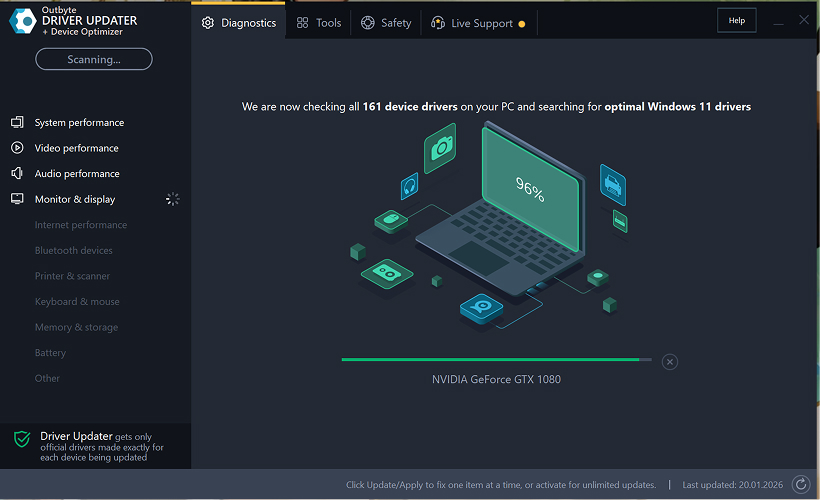
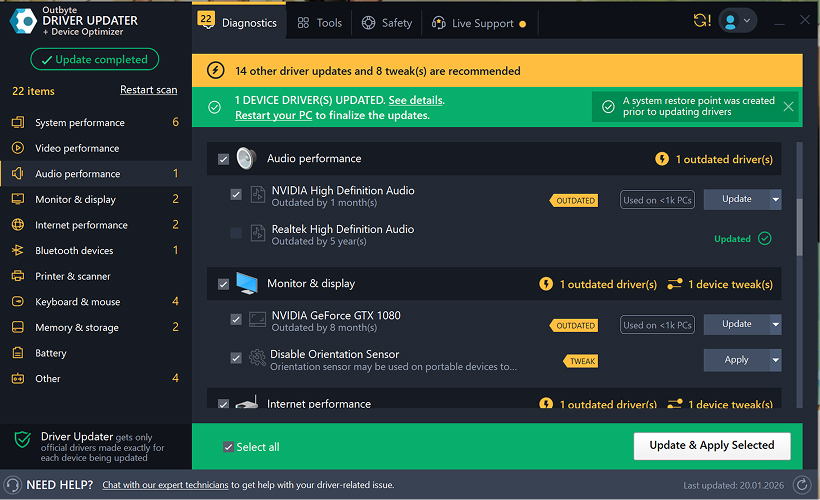
Étape 1 : Lancez le programme et analysez votre ordinateur
Téléchargez et installez Outbyte Driver Updater sur votre PC Windows.
Après le lancement du programme, il commencera automatiquement à analyser votre système et à vérifier les pilotes installés.
Étape 2 : Fermez la fenêtre d'activation
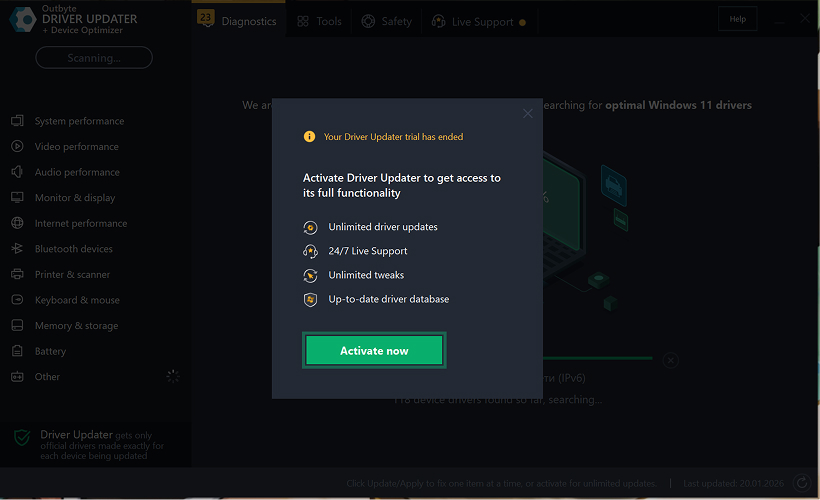
Après l'analyse, une fenêtre « Activer maintenant » peut apparaître.
Pour continuer gratuitement :
- cliquez sur le bouton de fermeture (X) dans le coin supérieur droit de la fenêtre.
Aucune information ne doit être saisie
Étape 3 : Sélectionnez la catégorie de pilote
Dans le menu de gauche, choisissez la catégorie de périphérique que vous souhaitez mettre à jour, par exemple :
- pilotes audio ;
- pilotes vidéo et graphiques ;
- pilotes réseau et Wi-Fi ;
- pilotes Bluetooth ;
- pilotes d'imprimante et de scanner.
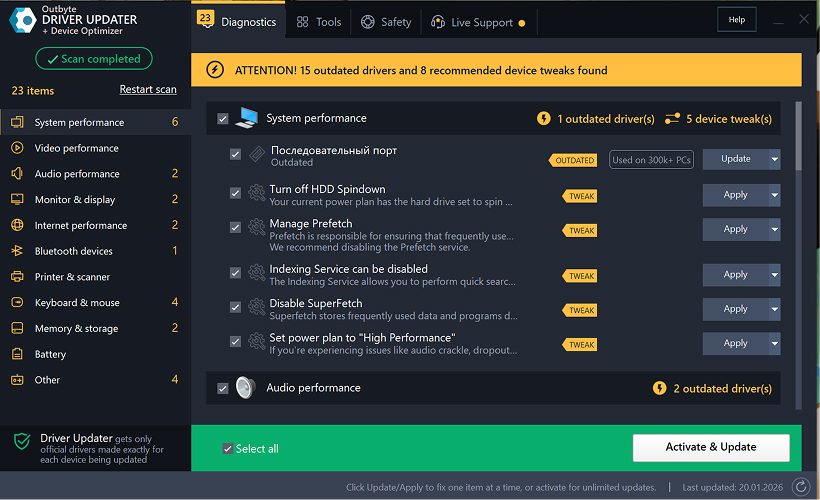
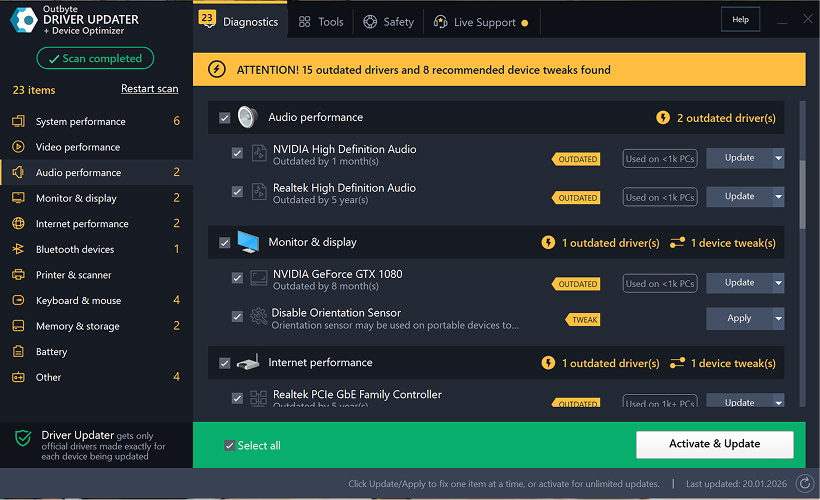
Étape 4 : Cliquez sur « Mettre à jour » à côté du pilote sélectionné
Dans la liste des pilotes, localisez le pilote que vous souhaitez mettre à jour et cliquez sur le bouton Mettre à jour à côté de celui-ci.
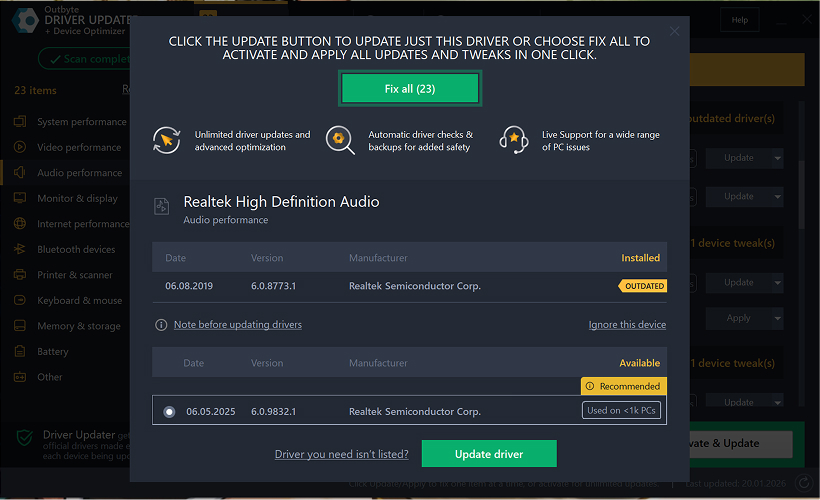
Étape 5 : Confirmez la mise à jour du pilote
Dans la fenêtre contextuelle, cliquez sur Mettre à jour le pilote.
À ce stade, aucune donnée personnelle ou détail de paiement n'est requis.
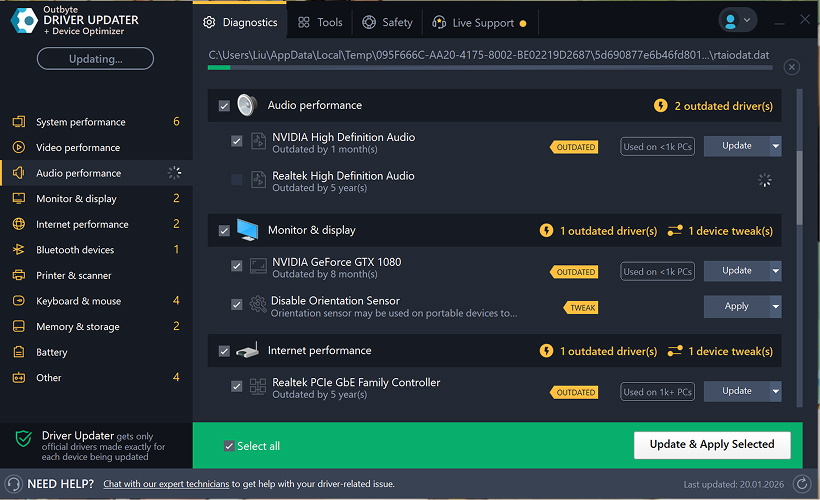
Étape 6 : Attendez la fin du processus de mise à jour
Le programme commencera à télécharger et à installer le pilote sélectionné.
Veuillez patienter jusqu'à ce que le processus soit terminé.
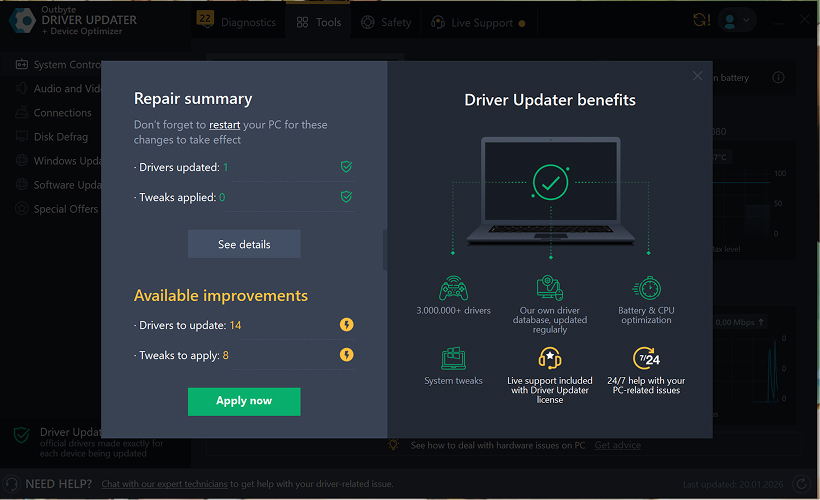
Étape 7 : Appliquez les modifications et redémarrez votre ordinateur
Une fois l'installation terminée, cliquez sur Appliquer maintenant pour appliquer les modifications.
Pour vous assurer que le pilote mis à jour fonctionne correctement, redémarrez votre ordinateur.
Remarques importantes
- Les mises à jour gratuites sont disponibles un pilote à la fois.
- Aucune inscription n'est requise pour la mise à jour gratuite.
- Aucune carte bancaire ou information de paiement n'est demandée.
- Toutes les actions sont effectuées localement dans le programme après l'analyse de votre système.
- La disponibilité de la mise à jour gratuite peut dépendre du type de pilote et de la configuration du système.
Learn to pair your wireless mouse with a different USB receiver in simple steps. Check compatibility (e.g., Logitech Unifying receivers), install required software/drivers, and use pairing modes to sync devices. Troubleshoot connection issues and optimize performance for seamless use.
Simplify your workspace with Logitech Unifying Software, enabling effortless connection of up to six compatible devices through a single receiver. Enjoy quick setup, clutter-free connectivity, and enhanced productivity as your keyboard, mouse, and other peripherals work in perfect harmony.
Learn how to set up your Epson L3250 printer with this step-by-step guide. Unbox, install ink, connect to power, and download drivers via Epson’s website or included CD. Configure Wi-Fi settings for wireless printing and run a test page to ensure proper installation. Simplify your setup process and start printing effortlessly.
Transform your smartphone into an HD webcam with DroidCam. Enjoy wireless connectivity and seamless video streaming for crystal-clear video calls, live streams, or online meetings. Works with PC/Mac.
Learn how to enable Bluetooth on your PC in a few simple steps. Check compatibility, activate Bluetooth via Windows Settings or the system tray, pair your device, and troubleshoot common issues. This guide ensures seamless wireless connections for headphones, speakers, or peripherals.
Learn how to set up your Epson L3250 printer quickly and efficiently. This guide covers unboxing, installing ink cartridges, connecting to power, and configuring Wi-Fi for seamless wireless printing. Follow step-by-step instructions to install drivers, align the printer head, and troubleshoot common issues. Perfect for home or office use, the Epson L3250 ensures hassle-free installation and high-quality printing, scanning, and copying.
Download the latest Epson L3250 printer drivers and software to ensure seamless connectivity and optimal performance. Compatible with Windows and macOS, these tools enable easy setup, wireless printing, and advanced features. Visit the official Epson support page for secure, up-to-date downloads tailored to your operating system. Simplify installation and maximize your printer’s capabilities with reliable drivers and utilities.
Discover innovative strategies to amplify your message and connect deeply with audiences – no microphone needed. Harness the power of body language, visual storytelling, and creative platforms to make your voice heard in any setting.
The Valeton GP 100 Wah is a professional-grade guitar pedal designed for musicians seeking dynamic sound control and expressive tonal shaping. Featuring a responsive wah circuit, it delivers smooth, vintage-inspired sweeps and modern versatility for rock, funk, blues, and beyond. Built with durable components and an intuitive design, the GP 100 ensures reliable performance on stage or in the studio. Adjustable parameters and a true bypass switch provide seamless integration into any pedalboard setup, while its compact size maximizes space efficiency. Elevate your playing with rich, articulate wah effects tailored to your musical style.
Virtual CloneDrive offers effortless disc image mounting and virtual drive cloning, enabling you to access ISO, BIN, IMG, and other formats without physical media. Streamline workflows, run software, or backup data with a lightweight, user-friendly tool that integrates seamlessly into your system. Simplify disc management and enhance productivity—no hardware required.