Software affidabile

Outbyte Driver Updater
- 1.000.000+ driver
- Scaricato: 1,143,473 volte
- Windows 11 / 10 / 8 / 7




 Scarica
Xerox - Imaging - Xerox Phaser 6110MFP
Scarica
Xerox - Imaging - Xerox Phaser 6110MFP
Scarica
Xerox - Imaging - Xerox Phaser 6110MFP

Informazioni di Sistema
Il tuo PC sta attualmente eseguendo:
Driver details
Driver Name:
Xerox - Imaging - Xerox Phaser 6110MFP
Provider:
Xerox
Version:
1.6.8.0
Release Date:
11/13/2012
Architecture:
X86
File Size:
3.0 MB
Driver ID:
usb\vid_0924&pid_3d5d&mi_00
Supported OS:
Windows 7
WHQL:
Signed
Offerta speciale
Scarica
Tutti i link sono stati scansionati da un programma antivirus.
Manual download (.cab, 3.0 MB) from Microsoft servers
— install via Device Manager.
Supported Hardware IDs
usb\vid_0924&pid_3d5d&mi_00
Match against Device Manager → Details → Hardware Ids to confirm this driver fits your device.
File details
File name:
20553655_de42ca3a57b77560b9a4d44b282a862faf56fe28.cab
File size:
3117124 bytes (2.9 MB)
Signed / DriverVer:
11/13/2012,1.6.8.0
Provider (INF):
Xerox
Catalog file:
P6110MFP.cat
SHA-256:
33ba301728e1ea86fa7e4a2917547ef9c355634c7e04e9df7e262997b83475eb
To verify: open PowerShell and run Get-FileHash <filename.cab>
What's inside the package (78 files)
DgivEcp.sys 37.5 KB
OEMCFG.dll 56.0 KB
OEMDM.dll 60.0 KB
OEMDS.DS 292.0 KB
OEMDS.INI 3.4 KB
OEMIMG.dll 228.0 KB
OEMNW.dll 68.0 KB
OEMTW.dll 56.0 KB
OEMUI.dat 19.8 KB
OEMUI.dll 1.1 MB
OEMUI.ipb 1.5 MB
OEMUIab.dat 19.8 KB
OEMUIbp.dat 21.8 KB
OEMUIcp.dat 17.8 KB
OEMUIct.dat 17.7 KB
OEMUIcz.dat 20.6 KB
OEMUIdn.dat 20.2 KB
OEMUIdt.dat 21.0 KB
OEMUIel.dat 21.9 KB
OEMUIfi.dat 20.6 KB
OEMUIfn.dat 22.2 KB
OEMUIgr.dat 21.2 KB
OEMUIhb.dat 19.0 KB
OEMUIhu.dat 21.4 KB
OEMUIit.dat 22.1 KB
OEMUIjp.dat 19.8 KB
OEMUIkr.dat 18.9 KB
OEMUIl.ipb 51.4 KB
OEMUInr.dat 20.3 KB
OEMUIpo.dat 21.0 KB
OEMUIpt.dat 21.5 KB
OEMUIru.dat 21.4 KB
OEMUIsp.dat 21.6 KB
OEMUIsw.dat 20.1 KB
OEMUItk.dat 20.6 KB
P6110MFP.cat 34.2 KB
P6110MFP.inf 10.0 KB
SSPORT.sys 5.0 KB
SaErHdlr.dll 60.0 KB
SaImgFlt.dll 104.0 KB
SaMinDrv.dll 268.0 KB
SaSegFlt.dll 88.0 KB
SaXPEH.dll 137.0 KB
SaXPIPH.dll 114.5 KB
SaXPSTI.dll 85.5 KB
SaXPUIEX.dll 135.0 KB
SaXPWIA.dll 193.0 KB
TWAIN.DLL 85.3 KB
TWAIN_32.DLL 75.5 KB
TWUNK_16.exe 47.4 KB
TWUNK_32.exe 68.0 KB
WIAUISTR.loc 7.2 KB
oemui.chm 69.3 KB
oemuiab.chm 75.8 KB
oemuibp.chm 73.7 KB
oemuicp.chm 73.5 KB
oemuict.chm 73.5 KB
oemuicz.chm 75.5 KB
oemuidn.chm 74.1 KB
oemuidt.chm 73.5 KB
oemuiel.chm 77.8 KB
oemuifi.chm 74.8 KB
oemuifn.chm 77.7 KB
oemuigr.chm 75.6 KB
oemuihb.chm 73.2 KB
oemuihu.chm 76.4 KB
oemuiit.chm 74.0 KB
oemuijp.chm 84.9 KB
oemuikr.chm 77.4 KB
oemuinr.chm 72.2 KB
oemuipo.chm 77.2 KB
oemuipt.chm 74.7 KB
oemuiru.chm 72.7 KB
oemuisp.chm 74.5 KB
oemuisw.chm 73.5 KB
oemuitk.chm 75.0 KB
ssdevm.dll 56.0 KB
ssusbpn.dll 48.0 KB
All versions of this driver
| Version | Release Date | Architecture | OS | |
|---|---|---|---|---|
| 1.6.8.0 | 11/13/2012 | X86 | Windows 7 | (this page) |
| 1.5.1.0 | 8/28/2007 | AMD64 | Windows 8.1, Windows 8, Windows 7, Windows XP | 1.5.1.0 |
Related drivers
- XEROX CORPORATION. - Multi-Function Printer, Other hardware - Xerox Phaser 6180MFP Scanner (v1.2.1.0)
- XEROX CORPORATION. - Other Hardware - Xerox Phaser 6180MFP Scanner (v1.0.0.0)
- XEROX CORPORATION. - Imaging, Printing - Xerox Phaser 6180MFP Scanner (v1.0.0.1)
- Xerox - Image - 4 14 2014 12:00:00 AM - 1.8.3.0 (v1.8.3.0)
- Xerox - Enterprise WSD Multi-Function Printer, Other hardware - Xerox WorkCentre 3025 (v1.8.3.0)
- Xerox - Image - 4 14 2014 12:00:00 AM - 1.8.3.0 (v1.8.3.0)
- Xerox - Multi-Function Printer, Other hardware - Xerox Phaser 6128MFP Scanner (v1.0.2.0)
- WorkCentre PE220 Series (v1.6.8.0)
- Xerox - Imaging - Xerox Phaser 3200MFP (v1.6.8.0)
- Xerox - Imaging - Xerox WC 6015B (WIA) (v1.0.1.6)
Driver: La Base per un Funzionamento Stabile dei Dispositivi
Perché i Driver sono così Importanti?
I driver svolgono un ruolo cruciale nella stabilità del sistema. Driver obsoleti o danneggiati possono causare:
Si consiglia di aggiornare i driver ogni 3-6 mesi. Questo è particolarmente importante prima di installare un nuovo sistema operativo, poiché i driver aggiornati possono essere necessari per garantire la compatibilità.
Come Mantenere Aggiornati i tuoi Driver?
Metodo automatico per aggiornare e scaricare i driver (Consigliato):
Se preferisci non cercare manualmente il driver corretto, esistono strumenti che rilevano automaticamente il modello del tuo dispositivo e trovano un driver compatibile. Questo riduce il rischio di errori e fa risparmiare tempo.
Offerta speciale
Scarica

Limitations: trial version offers an unlimited number of scans, free driver backup and rollback. Registration for the full version starts from USD 29.95. See more information about Outbyte and uninstall instructions. Please review Outbyte EULA and Privacy Policy
Tutti i link sono stati scansionati da un programma antivirus.
Installazione manuale del driver
Nota: L'installazione di un driver errato può causare problemi al sistema. Se non sei sicuro di quale driver scegliere, ti consigliamo il metodo automatico.
Scarica il driver tramite Gestione dispositivi. Come aprire Gestione dispositivi:
Come installare i driver utilizzando Gestione dispositivi:
How to Update a Driver for Free Using Outbyte Driver Updater
Mantenere i driver del dispositivo aggiornati aiuta a garantire prestazioni stabili di Windows e il corretto funzionamento dell'hardware. Di seguito è riportata una guida passo-passo che spiega come aggiornare un singolo driver gratuitamente utilizzando Outbyte Driver Updater. Questa guida descrive un metodo per aggiornare un driver selezionato senza attivare una licenza e senza fornire informazioni personali o dettagli di pagamento.
È Possibile Aggiornare un Driver Gratuitamente Senza Registrazione?
Sì.
Outbyte Driver Updater ti consente di:
- scansionare il tuo computer alla ricerca di driver obsoleti senza costi;
- visualizzare un elenco dei driver rilevati;
- aggiornare un driver selezionato gratuitamente;
- evitare di inserire un indirizzo email, nome, numero di carta di credito o qualsiasi altro dato personale.
Il processo di aggiornamento gratuito richiede solo il programma installato e i passaggi standard di scansione e aggiornamento.
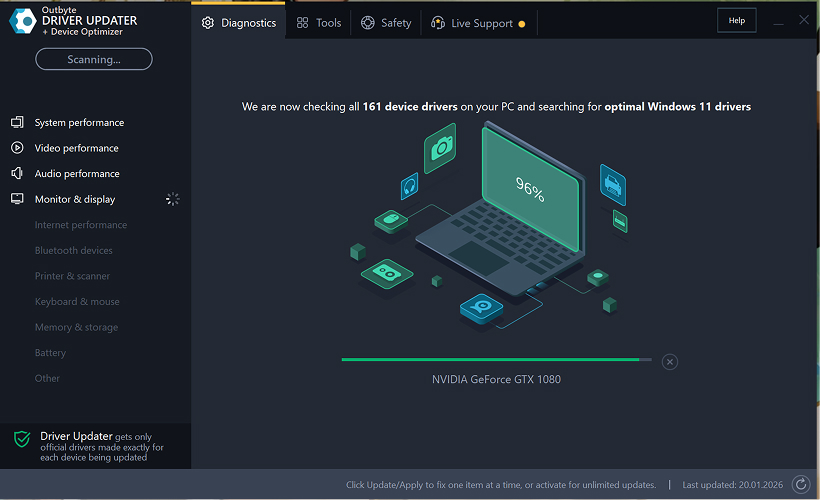
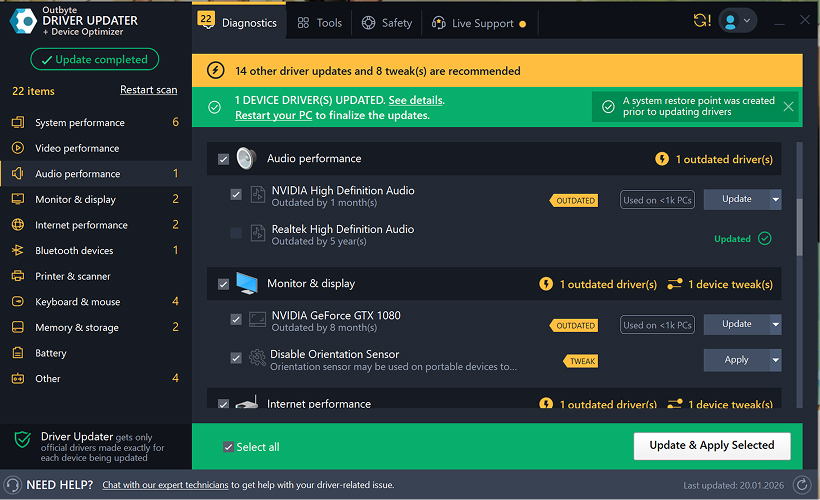
Passaggio 1: Avvia il Programma e Scansiona il Tuo Computer
Scarica e installa Outbyte Driver Updater sul tuo PC Windows.
Dopo aver avviato il programma, inizierà automaticamente a scansionare il tuo sistema e a controllare i driver installati.
Passaggio 2: Chiudi la Finestra di Attivazione
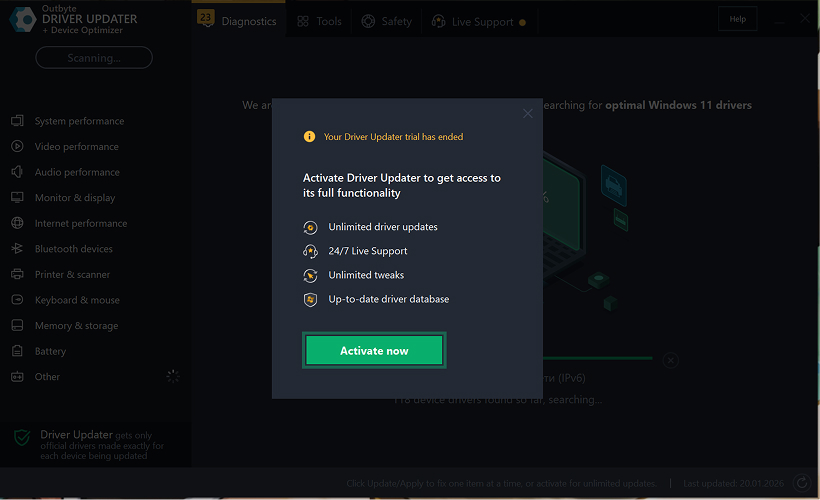
Dopo la scansione, potrebbe apparire una finestra "Attiva ora".
Per continuare gratuitamente:
- fai clic sul pulsante di chiusura (X) nell'angolo in alto a destra della finestra.
Non è necessario inserire alcuna informazione
Passaggio 3: Seleziona la Categoria del Driver
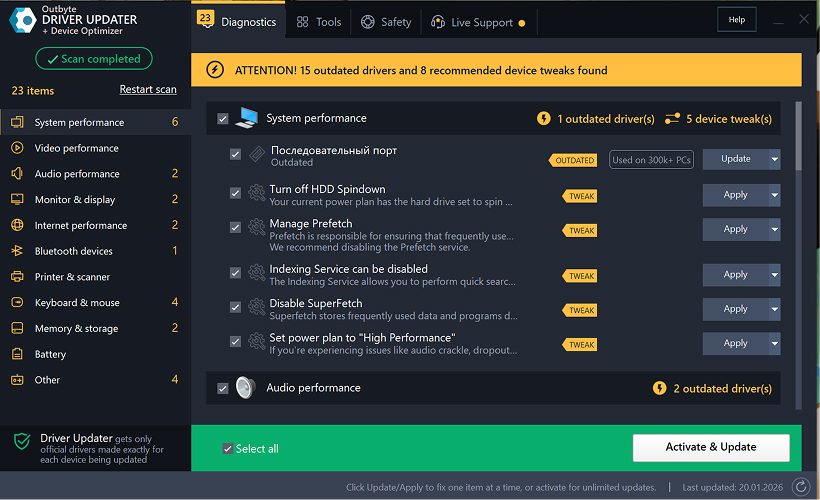
Dal menu a sinistra, scegli la categoria del dispositivo che desideri aggiornare, come:
- driver audio;
- driver video e grafici;
- driver di rete e Wi-Fi;
- driver Bluetooth;
- driver di stampanti e scanner.
Passaggio 4: Fai Clic su "Aggiorna" Accanto al Driver Selezionato
Nell'elenco dei driver, individua il driver che desideri aggiornare e fai clic sul pulsante Aggiorna accanto ad esso.
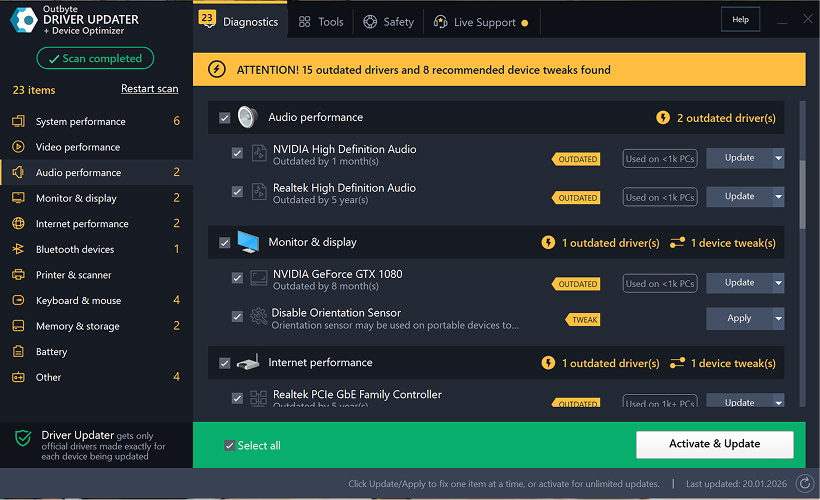
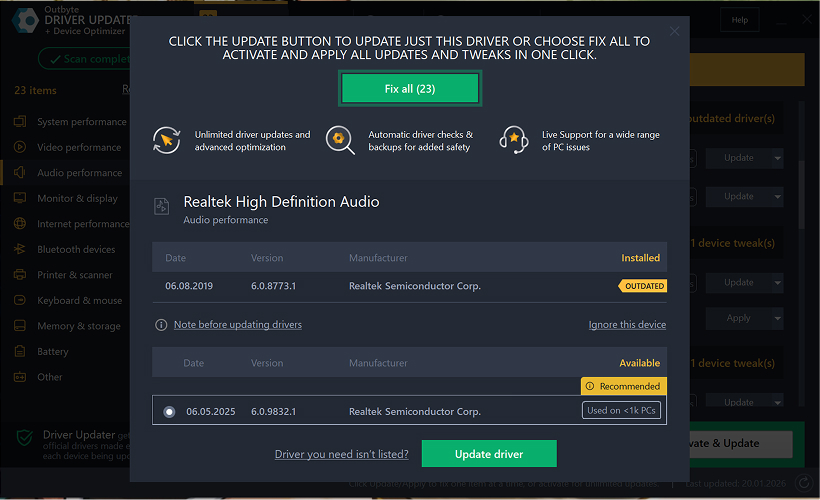
Passaggio 5: Conferma l'Aggiornamento del Driver
Nella finestra popup, fai clic su Aggiorna driver.
In questa fase, non sono richiesti dati personali o dettagli di pagamento.
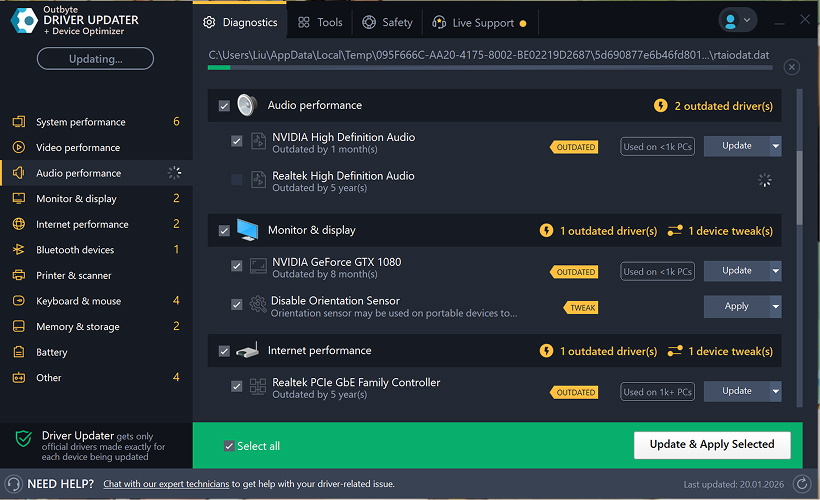
Passaggio 6: Attendi il Completamento del Processo di Aggiornamento
Il programma inizierà a scaricare e installare il driver selezionato.
Attendi fino al completamento del processo.
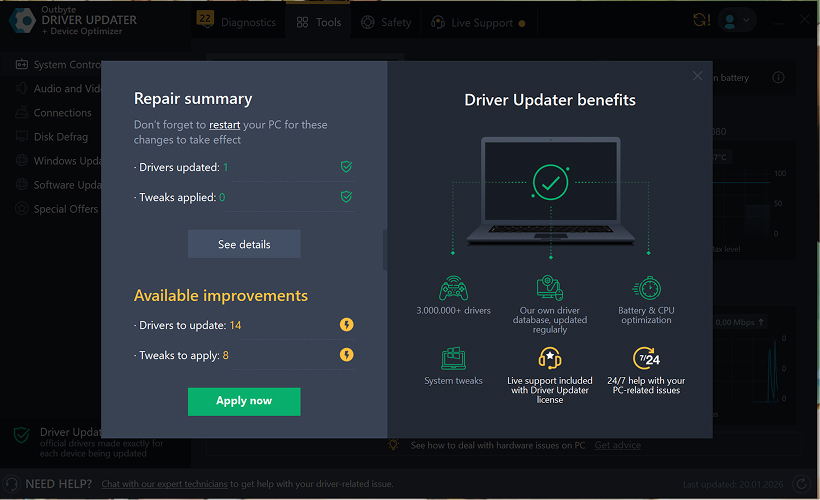
Passaggio 7: Applica le Modifiche e Riavvia il Computer
Al termine dell'installazione, fai clic su Applica ora per applicare le modifiche.
Per garantire che il driver aggiornato funzioni correttamente, riavvia il computer.
Note Importanti
- Gli aggiornamenti gratuiti sono disponibili un driver alla volta.
- Non è richiesta alcuna registrazione per l'aggiornamento gratuito.
- Non vengono richieste informazioni di carta di credito o di pagamento.
- Tutte le azioni vengono eseguite localmente all'interno del programma dopo la scansione del sistema.
- La disponibilità dell'aggiornamento gratuito può dipendere dal tipo di driver e dalla configurazione del sistema.
Learn to pair your wireless mouse with a different USB receiver in simple steps. Check compatibility (e.g., Logitech Unifying receivers), install required software/drivers, and use pairing modes to sync devices. Troubleshoot connection issues and optimize performance for seamless use.
Simplify your workspace with Logitech Unifying Software, enabling effortless connection of up to six compatible devices through a single receiver. Enjoy quick setup, clutter-free connectivity, and enhanced productivity as your keyboard, mouse, and other peripherals work in perfect harmony.
Learn how to set up your Epson L3250 printer with this step-by-step guide. Unbox, install ink, connect to power, and download drivers via Epson’s website or included CD. Configure Wi-Fi settings for wireless printing and run a test page to ensure proper installation. Simplify your setup process and start printing effortlessly.
Transform your smartphone into an HD webcam with DroidCam. Enjoy wireless connectivity and seamless video streaming for crystal-clear video calls, live streams, or online meetings. Works with PC/Mac.
Learn how to enable Bluetooth on your PC in a few simple steps. Check compatibility, activate Bluetooth via Windows Settings or the system tray, pair your device, and troubleshoot common issues. This guide ensures seamless wireless connections for headphones, speakers, or peripherals.
Learn how to set up your Epson L3250 printer quickly and efficiently. This guide covers unboxing, installing ink cartridges, connecting to power, and configuring Wi-Fi for seamless wireless printing. Follow step-by-step instructions to install drivers, align the printer head, and troubleshoot common issues. Perfect for home or office use, the Epson L3250 ensures hassle-free installation and high-quality printing, scanning, and copying.
Download the latest Epson L3250 printer drivers and software to ensure seamless connectivity and optimal performance. Compatible with Windows and macOS, these tools enable easy setup, wireless printing, and advanced features. Visit the official Epson support page for secure, up-to-date downloads tailored to your operating system. Simplify installation and maximize your printer’s capabilities with reliable drivers and utilities.
Discover innovative strategies to amplify your message and connect deeply with audiences – no microphone needed. Harness the power of body language, visual storytelling, and creative platforms to make your voice heard in any setting.
The Valeton GP 100 Wah is a professional-grade guitar pedal designed for musicians seeking dynamic sound control and expressive tonal shaping. Featuring a responsive wah circuit, it delivers smooth, vintage-inspired sweeps and modern versatility for rock, funk, blues, and beyond. Built with durable components and an intuitive design, the GP 100 ensures reliable performance on stage or in the studio. Adjustable parameters and a true bypass switch provide seamless integration into any pedalboard setup, while its compact size maximizes space efficiency. Elevate your playing with rich, articulate wah effects tailored to your musical style.
Virtual CloneDrive offers effortless disc image mounting and virtual drive cloning, enabling you to access ISO, BIN, IMG, and other formats without physical media. Streamline workflows, run software, or backup data with a lightweight, user-friendly tool that integrates seamlessly into your system. Simplify disc management and enhance productivity—no hardware required.