Pålitelig Programvare

Outbyte Driver Updater
- 1,000,000+ drivere
- Nedlastet: 1,143,473 ganger
- Windows 11 / 10 / 8 / 7




 Last Ned
WLI-U2-KG54L 802.11bg ZyDAS ZD1211B
Last Ned
WLI-U2-KG54L 802.11bg ZyDAS ZD1211B
Last Ned
WLI-U2-KG54L 802.11bg ZyDAS ZD1211B

Systeminformasjon
PC-en din kjører for øyeblikket:
Driver details
Driver Name:
WLI-U2-KG54L 802.11bg ZyDAS ZD1211B
Provider:
WLAN
Version:
2.0.0.125
Release Date:
12/22/2006
Architecture:
AMD64
File Size:
173 KB
Driver ID:
usb\vid_0411&pid_00da
Supported OS:
Windows 8.1, Windows 8, Windows 7
WHQL:
Signed
Spesialtilbud
Last Ned
Alle lenker er skannet av antivirusprogram.
Manual download (.cab, 173 KB) from Microsoft servers
— install via Device Manager.
Compatible hardware
- WLI-U2-KG54L 802.11bg [ZyDAS ZD1211B] (BUFFALO INC. (formerly MelCo., Inc.))
Supported Hardware IDs
usb\vid_0411&pid_00da
usb\vid_0471&pid_1236
usb\vid_0471&pid_1237
usb\vid_04bb&pid_0937
usb\vid_04bb&pid_0938
usb\vid_050d&pid_4050
usb\vid_050d&pid_705c
usb\vid_0586&pid_340a
usb\vid_0586&pid_340f
usb\vid_0586&pid_3410
Show all 37 hardware IDs
usb\vid_0586&pid_3412
usb\vid_0586&pid_3413
usb\vid_079b&pid_0062
usb\vid_07b8&pid_6001
usb\vid_0803&pid_a312
usb\vid_083a&pid_4505
usb\vid_083a&pid_e501
usb\vid_0ace&pid_1215
usb\vid_0ace&pid_a215
usb\vid_0ace&pid_b215
usb\vid_0ace&pid_c215
usb\vid_0b05&pid_171b
usb\vid_0b05&pid_171c
usb\vid_0baf&pid_0121
usb\vid_0cde&pid_001a
usb\vid_0cde&pid_0020
usb\vid_129b&pid_1666
usb\vid_129b&pid_1667
usb\vid_157e&pid_300c
usb\vid_157e&pid_300d
usb\vid_157e&pid_3208
usb\vid_1690&pid_0726
usb\vid_2019&pid_5303
usb\vid_2019&pid_5304
usb\vid_5300&pid_5301
usb\vid_5300&pid_5302
usb\vid_6189&pid_9071
Match against Device Manager → Details → Hardware Ids to confirm this driver fits your device.
File details
File name:
20028973_06bd883e88489f5996866d34903162ad3fc9a84a.cab
File size:
178155 bytes (0.1 MB)
Signed / DriverVer:
12/22/2006,2.0.0.125
Provider (INF):
WLAN
Catalog file:
athrxusbext.cat
SHA-256:
4d8f3b420a859488e62632cdf789b77bae600c38ed9cf295d50b3c0b9f5f32e1
To verify: open PowerShell and run Get-FileHash <filename.cab>
What's inside the package (3 files)
athrxusb.sys 546.0 KB
athrxusbext.cat 13.3 KB
netathrxusb.inf 30.9 KB
All versions of this driver
| Version | Release Date | Architecture | OS | |
|---|---|---|---|---|
| 2.2.0.27 | 7/29/2008 | X86 | Windows 8.1, Windows 8, Windows 7 | 2.2.0.27 |
| 2.0.2.12 | 7/5/2007 | AMD64 | Windows 8.1, Windows 8, Windows 7 | 2.0.2.12 |
| 2.0.0.125 | 12/22/2006 | AMD64 | Windows 8.1, Windows 8, Windows 7 | (this page) |
Related drivers
Drivere: Grunnlaget for Stabil Enhetsytelse
Hvorfor er Drivere så Viktige?
Drivere spiller en avgjørende rolle i systemstabiliteten. Utdaterte eller ødelagte drivere kan føre til:
Det anbefales å oppdatere drivere hver 3-6 måned. Dette er spesielt viktig før du installerer et nytt operativsystem, da oppdaterte drivere kan være nødvendige for å sikre kompatibilitet.
Hvordan Holde Driverne Oppdatert?
Automatisk metode for oppdatering og nedlasting av drivere (Anbefalt):
Hvis du ikke ønsker å lete etter riktig driver manuelt, finnes det verktøy som automatisk oppdager enhetsmodellen din og finner en kompatibel driver. Dette reduserer risikoen for feil og sparer tid.
Spesialtilbud
Last Ned

Limitations: trial version offers an unlimited number of scans, free driver backup and rollback. Registration for the full version starts from USD 29.95. See more information about Outbyte and uninstall instructions. Please review Outbyte EULA and Privacy Policy
Alle lenker er skannet av antivirusprogram.
Manuell installasjon av driver
Merk: Installasjon av feil driver kan føre til systemproblemer. Hvis du er usikker på hvilken driver du skal velge, anbefaler vi den automatiske metoden.
Last ned driveren via Enhetsbehandling. Slik åpner du Enhetsbehandling:
Slik installerer du drivere ved hjelp av Enhetsbehandling:
How to Update a Driver for Free Using Outbyte Driver Updater
Å holde enhetsdriverne oppdatert bidrar til å sikre stabil Windows-ytelse og korrekt maskinvaredrift. Nedenfor finner du en trinnvis veiledning som forklarer hvordan du oppdaterer en enkelt driver gratis ved hjelp av Outbyte Driver Updater. Denne veiledningen beskriver en metode for å oppdatere én valgt driver uten å aktivere en lisens og uten å oppgi personlig informasjon eller betalingsdetaljer.
Kan du oppdatere en driver gratis uten registrering?
Ja.
Outbyte Driver Updater lar deg:
- skanne datamaskinen for utdaterte drivere uten kostnad;
- se en liste over oppdagede drivere;
- oppdatere én valgt driver gratis;
- unngå å oppgi e-postadresse, navn, kredittkortnummer eller andre personopplysninger.
Den gratis oppdateringsprosessen krever bare det installerte programmet og de vanlige skannings- og oppdateringstrinnene.
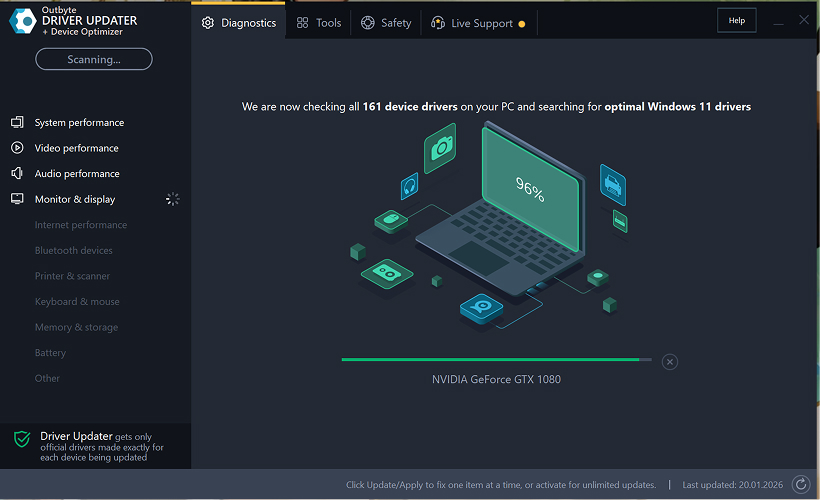
Trinn 1: Start programmet og skann datamaskinen
Last ned og installer Outbyte Driver Updater på Windows-PCen din.
Etter oppstart vil programmet automatisk begynne å skanne systemet og kontrollere installerte drivere.
Trinn 2: Lukk aktiveringsvinduet
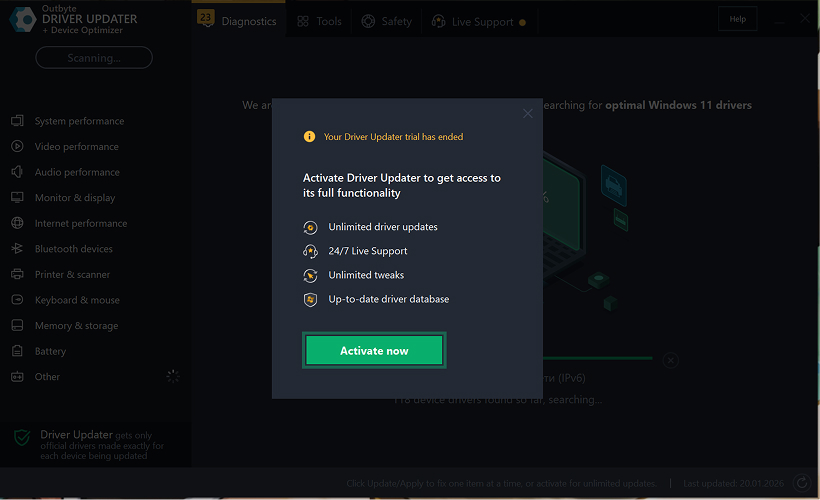
Etter skanningen kan et "Aktiver nå"-vindu vises.
For å fortsette gratis:
- klikk på lukk (X)-knappen i øvre høyre hjørne av vinduet.
Ingen informasjon behøver å oppgis
Trinn 3: Velg driverkategori
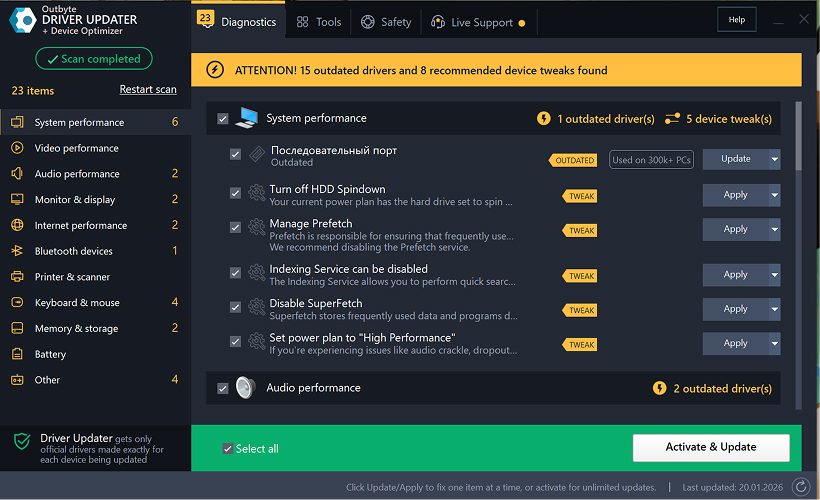
Fra menyen til venstre, velg enhetskategorien du vil oppdatere, for eksempel:
- lyddrivere;
- video- og grafikkdrivere;
- nettverk- og Wi-Fi-drivere;
- Bluetooth-drivere;
- skriver- og skannerdrivere.
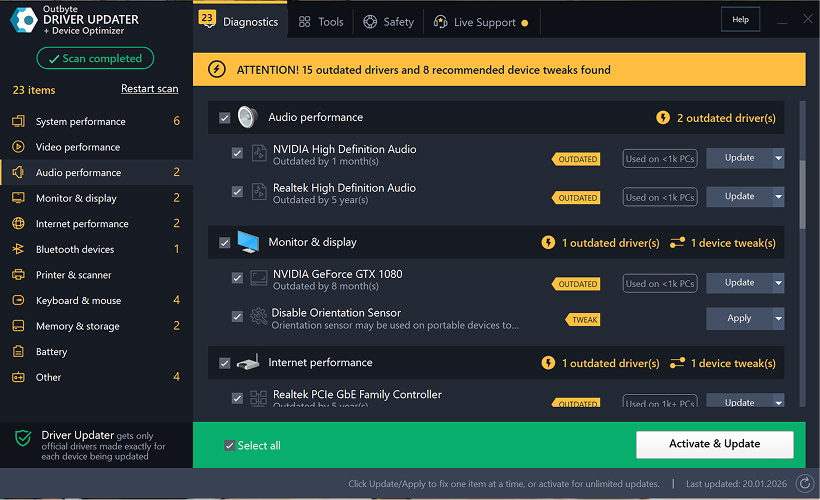
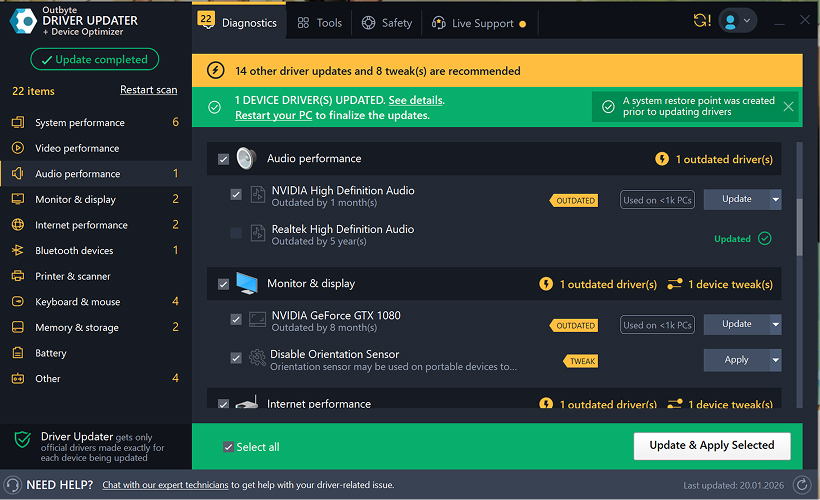
Trinn 4: Klikk "Oppdater" ved siden av den valgte driveren
I driverlisten, finn driveren du vil oppdatere og klikk på Oppdater-knappen ved siden av den.
Trinn 5: Bekreft driveroppdateringen
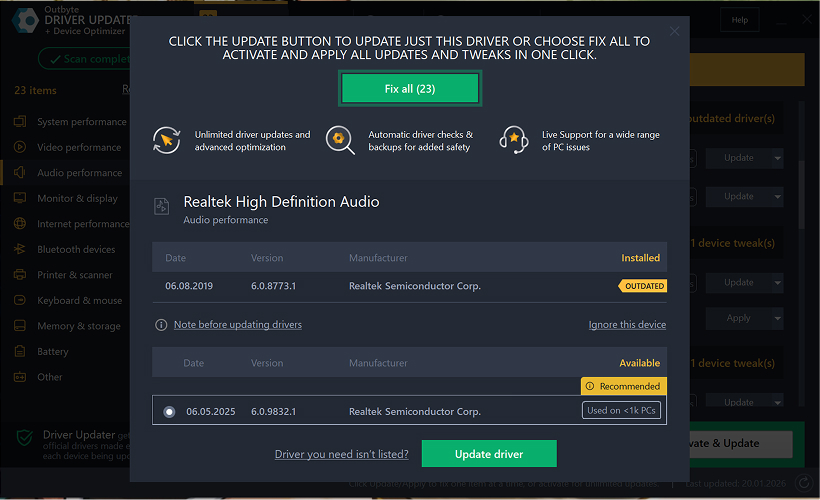
I popup-vinduet, klikk Oppdater driver.
På dette stadiet kreves ingen personopplysninger eller betalingsdetaljer.
Trinn 6: Vent til oppdateringsprosessen er ferdig
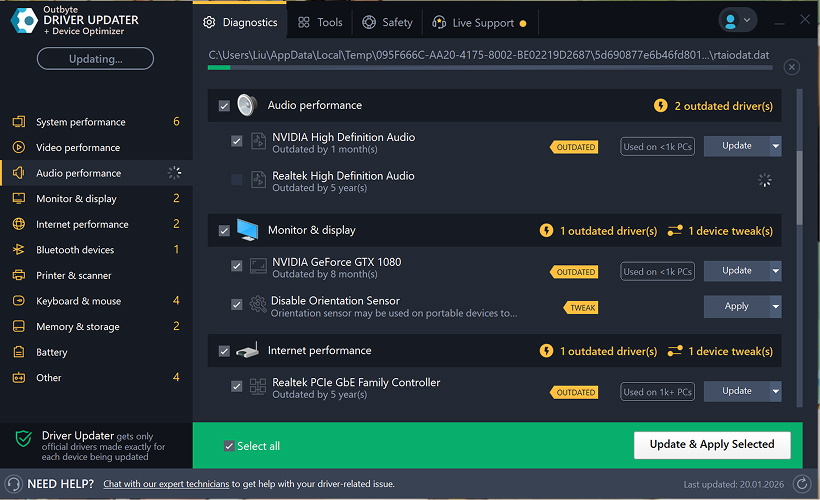
Programmet vil begynne å laste ned og installere den valgte driveren.
Vennligst vent til prosessen er fullført.
Trinn 7: Bruk endringer og start datamaskinen på nytt
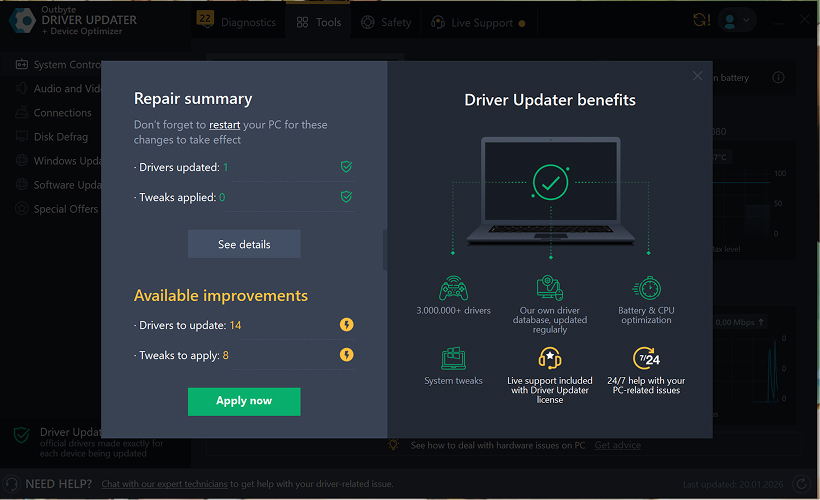
Etter at installasjonen er ferdig, klikk Bruk nå for å aktivere endringene.
For å sikre at den oppdaterte driveren fungerer korrekt, start datamaskinen på nytt.
Viktige merknader
- Gratis oppdateringer er tilgjengelige én driver om gangen.
- Ingen registrering er påkrevd for den gratis oppdateringen.
- Ingen kredittkort- eller betalingsinformasjon blir forespurt.
- Alle handlinger utføres lokalt i programmet etter skanning av systemet.
- Tilgjengelighet for gratis oppdatering kan avhenge av drivertype og systemkonfigurasjon.
Learn to pair your wireless mouse with a different USB receiver in simple steps. Check compatibility (e.g., Logitech Unifying receivers), install required software/drivers, and use pairing modes to sync devices. Troubleshoot connection issues and optimize performance for seamless use.
Simplify your workspace with Logitech Unifying Software, enabling effortless connection of up to six compatible devices through a single receiver. Enjoy quick setup, clutter-free connectivity, and enhanced productivity as your keyboard, mouse, and other peripherals work in perfect harmony.
Learn how to set up your Epson L3250 printer with this step-by-step guide. Unbox, install ink, connect to power, and download drivers via Epson’s website or included CD. Configure Wi-Fi settings for wireless printing and run a test page to ensure proper installation. Simplify your setup process and start printing effortlessly.
Transform your smartphone into an HD webcam with DroidCam. Enjoy wireless connectivity and seamless video streaming for crystal-clear video calls, live streams, or online meetings. Works with PC/Mac.
Learn how to enable Bluetooth on your PC in a few simple steps. Check compatibility, activate Bluetooth via Windows Settings or the system tray, pair your device, and troubleshoot common issues. This guide ensures seamless wireless connections for headphones, speakers, or peripherals.
Learn how to set up your Epson L3250 printer quickly and efficiently. This guide covers unboxing, installing ink cartridges, connecting to power, and configuring Wi-Fi for seamless wireless printing. Follow step-by-step instructions to install drivers, align the printer head, and troubleshoot common issues. Perfect for home or office use, the Epson L3250 ensures hassle-free installation and high-quality printing, scanning, and copying.
Download the latest Epson L3250 printer drivers and software to ensure seamless connectivity and optimal performance. Compatible with Windows and macOS, these tools enable easy setup, wireless printing, and advanced features. Visit the official Epson support page for secure, up-to-date downloads tailored to your operating system. Simplify installation and maximize your printer’s capabilities with reliable drivers and utilities.
Discover innovative strategies to amplify your message and connect deeply with audiences – no microphone needed. Harness the power of body language, visual storytelling, and creative platforms to make your voice heard in any setting.
The Valeton GP 100 Wah is a professional-grade guitar pedal designed for musicians seeking dynamic sound control and expressive tonal shaping. Featuring a responsive wah circuit, it delivers smooth, vintage-inspired sweeps and modern versatility for rock, funk, blues, and beyond. Built with durable components and an intuitive design, the GP 100 ensures reliable performance on stage or in the studio. Adjustable parameters and a true bypass switch provide seamless integration into any pedalboard setup, while its compact size maximizes space efficiency. Elevate your playing with rich, articulate wah effects tailored to your musical style.
Virtual CloneDrive offers effortless disc image mounting and virtual drive cloning, enabling you to access ISO, BIN, IMG, and other formats without physical media. Streamline workflows, run software, or backup data with a lightweight, user-friendly tool that integrates seamlessly into your system. Simplify disc management and enhance productivity—no hardware required.