Zaufane Oprogramowanie

Outbyte Driver Updater
- Ponad 1 000 000 sterowników
- Pobrano: 1143473 razy
- Windows 11 / 10 / 8 / 7





 Pobierz
KONICA MINOLTA - Printing, Scanner - KONICA MINOLTA bizhub 20
Pobierz
KONICA MINOLTA - Printing, Scanner - KONICA MINOLTA bizhub 20
Pobierz
KONICA MINOLTA - Printing, Scanner - KONICA MINOLTA bizhub 20

Informacje o Systemie
Twój komputer działa obecnie na:
Driver details
Driver Name:
KONICA MINOLTA - Printing, Scanner - KONICA MINOLTA bizhub 20
Provider:
KONICA MINOLTA
Version:
1.0.0.1
Release Date:
2/11/2010
Architecture:
X86
File Size:
5.1 MB
Driver ID:
usb\vid_132b&pid_20c0&mi_01
Supported OS:
Windows XP
WHQL:
Signed
Oferta specjalna
Pobierz
Wszystkie linki zostały przeskanowane przez program antywirusowy.
Manual download (.cab, 5.1 MB) from Microsoft servers
— install via Device Manager.
Supported Hardware IDs
mf\konica_minoltabizhub8d28#2
mf\konica_minoltabizhub8d28&scn
usb\vid_132b&pid_20c0&mi_01
Match against Device Manager → Details → Hardware Ids to confirm this driver fits your device.
File details
File name:
20348433_56dea81a704b3297d5420c0db62cc92a85516d7e.cab
File size:
5388930 bytes (5.1 MB)
Signed / DriverVer:
02/18/2010,01.00.02.02
Provider (INF):
KONICA MINOLTA
Catalog file:
kbimm080.cat
SHA-256:
ec2db2817ef8d06245f10e3740aad3a08cb87efd926e2122696b88755a20af47
To verify: open PowerShell and run Get-FileHash <filename.cab>
What's inside the package (94 files)
DPInst.exe 776.4 KB
KBB20.DSI 2.4 KB
KBNBI08A.DSI 4.2 KB
KBPRM080.CAT 18.6 KB
KBPRM080.INF 4.0 KB
brbidiif.dl_ 10.6 KB
brcinsv2.dl_ 6.8 KB
brdsm080.dl_ 54.5 KB
brevif.dl_ 7.4 KB
brlm03a.dl_ 13.4 KB
brlmw03a.dl_ 36.8 KB
brlmw03a.in_ 126 B
brmd080.dl_ 107.7 KB
brmd080.ex_ 34.1 KB
brmfbagp.ex_ 24.1 KB
brmfbagp.in_ 68 B
brmfbags.ex_ 25.5 KB
brmfbags.in_ 47 B
brmfbidi.dl_ 7.8 KB
brmfbipp.da_ 55 B
brmfbipp.dl_ 48.1 KB
brmflpt.dl_ 17.2 KB
brmfpmbd.dl_ 13.7 KB
brmfrsmg.ex_ 17.8 KB
brmfusb.dl_ 23.0 KB
brosnmp.dl_ 96.7 KB
brparwdm.sy_ 21.3 KB
brrsi05c.dl_ 13.7 KB
brrsi08b.dl_ 14.7 KB
brscndev.dl_ 48.0 KB
brscnflt.dl_ 47.5 KB
brscnhlp.ch_ 151.0 KB
brscnrsm.dl_ 3.2 KB
brscnusb.sy_ 10.4 KB
brserif.dl_ 5.0 KB
brserif.sy_ 30.2 KB
brserwdm.sy_ 31.2 KB
brsti08b.dl_ 5.3 KB
brstiif.dl_ 40.6 KB
brstiifp.dl_ 40.6 KB
brtcpcon.dl_ 20.7 KB
brtwdfe.ds_ 54.5 KB
brtwdlng.dl_ 47.5 KB
brtwds.dl_ 96.1 KB
brtwdscn.dl_ 1.2 MB
brtwdsui.dl_ 85.3 KB
brusbser.sy_ 7.3 KB
brusi08b.dl_ 24.3 KB
brwia08b.dl_ 1.5 MB
dpinst.xml 129 B
kbadm08a.da_ 69 B
kbbmm08a.dl_ 278.1 KB
kbdim08a.dl_ 86.4 KB
kbdlm08a.dl_ 177.8 KB
kbe20.da_ 62 B
kbenm08a.dl_ 58.0 KB
kbimm080.cat 23.7 KB
kbimm080.inf 18.2 KB
kblgm08a.dl_ 23.2 KB
kbmdw080.ex_ 31.5 KB
kbmfM080.inf 6.6 KB
kbmfm080.cat 16.9 KB
kbnbi08a.dl_ 133.3 KB
kbpom080.cat 9.2 KB
kbpom080.inf 3.9 KB
kbprm080.ch_ 36.9 KB
kbrbtool.ex_ 58.3 KB
kbuim08a.dl_ 273.3 KB
kbw20.in_ 214 B
pmbd2k.dl_ 15.2 KB
rsmgrstr.dl_ 3.2 KB
twbizhub20p.in_ 429 B
twbizhub20u.in_ 410 B
brbidiif.dl_ 38.5 KB
brevif.dl_ 34.2 KB
brmfbagp.ex_ 24.1 KB
brmfbagp.in_ 68 B
brmfbags.ex_ 25.5 KB
brmfbags.in_ 47 B
brmfbidi.dl_ 35.0 KB
brmfbipp.da_ 55 B
brmfbipp.dl_ 48.8 KB
brmflpt.dl_ 43.5 KB
brmfrmpa.da_ 2.4 KB
brmfrmpa.ex_ 46.5 KB
brmfrsmg.ex_ 39.0 KB
brmfusb.dl_ 52.6 KB
brpar.sy_ 12.0 KB
brscnrsm.dl_ 21.1 KB
brserial.sy_ 28.0 KB
brserif.dl_ 29.7 KB
brsti05c.dl_ 4.7 KB
pmbd2k.dl_ 15.2 KB
rsmgrstr.dl_ 15.9 KB
All versions of this driver
| Version | Release Date | Architecture | OS | |
|---|---|---|---|---|
| 1.0.0.1 | 2/11/2010 | X86 | Windows XP | (this page) |
| 1.0.0.0 | 2/9/2010 | AMD64 | Windows 8, Windows 7 | 1.0.0.0 |
Related drivers
- KONICA MINOLTA, INC. - Other hardware - COLOR ANALYZER CA Series (v7.0.0.2)
- KONICA MINOLTA, INC. - USB - 5 9 2013 12:00:00 AM - 7.0.0.2 (v7.0.0.2)
- KONICA MINOLTA, INC. - Ports - 9 11 2015 12:00:00 AM - 1.0.0.10 (v1.0.0.10)
- KONICA MINOLTA, INC. - Other hardware - Measuring Instruments (v1.0.0.9)
- KONICA MINOLTA, INC. - Other hardware - KONICA MINOLTA RANGE7 (v2.0.0.8)
- KONICA MINOLTA, INC. - USB - 5 9 2013 12:00:00 AM - 1.3.0.2 (v1.3.0.2)
- KONICA MINOLTA, INC. - Other hardware - 2D Color Analyzer CA Series (v1.3.0.2)
- KONICA MINOLTA, INC. - Other hardware - CHROMA METER CS-200 Series (v1.0.0.2)
- KONICA MINOLTA - Imaging - KONICA MINOLTA BH15 (v1.1.1.1)
- KONICA MINOLTA - Imaging - KONICA MINOLTA BH16 (v1.1.1.1)
Sterowniki: Podstawa Stabilnej Pracy Urządzeń
Dlaczego Sterowniki są Tak Ważne?
Sterowniki odgrywają kluczową rolę w stabilności systemu. Przestarzałe lub uszkodzone sterowniki mogą powodować:
Zaleca się aktualizację sterowników co 3–6 miesięcy. Jest to szczególnie ważne przed instalacją nowego systemu operacyjnego, ponieważ zaktualizowane sterowniki mogą być niezbędne do zapewnienia kompatybilności.
Jak Utrzymać Sterowniki w Aktualności?
Automatyczna metoda aktualizacji i pobierania sterowników (Zalecane):
Jeśli nie chcesz ręcznie wyszukiwać odpowiedniego sterownika, dostępne są narzędzia, które automatycznie wykrywają model urządzenia i znajdują zgodny sterownik. Zmniejsza to ryzyko błędów i oszczędza czas.
Oferta specjalna
Pobierz

Limitations: trial version offers an unlimited number of scans, free driver backup and rollback. Registration for the full version starts from USD 29.95. See more information about Outbyte and uninstall instructions. Please review Outbyte EULA and Privacy Policy
Wszystkie linki zostały przeskanowane przez program antywirusowy.
Ręczna instalacja sterownika
Uwaga: Instalacja nieprawidłowej wersji sterownika może spowodować problemy z systemem. Jeśli nie jesteś pewien, który sterownik wybrać, zalecamy metodę automatyczną.
Pobierz sterownik za pomocą Menedżera urządzeń. Jak otworzyć Menedżera urządzeń:
Jak zainstalować sterowniki za pomocą Menedżera urządzeń:
How to Update a Driver for Free Using Outbyte Driver Updater
Utrzymywanie sterowników urządzeń na bieżąco pomaga zapewnić stabilną wydajność systemu Windows i prawidłowe działanie sprzętu. Poniżej znajduje się przewodnik krok po kroku wyjaśniający, jak bezpłatnie zaktualizować pojedynczy sterownik za pomocą Outbyte Driver Updater. Ten przewodnik opisuje metodę aktualizacji jednego wybranego sterownika bez aktywacji licencji i bez podawania jakichkolwiek danych osobowych lub informacji o płatności.
Czy możesz zaktualizować sterownik za darmo bez rejestracji?
Tak.
Outbyte Driver Updater pozwala na:
- bezpłatne skanowanie komputera w poszukiwaniu przestarzałych sterowników;
- przeglądanie listy wykrytych sterowników;
- bezpłatną aktualizację jednego wybranego sterownika;
- uniknięcie konieczności wprowadzania adresu e-mail, imienia, numeru karty kredytowej lub innych danych osobowych.
Proces bezpłatnej aktualizacji wymaga tylko zainstalowanego programu oraz standardowych kroków skanowania i aktualizacji.
Krok 1: Uruchom program i przeskanuj komputer
Pobierz i zainstaluj Outbyte Driver Updater na swoim komputerze z systemem Windows.
Po uruchomieniu programu automatycznie rozpocznie się skanowanie systemu i sprawdzanie zainstalowanych sterowników.
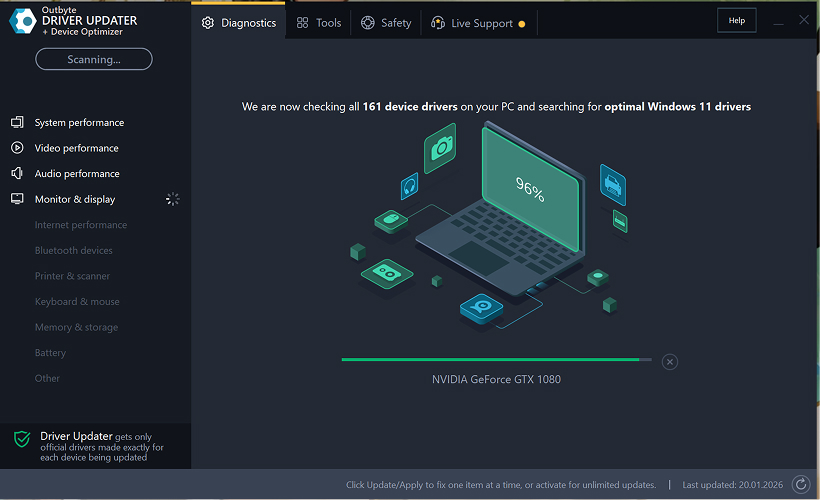
Krok 2: Zamknij okno aktywacji
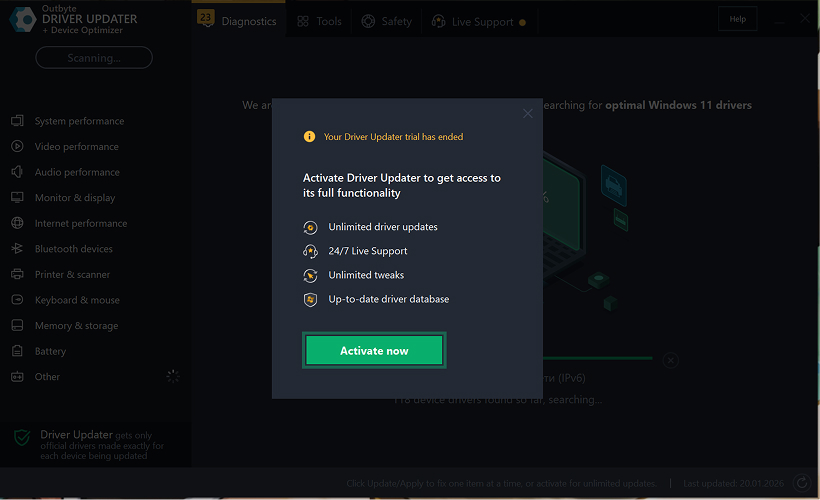
Po zakończeniu skanowania może pojawić się okno "Aktywuj teraz".
Aby kontynuować bezpłatnie:
- kliknij przycisk zamykania (X) w prawym górnym rogu okna.
Nie trzeba wprowadzać żadnych informacji
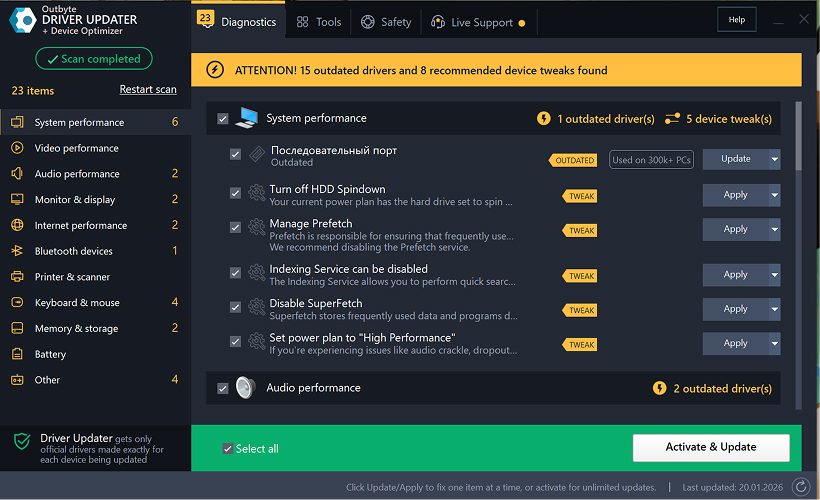
Krok 3: Wybierz kategorię sterownika
Z menu po lewej stronie wybierz kategorię urządzenia, które chcesz zaktualizować, na przykład:
- sterowniki audio;
- sterowniki wideo i grafiki;
- sterowniki sieciowe i Wi-Fi;
- sterowniki Bluetooth;
- sterowniki drukarek i skanerów.
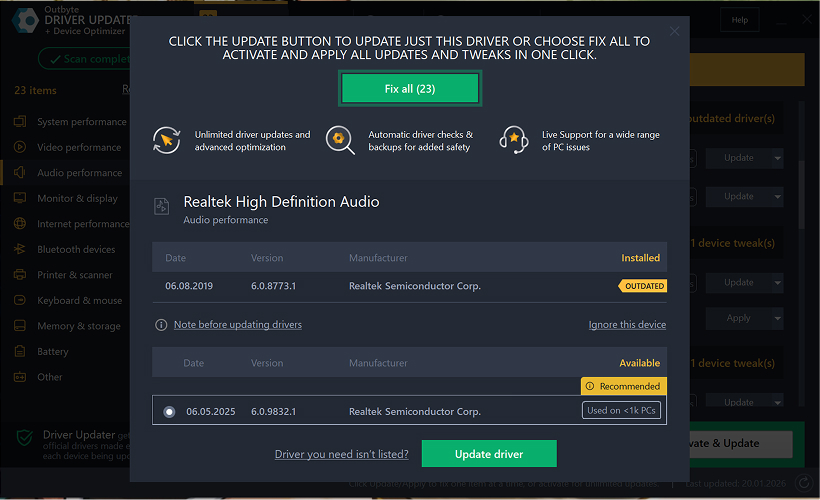
Krok 4: Kliknij "Aktualizuj" obok wybranego sterownika
Na liście sterowników znajdź sterownik, który chcesz zaktualizować i kliknij przycisk Aktualizuj obok niego.
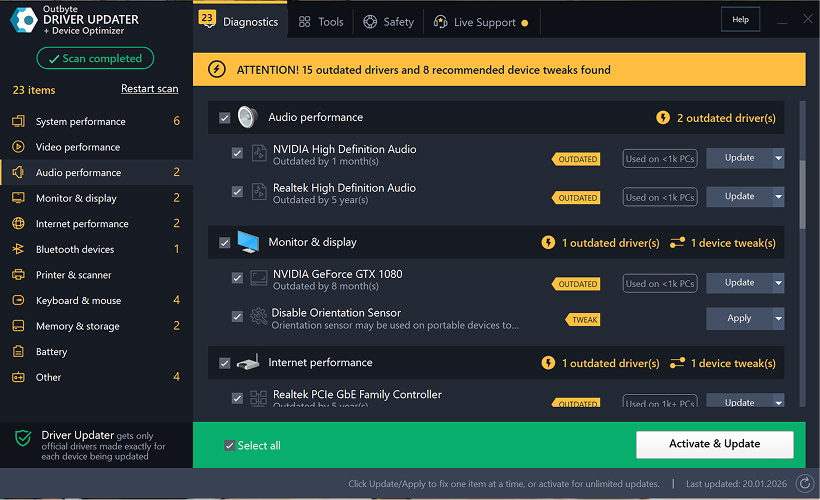
Krok 5: Potwierdź aktualizację sterownika
W wyskakującym oknie kliknij Aktualizuj sterownik.
Na tym etapie nie są wymagane żadne dane osobowe ani informacje o płatności.
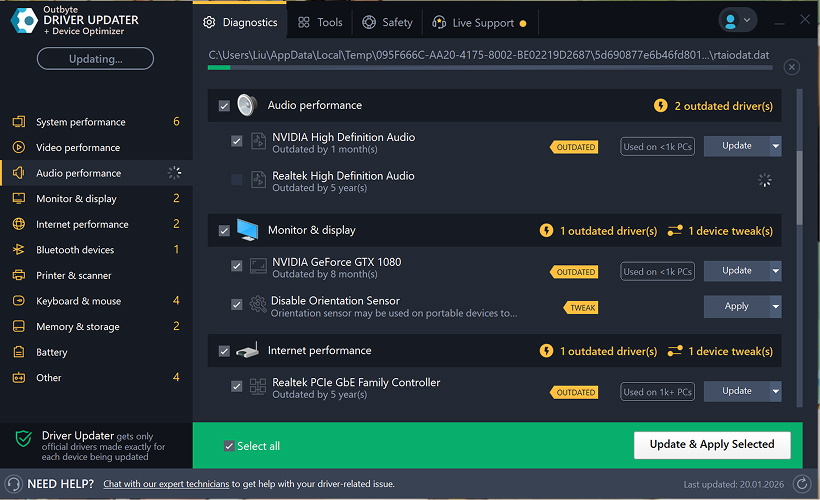
Krok 6: Poczekaj na zakończenie procesu aktualizacji
Program rozpocznie pobieranie i instalację wybranego sterownika.
Poczekaj, aż proces zostanie zakończony.
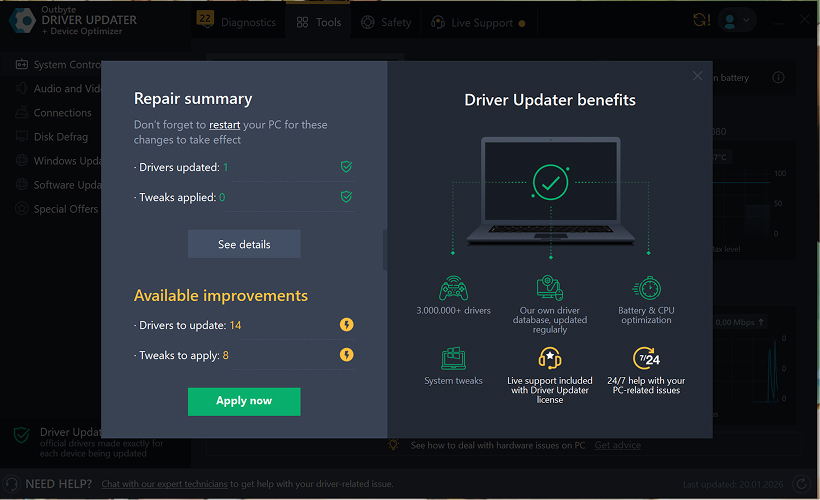
Krok 7: Zastosuj zmiany i uruchom ponownie komputer
Po zakończeniu instalacji kliknij Zastosuj teraz, aby zastosować zmiany.
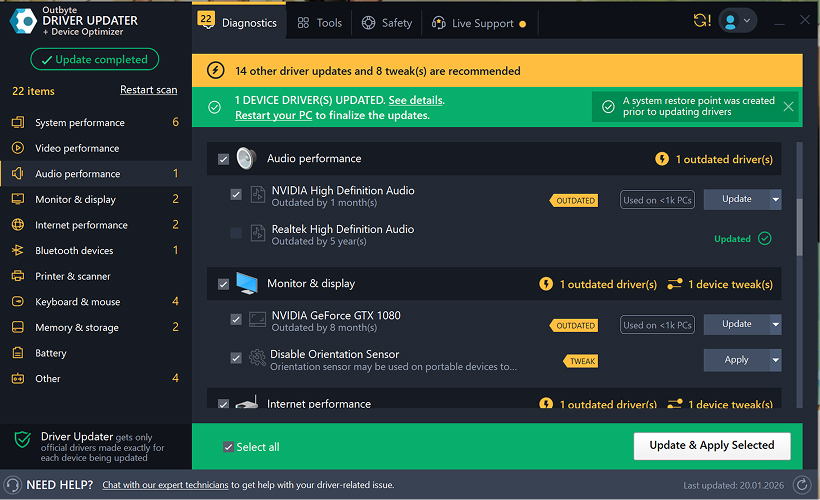
Aby upewnić się, że zaktualizowany sterownik działa poprawnie, uruchom ponownie komputer.
Ważne uwagi
- Bezpłatne aktualizacje są dostępne po jednym sterowniku na raz.
- Do bezpłatnej aktualizacji nie jest wymagana rejestracja.
- Nie są wymagane informacje o karcie kredytowej ani płatności.
- Wszystkie działania są wykonywane lokalnie w programie po przeskanowaniu systemu.
- Dostępność bezpłatnej aktualizacji może zależeć od typu sterownika i konfiguracji systemu.
Learn to pair your wireless mouse with a different USB receiver in simple steps. Check compatibility (e.g., Logitech Unifying receivers), install required software/drivers, and use pairing modes to sync devices. Troubleshoot connection issues and optimize performance for seamless use.
Simplify your workspace with Logitech Unifying Software, enabling effortless connection of up to six compatible devices through a single receiver. Enjoy quick setup, clutter-free connectivity, and enhanced productivity as your keyboard, mouse, and other peripherals work in perfect harmony.
Learn how to set up your Epson L3250 printer with this step-by-step guide. Unbox, install ink, connect to power, and download drivers via Epson’s website or included CD. Configure Wi-Fi settings for wireless printing and run a test page to ensure proper installation. Simplify your setup process and start printing effortlessly.
Transform your smartphone into an HD webcam with DroidCam. Enjoy wireless connectivity and seamless video streaming for crystal-clear video calls, live streams, or online meetings. Works with PC/Mac.
Learn how to enable Bluetooth on your PC in a few simple steps. Check compatibility, activate Bluetooth via Windows Settings or the system tray, pair your device, and troubleshoot common issues. This guide ensures seamless wireless connections for headphones, speakers, or peripherals.
Learn how to set up your Epson L3250 printer quickly and efficiently. This guide covers unboxing, installing ink cartridges, connecting to power, and configuring Wi-Fi for seamless wireless printing. Follow step-by-step instructions to install drivers, align the printer head, and troubleshoot common issues. Perfect for home or office use, the Epson L3250 ensures hassle-free installation and high-quality printing, scanning, and copying.
Download the latest Epson L3250 printer drivers and software to ensure seamless connectivity and optimal performance. Compatible with Windows and macOS, these tools enable easy setup, wireless printing, and advanced features. Visit the official Epson support page for secure, up-to-date downloads tailored to your operating system. Simplify installation and maximize your printer’s capabilities with reliable drivers and utilities.
Discover innovative strategies to amplify your message and connect deeply with audiences – no microphone needed. Harness the power of body language, visual storytelling, and creative platforms to make your voice heard in any setting.
The Valeton GP 100 Wah is a professional-grade guitar pedal designed for musicians seeking dynamic sound control and expressive tonal shaping. Featuring a responsive wah circuit, it delivers smooth, vintage-inspired sweeps and modern versatility for rock, funk, blues, and beyond. Built with durable components and an intuitive design, the GP 100 ensures reliable performance on stage or in the studio. Adjustable parameters and a true bypass switch provide seamless integration into any pedalboard setup, while its compact size maximizes space efficiency. Elevate your playing with rich, articulate wah effects tailored to your musical style.
Virtual CloneDrive offers effortless disc image mounting and virtual drive cloning, enabling you to access ISO, BIN, IMG, and other formats without physical media. Streamline workflows, run software, or backup data with a lightweight, user-friendly tool that integrates seamlessly into your system. Simplify disc management and enhance productivity—no hardware required.