Software Confiável

Outbyte Driver Updater
- 1.000.000+ drivers
- Baixar: 1,143,473 times
- Windows 11 / 10 / 8 / 7





 Baixar
Intel Chipset Driver - 11 (21H2 or Later)
Baixar
Intel Chipset Driver - 11 (21H2 or Later)
Baixar
Intel Chipset Driver - 11 (21H2 or Later)

Informações do Sistema
Seu PC está atualmente executando:
Driver details
Driver Name:
Intel Chipset Driver - 11 (21H2 or Later)
Provider:
Lenovo
Version:
10.1.19485.8386
Release Date:
2024-06-19
Architecture:
x64
File Size:
3.8 MB
Driver ID:
PCI\VEN_8086&DEV_2014
Supported OS:
Windows 11
WHQL:
Signed
Oferta especial
Baixar
Todos os links foram analisados por um programa antivírus.
Manual download (.cab, 3.8 MB) from Microsoft servers
— install via Device Manager.
Supported Hardware IDs
PCI\VEN_8086&DEV_2014
PCI\VEN_8086&DEV_2015
PCI\VEN_8086&DEV_2016
PCI\VEN_8086&DEV_2018
PCI\VEN_8086&DEV_201A
PCI\VEN_8086&DEV_201C
PCI\VEN_8086&DEV_2020
PCI\VEN_8086&DEV_2021
PCI\VEN_8086&DEV_2024
PCI\VEN_8086&DEV_2025
Show all 123 hardware IDs
PCI\VEN_8086&DEV_2026
PCI\VEN_8086&DEV_2030
PCI\VEN_8086&DEV_2031
PCI\VEN_8086&DEV_2032
PCI\VEN_8086&DEV_2033
PCI\VEN_8086&DEV_2034
PCI\VEN_8086&DEV_2035
PCI\VEN_8086&DEV_2036
PCI\VEN_8086&DEV_203A
PCI\VEN_8086&DEV_203D
PCI\VEN_8086&DEV_2040
PCI\VEN_8086&DEV_2041
PCI\VEN_8086&DEV_2042
PCI\VEN_8086&DEV_2043
PCI\VEN_8086&DEV_2044
PCI\VEN_8086&DEV_2045
PCI\VEN_8086&DEV_2046
PCI\VEN_8086&DEV_2047
PCI\VEN_8086&DEV_2048
PCI\VEN_8086&DEV_2049
PCI\VEN_8086&DEV_204A
PCI\VEN_8086&DEV_204B
PCI\VEN_8086&DEV_204C
PCI\VEN_8086&DEV_204D
PCI\VEN_8086&DEV_204E
PCI\VEN_8086&DEV_2054
PCI\VEN_8086&DEV_2055
PCI\VEN_8086&DEV_2056
PCI\VEN_8086&DEV_2057
PCI\VEN_8086&DEV_2058
PCI\VEN_8086&DEV_2059
PCI\VEN_8086&DEV_205A
PCI\VEN_8086&DEV_205B
PCI\VEN_8086&DEV_2066
PCI\VEN_8086&DEV_2068
PCI\VEN_8086&DEV_2069
PCI\VEN_8086&DEV_206A
PCI\VEN_8086&DEV_206B
PCI\VEN_8086&DEV_206C
PCI\VEN_8086&DEV_206D
PCI\VEN_8086&DEV_206E
PCI\VEN_8086&DEV_206F
PCI\VEN_8086&DEV_2078
PCI\VEN_8086&DEV_207A
PCI\VEN_8086&DEV_2080
PCI\VEN_8086&DEV_2081
PCI\VEN_8086&DEV_2082
PCI\VEN_8086&DEV_2083
PCI\VEN_8086&DEV_2084
PCI\VEN_8086&DEV_2085
PCI\VEN_8086&DEV_2086
PCI\VEN_8086&DEV_2088
PCI\VEN_8086&DEV_208D
PCI\VEN_8086&DEV_208E
PCI\VEN_8086&DEV_A290
PCI\VEN_8086&DEV_A291
PCI\VEN_8086&DEV_A292
PCI\VEN_8086&DEV_A293
PCI\VEN_8086&DEV_A294
PCI\VEN_8086&DEV_A295
PCI\VEN_8086&DEV_A296
PCI\VEN_8086&DEV_A297
PCI\VEN_8086&DEV_A298
PCI\VEN_8086&DEV_A299
PCI\VEN_8086&DEV_A29A
PCI\VEN_8086&DEV_A29B
PCI\VEN_8086&DEV_A29C
PCI\VEN_8086&DEV_A29D
PCI\VEN_8086&DEV_A29E
PCI\VEN_8086&DEV_A29F
PCI\VEN_8086&DEV_A2A0
PCI\VEN_8086&DEV_A2A1
PCI\VEN_8086&DEV_A2A3
PCI\VEN_8086&DEV_A2C0
PCI\VEN_8086&DEV_A2C1
PCI\VEN_8086&DEV_A2C2
PCI\VEN_8086&DEV_A2C3
PCI\VEN_8086&DEV_A2C4
PCI\VEN_8086&DEV_A2C5
PCI\VEN_8086&DEV_A2C6
PCI\VEN_8086&DEV_A2C7
PCI\VEN_8086&DEV_A2C8
PCI\VEN_8086&DEV_A2C9
PCI\VEN_8086&DEV_A2CA
PCI\VEN_8086&DEV_A2CB
PCI\VEN_8086&DEV_A2CC
PCI\VEN_8086&DEV_A2CD
PCI\VEN_8086&DEV_A2CE
PCI\VEN_8086&DEV_A2CF
PCI\VEN_8086&DEV_A2D0
PCI\VEN_8086&DEV_A2D1
PCI\VEN_8086&DEV_A2D2
PCI\VEN_8086&DEV_A2D3
PCI\VEN_8086&DEV_A2D4
PCI\VEN_8086&DEV_A2D5
PCI\VEN_8086&DEV_A2D6
PCI\VEN_8086&DEV_A2D7
PCI\VEN_8086&DEV_A2D8
PCI\VEN_8086&DEV_A2D9
PCI\VEN_8086&DEV_A2DA
PCI\VEN_8086&DEV_A2DB
PCI\VEN_8086&DEV_A2DC
PCI\VEN_8086&DEV_A2DD
PCI\VEN_8086&DEV_A2DE
PCI\VEN_8086&DEV_A2DF
PCI\VEN_8086&DEV_A2E7
PCI\VEN_8086&DEV_A2E8
PCI\VEN_8086&DEV_A2E9
PCI\VEN_8086&DEV_A2EA
PCI\VEN_8086&DEV_A2EB
PCI\VEN_8086&DEV_A2EC
PCI\VEN_8086&DEV_A2ED
PCI\VEN_8086&DEV_A2EE
Match against Device Manager → Details → Hardware Ids to confirm this driver fits your device.
All versions of this driver
| Version | Release Date | Architecture | OS | |
|---|---|---|---|---|
| 10.1.19485.8386 | 2024-06-19 | x64 | Windows 11 | (this page) |
| 10.1.51.8 | 2025-04-10 | x64 | Windows 11 | 10.1.51.8 |
| 10.1.37.7 | 2023-12-19 | x64 | Windows 11 | 10.1.37.7 |
| 10.1.37.7 | 2023-09-12 | x64 | Windows 11 | 10.1.37.7 |
| 10.1.19600.8418 | 2024-10-14 | x64 | Windows 11 | 10.1.19600.8418 |
| 10.1.37.5 | 2022-03-22 | x64 | Windows 11 | 10.1.37.5 |
| 10.1.19199.8340 | 2024-10-17 | x64 | Windows 11 | 10.1.19199.8340 |
| 10.1.34.8 | 2022-03-11 | x64 | Windows 11 | 10.1.34.8 |
| 10.1.19899.8597 | 2024-11-18 | x64 | Windows 11 | 10.1.19899.8597 |
| 10.1.31.2 | 2022-03-09 | x64 | Windows 11 | 10.1.31.2 |
| 10.1.16.7 | 2022-05-06 | x64 | Windows 11 | 10.1.16.7 |
Related drivers
- AMD Chipset Driver - 10 64 (v4.4.0.0)
- Intel AMT Driver - 10 64 (v2040.100.0.1029)
- Intel Chipset Driver - 10 64 (v10.1.11.4)
- Intel ME driver - 10 64 (v2102.100.0.1044)
- Application Interface Driver - 11 (21H2 or Later) (v1.0.0.13)
- Intel Chipset Driver - 11 (21H2 or Later) (v10.1.16.7)
- Intel Management Engine Driver - 11 (21H2 or Later) (v2145.1.42.0)
- Application Interface Driver - 11 (v1.0.0.12)
- Intel(R) Dynamic Tuning Driver - 11 (21H2 or later) (v8.6.10402.11528)
- AMD Chipset Driver(windows10 version 1809) - 10 64 (v4.9.0.0)
Drivers: A Base do Desempenho Estável dos Dispositivos
Por que os Drivers são tão Importantes?
Os drivers desempenham um papel crucial na manutenção da estabilidade do sistema. Drivers desatualizados ou corrompidos podem levar a:
Recomenda-se atualizar os drivers a cada 3–6 meses. Isso é especialmente importante antes de instalar um novo sistema operacional, pois drivers atualizados podem ser necessários para garantir compatibilidade.
Como Manter seus Drivers Atualizados?
Método automático para atualizar e transferir drivers (Recomendado):
Se preferir não procurar manualmente o driver certo, existem ferramentas que detetam automaticamente o modelo do seu dispositivo e encontram um driver compatível. Isto reduz o risco de erros e poupa tempo.
Oferta especial
Baixar

Limitations: trial version offers an unlimited number of scans, free driver backup and rollback. Registration for the full version starts from USD 29.95. See more information about Outbyte and uninstall instructions. Please review Outbyte EULA and Privacy Policy
Todos os links foram analisados por um programa antivírus.
Instalação manual de drivers
Nota: Instalar uma versão incorreta do driver pode causar problemas no sistema. Se não tiver a certeza sobre qual driver escolher, recomendamos o método automático.
Baixe o driver via Gerenciador de Dispositivos. Como abrir o Gerenciador de Dispositivos:
Como instalar drivers usando o Gerenciador de Dispositivos:
Como Atualizar um Driver Gratuitamente Usando o Outbyte Driver Updater
Manter os drivers do seu dispositivo atualizados ajuda a garantir um desempenho estável do Windows e o funcionamento adequado do hardware. Abaixo está um guia passo a passo explicando como atualizar um único driver gratuitamente usando o Outbyte Driver Updater. Este guia descreve um método para atualizar um driver selecionado sem ativar uma licença e sem fornecer qualquer informação pessoal ou detalhes de pagamento.
Você Pode Atualizar um Driver Gratuitamente Sem Registro?
Sim.
O Outbyte Driver Updater permite que você:
- escaneie seu computador em busca de drivers desatualizados sem custo;
- visualize uma lista de drivers detectados;
- atualize um driver selecionado gratuitamente;
- evite inserir um endereço de e-mail, nome, número de cartão de crédito ou qualquer outro dado pessoal.
O processo de atualização gratuita requer apenas o programa instalado e as etapas padrão de verificação e atualização.
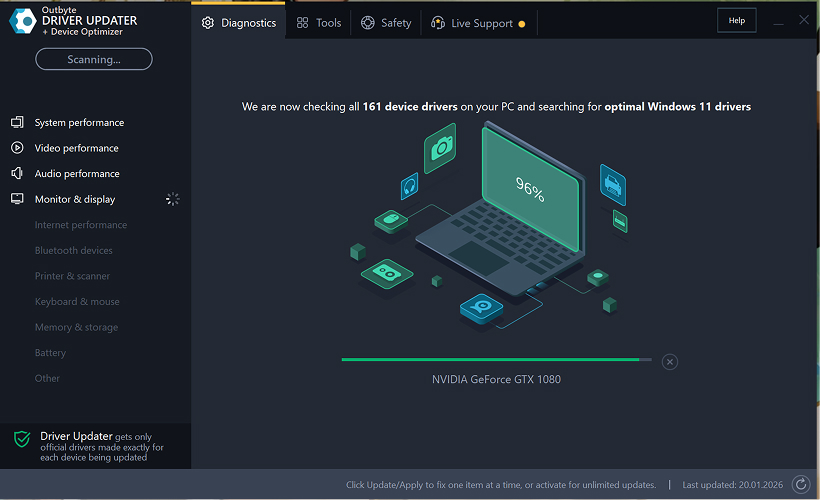
Passo 1: Inicie o Programa e Escaneie Seu Computador
Baixe e instale o Outbyte Driver Updater no seu PC Windows.
Após iniciar o programa, ele começará automaticamente a escanear seu sistema e verificar os drivers instalados.
Passo 2: Feche a Janela de Ativação
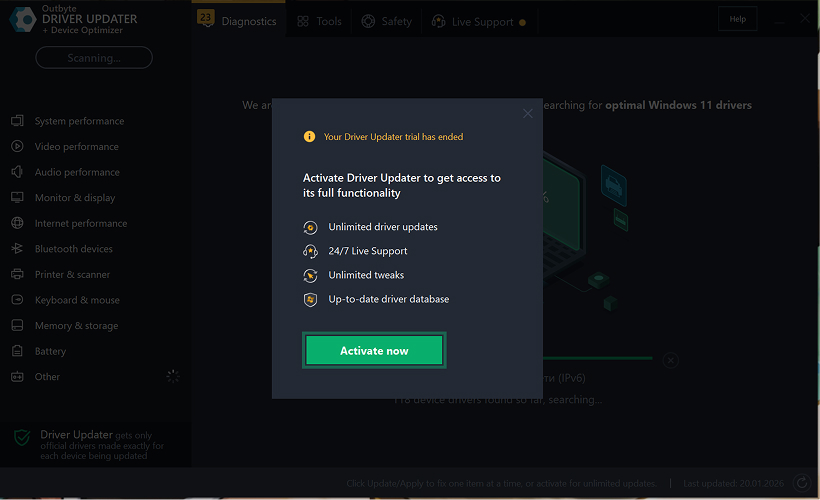
Após a verificação, uma janela "Ativar agora" pode aparecer.
Para continuar gratuitamente:
- clique no botão fechar (X) no canto superior direito da janela.
Nenhuma informação precisa ser inserida
Passo 3: Selecione a Categoria do Driver
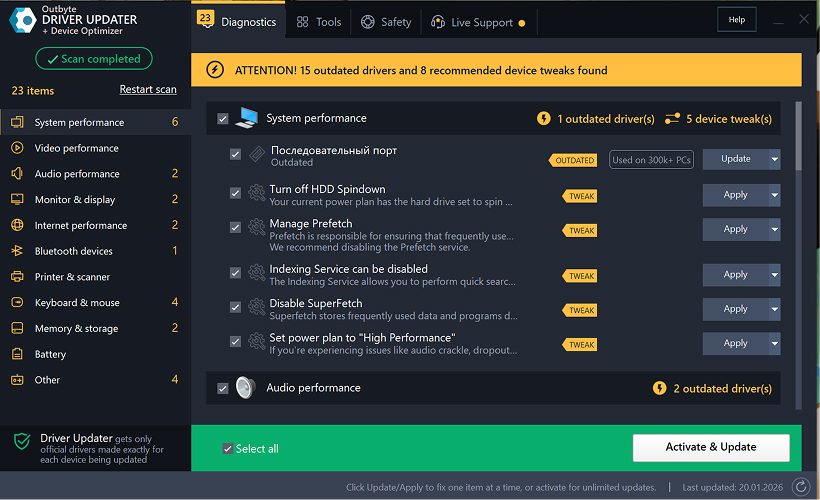
No menu à esquerda, escolha a categoria do dispositivo que deseja atualizar, como:
- drivers de áudio;
- drivers de vídeo e gráficos;
- drivers de rede e Wi-Fi;
- drivers Bluetooth;
- drivers de impressora e scanner.
Passo 4: Clique em "Atualizar" Ao Lado do Driver Selecionado
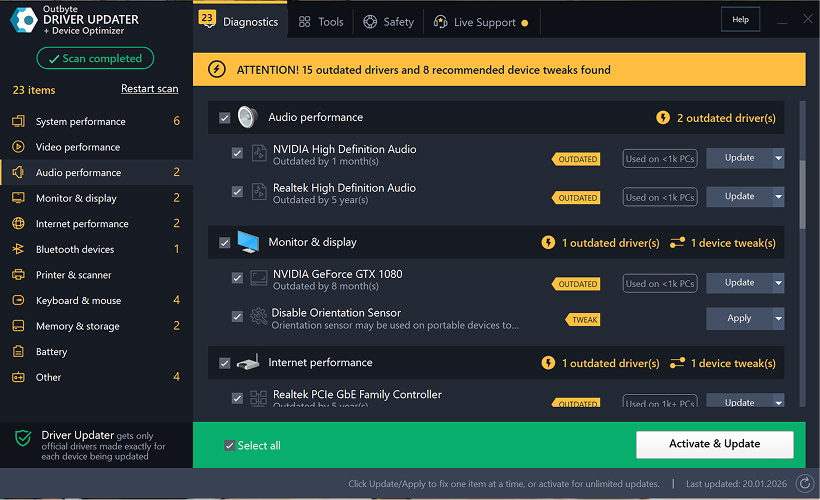
Na lista de drivers, localize o driver que deseja atualizar e clique no botão Atualizar ao lado dele.
Passo 5: Confirme a Atualização do Driver
Na janela pop-up, clique em Atualizar driver.
Nesta etapa, nenhum dado pessoal ou detalhe de pagamento é necessário.
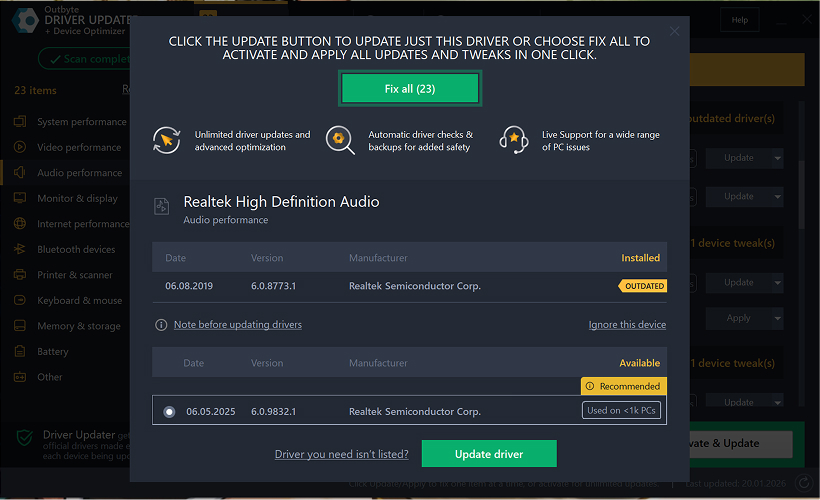
Passo 6: Aguarde o Término do Processo de Atualização
O programa começará a baixar e instalar o driver selecionado.
Por favor, aguarde até que o processo seja concluído.
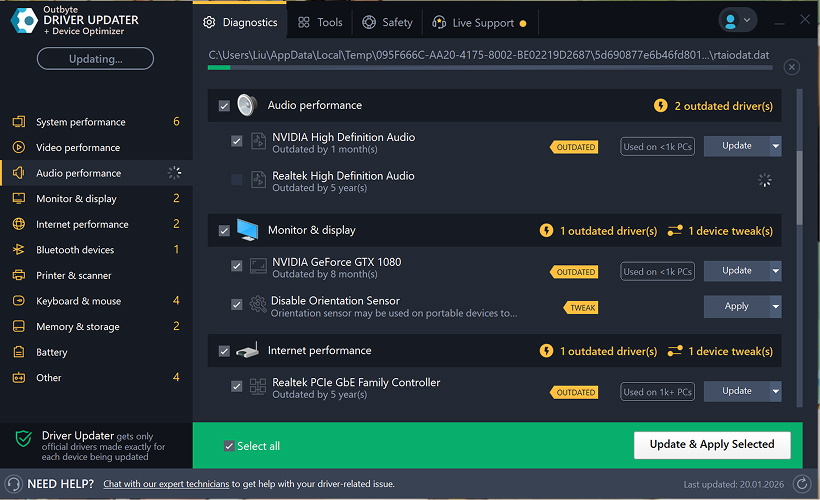
Passo 7: Aplique as Alterações e Reinicie Seu Computador
Após o término da instalação, clique em Aplicar agora para aplicar as alterações.
Para garantir que o driver atualizado funcione corretamente, reinicie seu computador.
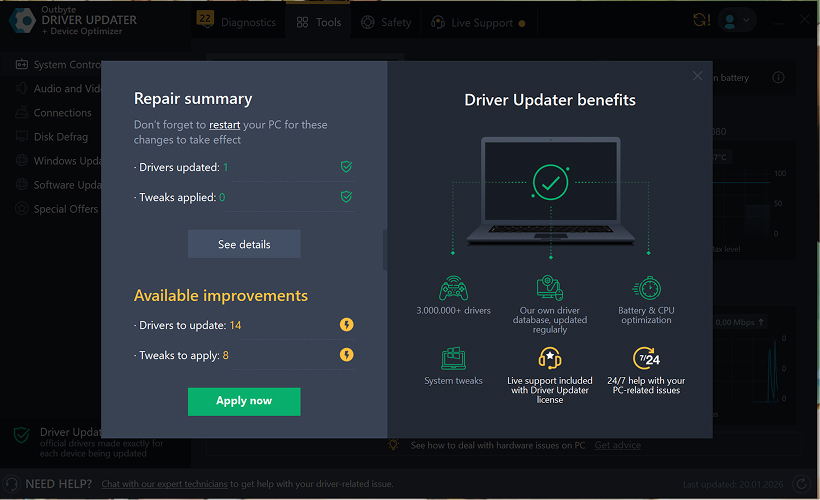
Notas Importantes
- Atualizações gratuitas estão disponíveis um driver por vez.
- Nenhum registro é necessário para a atualização gratuita.
- Nenhum cartão de crédito ou informação de pagamento é solicitado.
- Todas as ações são realizadas localmente dentro do programa após escanear seu sistema.
- A disponibilidade de atualização gratuita pode depender do tipo de driver e da configuração do sistema.
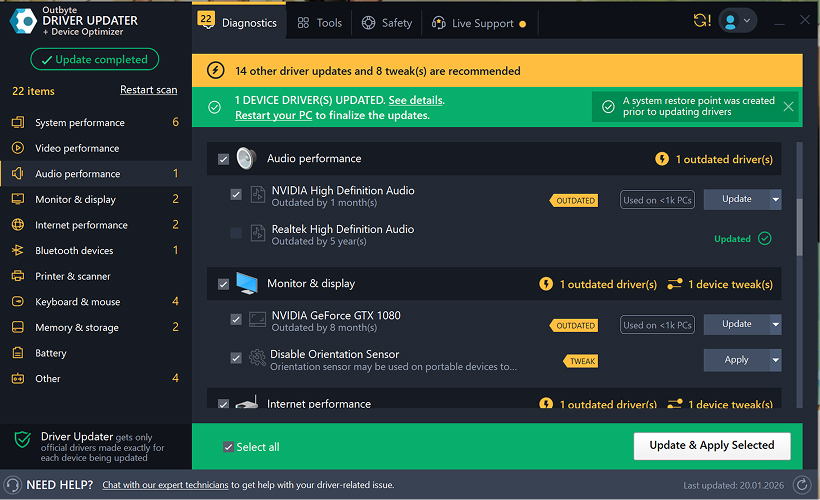
Learn to pair your wireless mouse with a different USB receiver in simple steps. Check compatibility (e.g., Logitech Unifying receivers), install required software/drivers, and use pairing modes to sync devices. Troubleshoot connection issues and optimize performance for seamless use.
Simplify your workspace with Logitech Unifying Software, enabling effortless connection of up to six compatible devices through a single receiver. Enjoy quick setup, clutter-free connectivity, and enhanced productivity as your keyboard, mouse, and other peripherals work in perfect harmony.
Learn how to set up your Epson L3250 printer with this step-by-step guide. Unbox, install ink, connect to power, and download drivers via Epson’s website or included CD. Configure Wi-Fi settings for wireless printing and run a test page to ensure proper installation. Simplify your setup process and start printing effortlessly.
Transform your smartphone into an HD webcam with DroidCam. Enjoy wireless connectivity and seamless video streaming for crystal-clear video calls, live streams, or online meetings. Works with PC/Mac.
Learn how to enable Bluetooth on your PC in a few simple steps. Check compatibility, activate Bluetooth via Windows Settings or the system tray, pair your device, and troubleshoot common issues. This guide ensures seamless wireless connections for headphones, speakers, or peripherals.
Learn how to set up your Epson L3250 printer quickly and efficiently. This guide covers unboxing, installing ink cartridges, connecting to power, and configuring Wi-Fi for seamless wireless printing. Follow step-by-step instructions to install drivers, align the printer head, and troubleshoot common issues. Perfect for home or office use, the Epson L3250 ensures hassle-free installation and high-quality printing, scanning, and copying.
Download the latest Epson L3250 printer drivers and software to ensure seamless connectivity and optimal performance. Compatible with Windows and macOS, these tools enable easy setup, wireless printing, and advanced features. Visit the official Epson support page for secure, up-to-date downloads tailored to your operating system. Simplify installation and maximize your printer’s capabilities with reliable drivers and utilities.
Discover innovative strategies to amplify your message and connect deeply with audiences – no microphone needed. Harness the power of body language, visual storytelling, and creative platforms to make your voice heard in any setting.
The Valeton GP 100 Wah is a professional-grade guitar pedal designed for musicians seeking dynamic sound control and expressive tonal shaping. Featuring a responsive wah circuit, it delivers smooth, vintage-inspired sweeps and modern versatility for rock, funk, blues, and beyond. Built with durable components and an intuitive design, the GP 100 ensures reliable performance on stage or in the studio. Adjustable parameters and a true bypass switch provide seamless integration into any pedalboard setup, while its compact size maximizes space efficiency. Elevate your playing with rich, articulate wah effects tailored to your musical style.
Virtual CloneDrive offers effortless disc image mounting and virtual drive cloning, enabling you to access ISO, BIN, IMG, and other formats without physical media. Streamline workflows, run software, or backup data with a lightweight, user-friendly tool that integrates seamlessly into your system. Simplify disc management and enhance productivity—no hardware required.