Güvenilir Yazılım

Outbyte Driver Updater
- 1.000.000+ sürücü
- Yüklendi: 1,143,473 kez
- Windows 11 / 10 / 8 / 7





 İndirmek
ASM1142 USB 3.1 Host Controller
İndirmek
ASM1142 USB 3.1 Host Controller
İndirmek
ASM1142 USB 3.1 Host Controller

Sistem Bilgileri
Bilgisayarınız şu anda aşağıdaki sistemde çalışıyor:
Driver details
Driver Name:
ASM1142 USB 3.1 Host Controller
Provider:
ASMedia Technology Inc
Version:
1.16.35.1
Release Date:
4/11/2016
Architecture:
AMD64 , X86
File Size:
930 KB
Driver ID:
pci\ven_1b21&dev_1240&rev_00
Supported OS:
Windows 10
WHQL:
Signed
Özel teklif
İndirmek
Tüm bağlantılar antivirüs programı tarafından taranmıştır.
Manual download (.cab, 930 KB) from Microsoft servers
— install via Device Manager.
Compatible hardware
- ASM1142 USB 3.1 Host Controller (ASMedia Technology Inc.)
Supported Hardware IDs
pci\ven_1b21&dev_1040&rev_00
pci\ven_1b21&dev_1040&rev_01
pci\ven_1b21&dev_1040&rev_02
pci\ven_1b21&dev_1041&rev_00
pci\ven_1b21&dev_1041&rev_01
pci\ven_1b21&dev_1041&rev_02
pci\ven_1b21&dev_1042&rev_00
pci\ven_1b21&dev_1042&rev_01
pci\ven_1b21&dev_1042&rev_02
pci\ven_1b21&dev_1042&subsys_84881043&rev_00
Show all 71 hardware IDs
pci\ven_1b21&dev_1042&subsys_84881043&rev_01
pci\ven_1b21&dev_1042&subsys_84881043&rev_02
pci\ven_1b21&dev_1142&rev_00
pci\ven_1b21&dev_1142&subsys_1043206f
pci\ven_1b21&dev_1142&subsys_201f1043
pci\ven_1b21&dev_1142&subsys_206f1043
pci\ven_1b21&dev_1142&subsys_79161462
pci\ven_1b21&dev_1142&subsys_8190103c
pci\ven_1b21&dev_1142&subsys_85bf1043
pci\ven_1b21&dev_1142&subsys_85bf1043&rev_00
pci\ven_1b21&dev_1142&subsys_85d21043
pci\ven_1b21&dev_1142&subsys_b0541028
pci\ven_1b21&dev_1240&rev_00
pci\ven_1b21&dev_1241&rev_00
pci\ven_1b21&dev_1242&rev_00
pci\ven_1b21&dev_1242&subsys_06e31028
pci\ven_1b21&dev_1242&subsys_07291028
pci\ven_1b21&dev_1242&subsys_072a1028
pci\ven_1b21&dev_1242&subsys_10001458
pci\ven_1b21&dev_1242&subsys_1043206f
pci\ven_1b21&dev_1242&subsys_11181462
pci\ven_1b21&dev_1242&subsys_115a1462
pci\ven_1b21&dev_1242&subsys_115b1462
pci\ven_1b21&dev_1242&subsys_11641462
pci\ven_1b21&dev_1242&subsys_11671462
pci\ven_1b21&dev_1242&subsys_11681462
pci\ven_1b21&dev_1242&subsys_116c1462
pci\ven_1b21&dev_1242&subsys_116d1462
pci\ven_1b21&dev_1242&subsys_116e1462
pci\ven_1b21&dev_1242&subsys_11a81462
pci\ven_1b21&dev_1242&subsys_11a91462
pci\ven_1b21&dev_1242&subsys_11af1462
pci\ven_1b21&dev_1242&subsys_11bc1462
pci\ven_1b21&dev_1242&subsys_11c61462
pci\ven_1b21&dev_1242&subsys_1b0a22a0
pci\ven_1b21&dev_1242&subsys_201f1043
pci\ven_1b21&dev_1242&subsys_206f1043
pci\ven_1b21&dev_1242&subsys_22811b0a
pci\ven_1b21&dev_1242&subsys_22a01b0a
pci\ven_1b21&dev_1242&subsys_24101558
pci\ven_1b21&dev_1242&subsys_24151558
pci\ven_1b21&dev_1242&subsys_65091558
pci\ven_1b21&dev_1242&subsys_650a1558
pci\ven_1b21&dev_1242&subsys_65881558
pci\ven_1b21&dev_1242&subsys_67091558
pci\ven_1b21&dev_1242&subsys_8268103c
pci\ven_1b21&dev_1242&subsys_85ef1043
pci\ven_1b21&dev_1242&subsys_86751043
pci\ven_1b21&dev_1242&subsys_86961043
pci\ven_1b21&dev_1242&subsys_869f1043
pci\ven_1b21&dev_1242&subsys_86ac1043
pci\ven_1b21&dev_1242&subsys_86d21043
pci\ven_1b21&dev_1242&subsys_86df1043
pci\ven_1b21&dev_1242&subsys_98321019
pci\ven_1b21&dev_1242&subsys_98331019
pci\ven_1b21&dev_1242&subsys_af1c1462
pci\ven_1b21&dev_1242&subsys_b1061462
pci\ven_1b21&dev_1242&subsys_b9021462
pci\ven_1b21&dev_1242&subsys_b9031462
pci\ven_1b21&dev_1343&rev_00
pci\ven_1b21&dev_1343&subsys_86f21043
Match against Device Manager → Details → Hardware Ids to confirm this driver fits your device.
File details
File name:
20869231_dfc66c66acd0c90831e545bffd58072281034aaf.cab
File size:
953280 bytes (0.9 MB)
Signed / DriverVer:
04/11/2016, 1.16.35.1
Provider (INF):
ASMedia Technology Inc
Catalog file:
asmtxhci.cat
SHA-256:
9d16c83ffd07e2a53a92fd817bc236f1e9ca487aded3a7c4910d7e6a383582ae
To verify: open PowerShell and run Get-FileHash <filename.cab>
What's inside the package (10 files)
asmthub3.cat 19.2 KB
asmthub3.inf 15.7 KB
asmtxhci.cat 19.2 KB
asmtxhci.inf 173.2 KB
asmthub3.sys 372.2 KB
asmtxhci.sys 1.1 MB
asmthub3.sys 114.7 KB
asmtxhci.sys 348.7 KB
asmthub3.sys 146.7 KB
asmtxhci.sys 443.2 KB
All versions of this driver
| Version | Release Date | Architecture | OS | |
|---|---|---|---|---|
| 1.16.50.1 | 10/11/2017 | AMD64 , X86 | Windows 10 | 1.16.50.1 |
| 1.16.49.1 | 8/16/2017 | AMD64 | Windows 10 | 1.16.49.1 |
| 1.16.49.1 | 8/16/2017 | AMD64 , X86 | Windows 10 | 1.16.49.1 |
| 1.16.47.2 | 4/12/2017 | AMD64 , X86 | Windows 10 | 1.16.47.2 |
| 1.16.47.2 | 4/12/2017 | AMD64 , X86 | Windows 10 | 1.16.47.2 |
| 1.16.42.1 | 11/30/2016 | AMD64 | Windows 10 | 1.16.42.1 |
| 1.16.41.3 | 10/7/2016 | AMD64 , X86 | Windows 10 | 1.16.41.3 |
| 1.16.38.1 | 8/29/2016 | AMD64 , X86 | Windows 10 | 1.16.38.1 |
| 1.16.38.1 | 8/29/2016 | AMD64 , X86 | Windows 10 | 1.16.38.1 |
| 1.16.36.1 | 7/11/2016 | AMD64 , X86 | Windows 10 | 1.16.36.1 |
| 1.16.35.1 | 4/11/2016 | AMD64 , X86 | Windows 10 | 1.16.35.1 |
| 1.16.35.1 | 4/11/2016 | AMD64 , X86 | Windows 10 | (this page) |
| 1.16.35.1 | 4/11/2016 | AMD64 , X86 | Windows 10 | 1.16.35.1 |
| 1.16.33.1 | 2/4/2016 | AMD64 , X86 | Windows 10 | 1.16.33.1 |
| 1.16.33.1 | 2/4/2016 | AMD64 , X86 | Windows 10 | 1.16.33.1 |
| 1.16.33.1 | 2/4/2016 | AMD64 , X86 | Windows 10 | 1.16.33.1 |
| 1.16.28.1 | 9/10/2015 | AMD64 | Windows 10 | 1.16.28.1 |
| 1.16.28.1 | 9/10/2015 | AMD64 , X86 | Windows 10 | 1.16.28.1 |
| 1.16.28.1 | 9/10/2015 | AMD64 , X86 | Windows 10 | 1.16.28.1 |
| 1.16.26.1 | 6/3/2015 | AMD64 , X86 | Windows 10 | 1.16.26.1 |
Related drivers
- ASM1142 USB 3.1 Host Controller (v1.16.28.1)
- ASM1061 ASM1062 Serial ATA Controller (v3.3.5.0)
- ASM1042A USB 3.0 Host Controller (v1.16.61.1)
- ASM1042A USB 3.0 Host Controller (v1.16.59.1)
- ASM1042 SuperSpeed USB Host Controller (v1.16.58.1)
- ASM1042A USB 3.0 Host Controller (v1.16.56.1)
- ASM1042 SuperSpeed USB Host Controller (v1.16.55.1)
- ASM1042A USB 3.0 Host Controller (v1.16.54.1)
- ASM1042A USB 3.0 Host Controller (v1.16.51.1)
- 106x SATA RAID Controller (v3.2.1.0)
Sürücüler: Kararlı Cihaz Performansının Temeli
Sürücüler Neden Bu Kadar Önemlidir?
Sürücüler, sistem istikrarını korumada kritik bir rol oynar. Güncellenmemiş veya bozuk sürücüler şu sorunlara yol açabilir:
Sürücülerinizi her 3–6 ayda bir güncellemeniz önerilir. Bu, özellikle yeni bir işletim sistemi yüklemeden önce önemlidir çünkü güncellenmiş sürücüler uyumluluk için gerekli olabilir.
Sürücülerinizi Nasıl Güncel Tutabilirsiniz?
Sürücüleri güncellemek ve indirmek için otomatik yöntem (Tavsiye edilir):
Doğru sürücüyü manuel olarak aramak istemiyorsanız, cihaz modelinizi otomatik olarak algılayıp uyumlu sürücü bulan araçlar mevcuttur. Bu, hata riskini azaltır ve zaman kazandırır.
Özel teklif
İndirmek

Limitations: trial version offers an unlimited number of scans, free driver backup and rollback. Registration for the full version starts from USD 29.95. See more information about Outbyte and uninstall instructions. Please review Outbyte EULA and Privacy Policy
Tüm bağlantılar antivirüs programı tarafından taranmıştır.
Manuel sürücü kurulumu
Not: Yanlış bir sürücü yüklemek sistem sorunlarına neden olabilir. Hangi sürücüyü seçeceğinizden emin değilseniz, otomatik yöntemi öneririz.
Cihaz Yöneticisi aracılığıyla sürücüyü indirin. Cihaz Yöneticisi'ni nasıl açacağınız:
Cihaz Yöneticisi kullanarak sürücüleri nasıl yükleyeceğinizi:
How to Update a Driver for Free Using Outbyte Driver Updater
Cihaz sürücülerinizi güncel tutmak, Windows'un kararlı performansını ve donanımın düzgün çalışmasını sağlamaya yardımcı olur. Aşağıda, Outbyte Driver Updater kullanarak tek bir sürücüyü ücretsiz olarak nasıl güncelleyeceğinizi açıklayan adım adım bir kılavuz bulunmaktadır. Bu kılavuz, lisans etkinleştirmeden ve herhangi bir kişisel bilgi veya ödeme detayı sağlamadan seçili bir sürücüyü güncelleme yöntemini açıklar.
Kayıt Olmadan Ücretsiz Bir Sürücü Güncelleyebilir misiniz?
Evet.
Outbyte Driver Updater şunları yapmanızı sağlar:
- bilgisayarınızı ücretsiz olarak eski sürücüler için tarayın;
- tespit edilen sürücülerin listesini görüntüleyin;
- seçili bir sürücüyü ücretsiz olarak güncelleyin;
- e-posta adresi, ad, kredi kartı numarası veya diğer kişisel verileri girmekten kaçının.
Ücretsiz güncelleme işlemi yalnızca yüklü programı ve standart tarama ve güncelleme adımlarını gerektirir.
Adım 1: Programı Başlatın ve Bilgisayarınızı Tarayın
Outbyte Driver Updater'ı Windows PC'nize indirin ve kurun.
Programı başlattıktan sonra, otomatik olarak sisteminizi taramaya ve yüklü sürücüleri kontrol etmeye başlayacaktır.
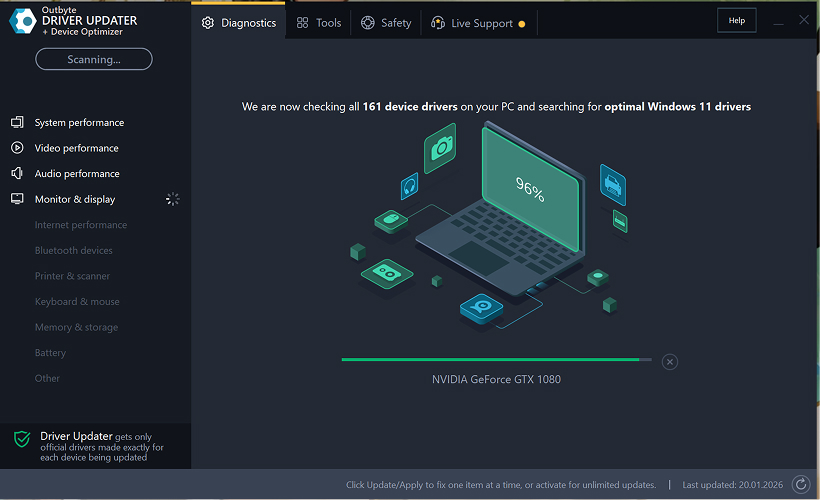
Adım 2: Etkinleştirme Penceresini Kapatın
Taramadan sonra, "Şimdi etkinleştir" penceresi görünebilir.
Ücretsiz devam etmek için:
- pencerenin sağ üst köşesindeki kapat (X) düğmesine tıklayın.
Hiçbir bilgi girilmesi gerekmez
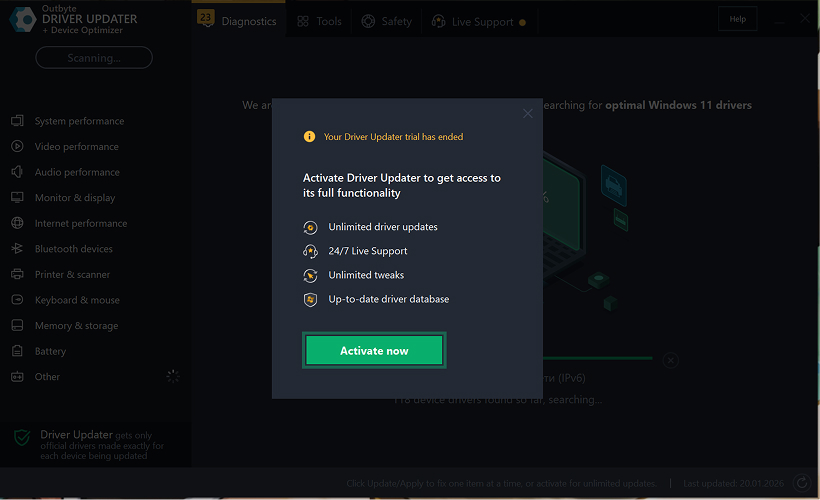
Adım 3: Sürücü Kategorisini Seçin
Sol taraftaki menüden, güncellemek istediğiniz cihaz kategorisini seçin, örneğin:
- ses sürücüleri;
- video ve grafik sürücüleri;
- ağ ve Wi-Fi sürücüleri;
- Bluetooth sürücüleri;
- yazıcı ve tarayıcı sürücüleri.
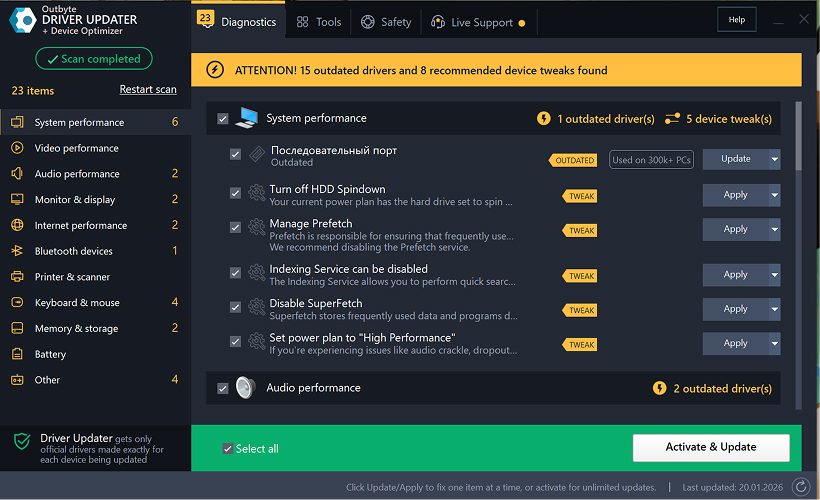
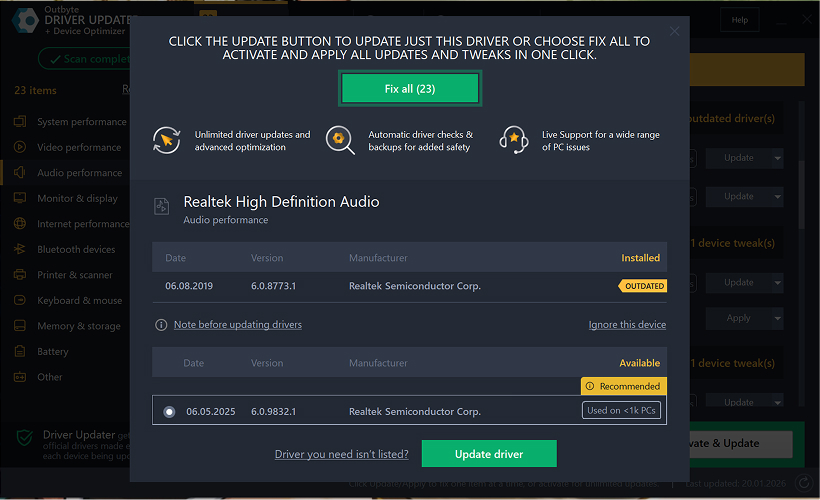
Adım 4: Seçili Sürücünün Yanındaki "Güncelle" Düğmesine Tıklayın
Sürücü listesinde, güncellemek istediğiniz sürücüyü bulun ve yanındaki Güncelle düğmesine tıklayın.
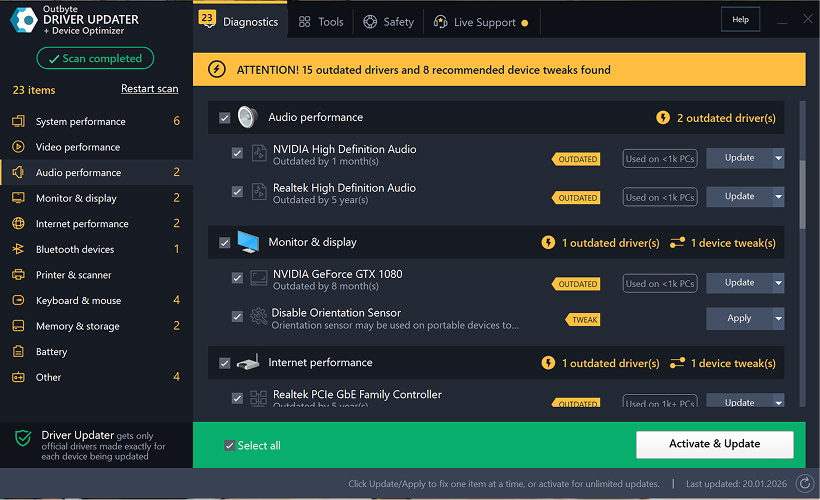
Adım 5: Sürücü Güncellemesini Onaylayın
Açılır pencerede, Sürücüyü güncelle seçeneğine tıklayın.
Bu aşamada, hiçbir kişisel veri veya ödeme detayı gerekmez.
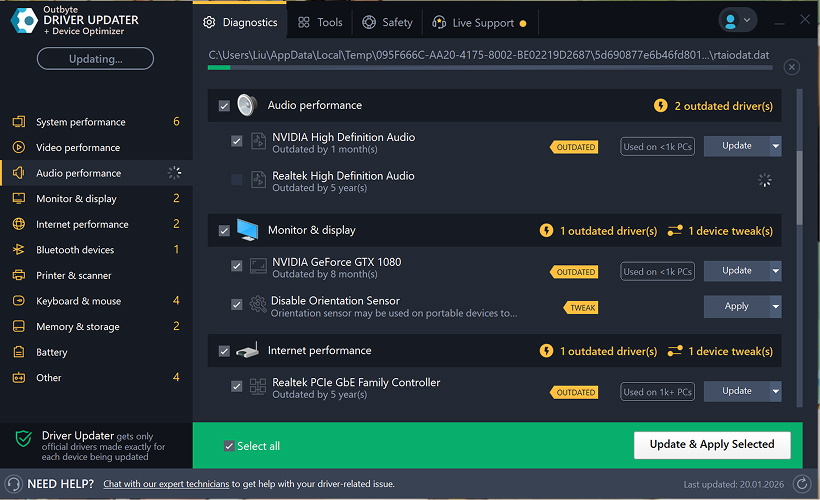
Adım 6: Güncelleme İşleminin Bitmesini Bekleyin
Program, seçili sürücüyü indirmeye ve yüklemeye başlayacaktır.
Lütfen işlem tamamlanana kadar bekleyin.
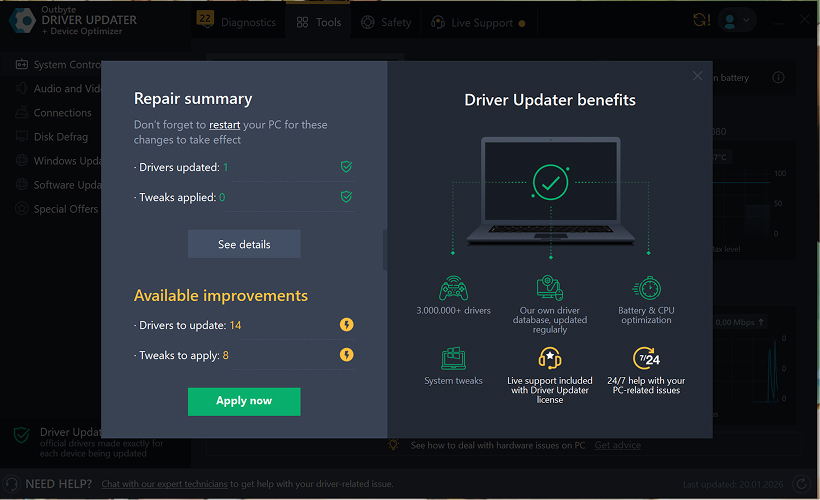
Adım 7: Değişiklikleri Uygulayın ve Bilgisayarınızı Yeniden Başlatın
Kurulum tamamlandıktan sonra, değişiklikleri uygulamak için Şimdi uygula seçeneğine tıklayın.
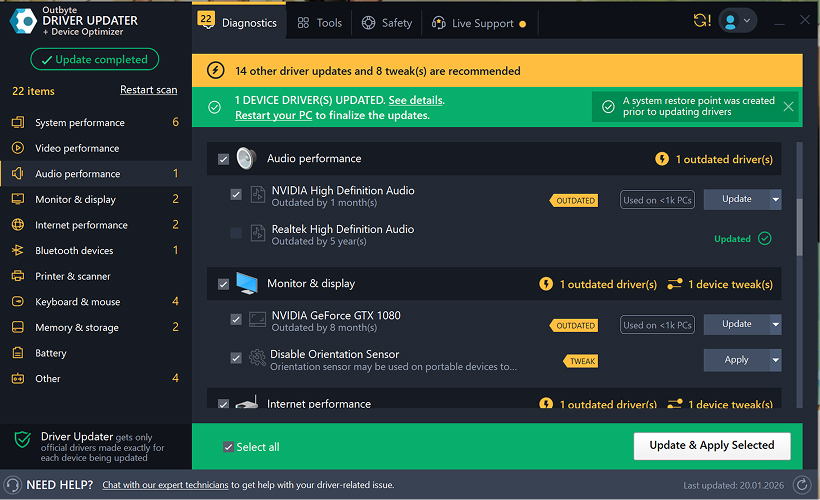
Güncellenen sürücünün doğru çalıştığından emin olmak için bilgisayarınızı yeniden başlatın.
Önemli Notlar
- Ücretsiz güncellemeler her seferinde bir sürücü için kullanılabilir.
- Ücretsiz güncelleme için kayıt gerekmez.
- Kredi kartı veya ödeme bilgisi istenmez.
- Tüm işlemler, sisteminizi taradıktan sonra program içinde yerel olarak gerçekleştirilir.
- Ücretsiz güncelleme kullanılabilirliği, sürücü tipine ve sistem yapılandırmasına bağlı olabilir.
Learn to pair your wireless mouse with a different USB receiver in simple steps. Check compatibility (e.g., Logitech Unifying receivers), install required software/drivers, and use pairing modes to sync devices. Troubleshoot connection issues and optimize performance for seamless use.
Simplify your workspace with Logitech Unifying Software, enabling effortless connection of up to six compatible devices through a single receiver. Enjoy quick setup, clutter-free connectivity, and enhanced productivity as your keyboard, mouse, and other peripherals work in perfect harmony.
Learn how to set up your Epson L3250 printer with this step-by-step guide. Unbox, install ink, connect to power, and download drivers via Epson’s website or included CD. Configure Wi-Fi settings for wireless printing and run a test page to ensure proper installation. Simplify your setup process and start printing effortlessly.
Transform your smartphone into an HD webcam with DroidCam. Enjoy wireless connectivity and seamless video streaming for crystal-clear video calls, live streams, or online meetings. Works with PC/Mac.
Learn how to enable Bluetooth on your PC in a few simple steps. Check compatibility, activate Bluetooth via Windows Settings or the system tray, pair your device, and troubleshoot common issues. This guide ensures seamless wireless connections for headphones, speakers, or peripherals.
Learn how to set up your Epson L3250 printer quickly and efficiently. This guide covers unboxing, installing ink cartridges, connecting to power, and configuring Wi-Fi for seamless wireless printing. Follow step-by-step instructions to install drivers, align the printer head, and troubleshoot common issues. Perfect for home or office use, the Epson L3250 ensures hassle-free installation and high-quality printing, scanning, and copying.
Download the latest Epson L3250 printer drivers and software to ensure seamless connectivity and optimal performance. Compatible with Windows and macOS, these tools enable easy setup, wireless printing, and advanced features. Visit the official Epson support page for secure, up-to-date downloads tailored to your operating system. Simplify installation and maximize your printer’s capabilities with reliable drivers and utilities.
Discover innovative strategies to amplify your message and connect deeply with audiences – no microphone needed. Harness the power of body language, visual storytelling, and creative platforms to make your voice heard in any setting.
The Valeton GP 100 Wah is a professional-grade guitar pedal designed for musicians seeking dynamic sound control and expressive tonal shaping. Featuring a responsive wah circuit, it delivers smooth, vintage-inspired sweeps and modern versatility for rock, funk, blues, and beyond. Built with durable components and an intuitive design, the GP 100 ensures reliable performance on stage or in the studio. Adjustable parameters and a true bypass switch provide seamless integration into any pedalboard setup, while its compact size maximizes space efficiency. Elevate your playing with rich, articulate wah effects tailored to your musical style.
Virtual CloneDrive offers effortless disc image mounting and virtual drive cloning, enabling you to access ISO, BIN, IMG, and other formats without physical media. Streamline workflows, run software, or backup data with a lightweight, user-friendly tool that integrates seamlessly into your system. Simplify disc management and enhance productivity—no hardware required.